

DNS Fundamentals: A Beginner-Friendly Guide for WordPress Users
DNS Fundamentals: A Beginner-Friendly Guide for WordPress Users
If you’ve ever launched a WordPress website and wondered how people actually reach it when they type your domain name into a browser, the answer lies in one critical system: Domain Name System (DNS). DNS is often described as the “phonebook of the internet,” but that analogy barely scratches the surface. Understanding DNS fundamentals can help you troubleshoot website issues, improve performance, and confidently manage your WordPress site.
What is DNS?
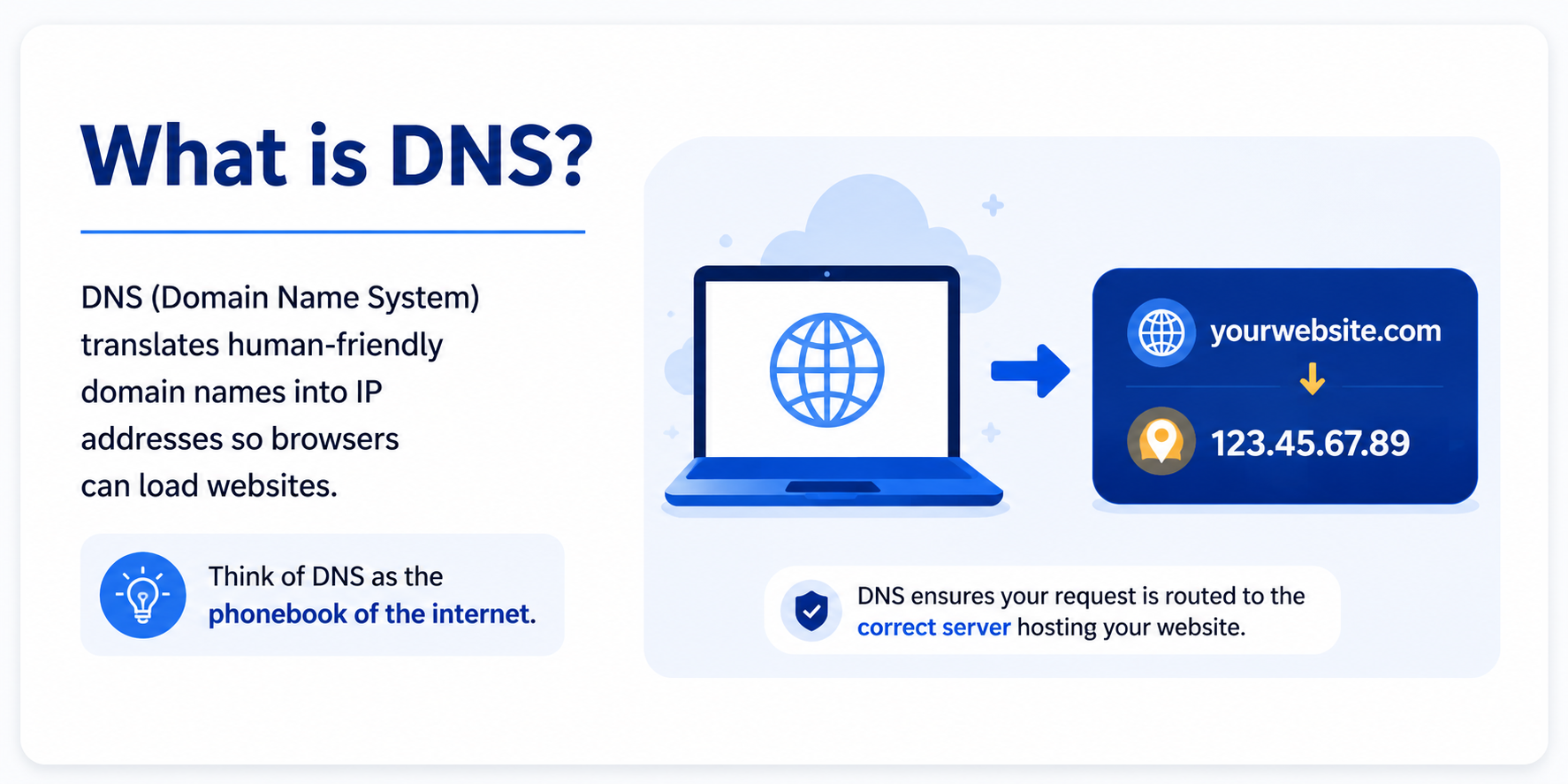
At its core, DNS translates human-friendly domain names (like yourwebsite.com) into machine-friendly IP addresses (like 123.45.67.89). Computers communicate using IP addresses, not names—so DNS acts as the bridge between users and servers. When someone types your website URL into their browser, DNS ensures the request is routed to the correct server hosting your WordPress site.
How DNS Works (Step-by-Step)
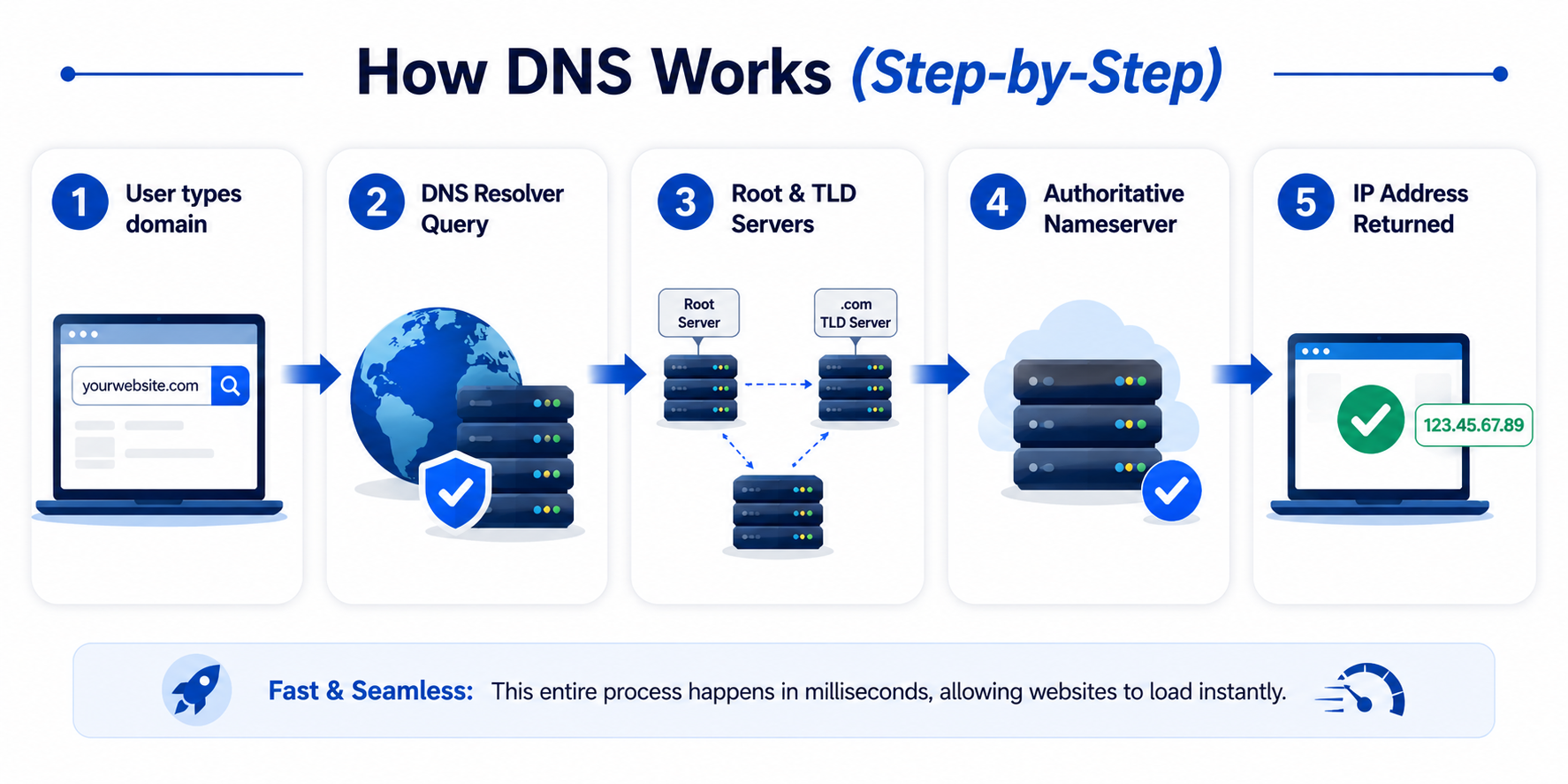
Here’s a simplified breakdown of what happens behind the scenes:
A user enters your domain in their browser.
The browser queries a DNS resolver (usually provided by the ISP).
The resolver checks if it already knows the IP address (cached).
If not, it queries Root servers, TLD (Top-Level Domain) servers (like
.com,.org), and Authoritative name servers.The correct IP address is returned.
The browser connects to the server and loads your website.
This entire process typically happens in milliseconds.
Key DNS Components You Should Know
If you’re managing a WordPress website, understanding a few basic DNS components can save you a lot of time and confusion. Don’t worry—these concepts are simpler than they sound once broken down.
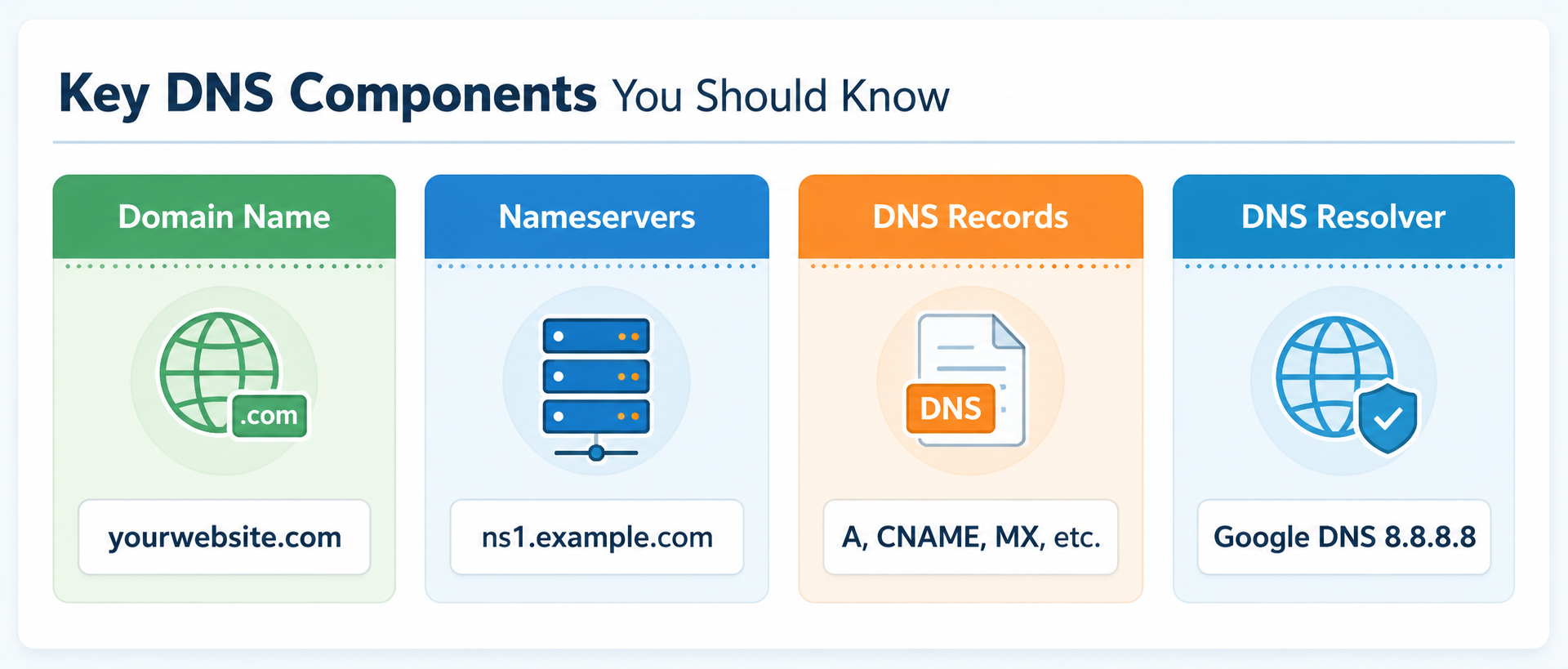
1. Domain Name
A domain name is your website’s address—like yourwebsite.com. It’s what people type into their browser to visit your site. Behind the scenes, your website actually lives on a server with a numeric IP address (like 123.45.67.89). Since numbers are hard to remember, domain names make things user-friendly. You can buy a domain from providers like GoDaddy or Namecheap. A domain name doesn’t store your website—it just points to where your website is hosted.
Example
When someone types yourwebsite.com, it gets converted into something like 123.45.67.89. This is how the browser finds your website.
2. Nameservers
Nameservers decide where your DNS settings are managed. Think of them as the place where all your domain’s instructions are stored. When someone visits yourwebsite.com, the internet first checks your nameservers and then retrieves the correct DNS records from there to load your website. It’s important to know that only one set of nameservers can be active at a time, which means your DNS is controlled entirely by whichever provider those nameservers belong to. So, when you change nameservers, you’re essentially shifting control of your DNS from one provider to another.
Example
If you’re using your hosting provider:
ns1.hostingcompany.comns2.hostingcompany.com
If you’re using Cloudflare:
abby.ns.cloudflare.commark.ns.cloudflare.com
In this case, all your DNS settings are now managed in Cloudflare instead of your hosting provider. Because nameservers control where your DNS is managed, setting them up incorrectly can temporarily make your website inaccessible until the issue is fixed.
3. DNS Records
DNS records are the actual settings that tell the internet what to do with your domain—like where your website is hosted or how emails are handled. Since these records directly control how your site and email function, even a small mistake can cause your website to go down or emails to stop working, so it’s important to double-check any changes you make.
Most Important Records
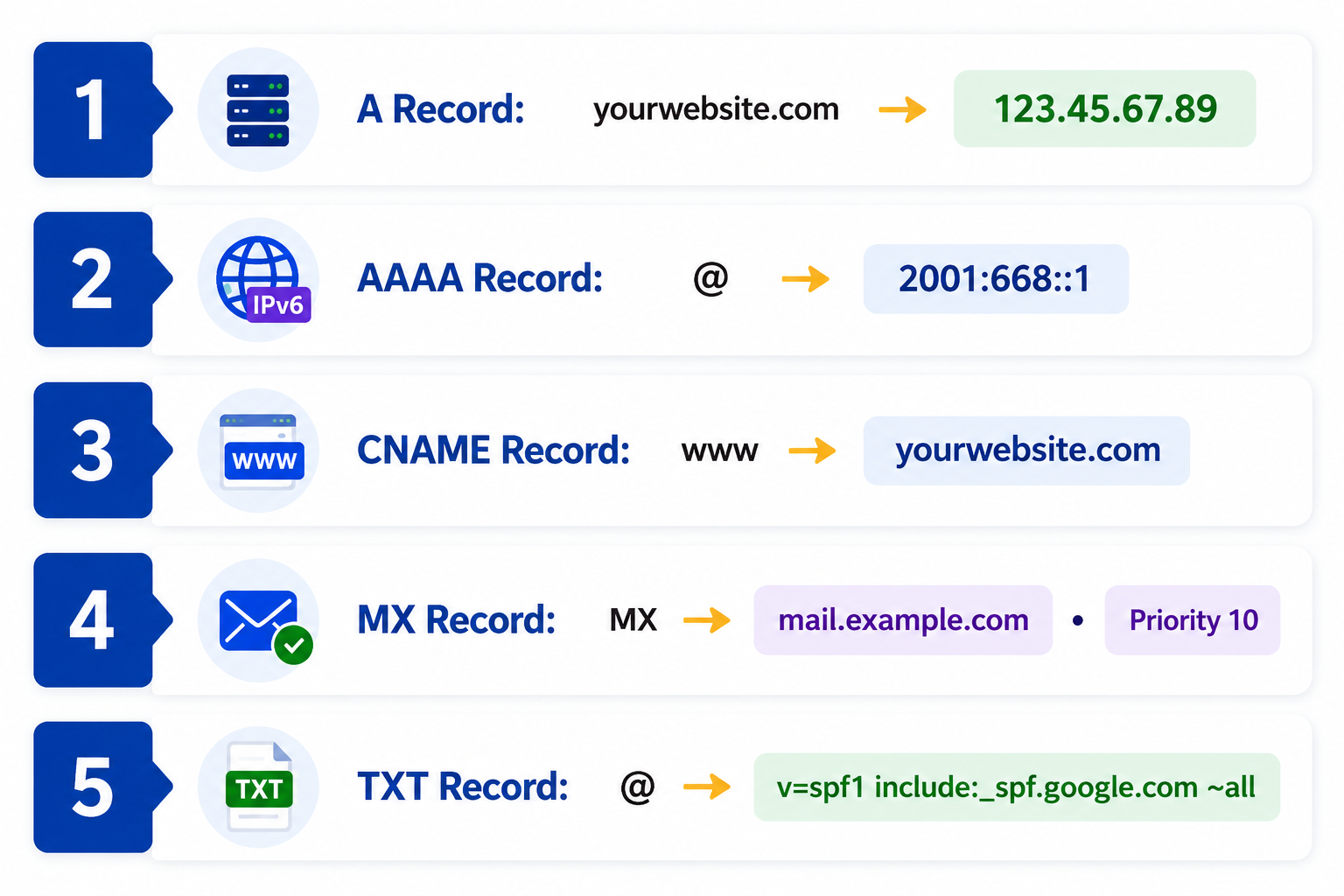
A Record → Connects your domain to your server IP
AAAA Record → Same as A record, but for IPv6
CNAME Record → Redirects one domain to another
MX Record → Handles email delivery
TXT Record → Used for verification and security
4. DNS Resolver
A DNS resolver is what starts the whole process. It takes your request for yourwebsite.com and finds the correct IP address so your browser can load the website. It works quietly in the background every time you visit a site, and using a faster or more reliable resolver can actually improve your browsing speed and security.
How It Works (Simple Flow)
You type
yourwebsite.comResolver checks if it already knows the IP
If not, it looks it up
Returns the correct IP
Website loads
Popular DNS Resolvers
Google Public DNS →
8.8.8.8Cloudflare →
1.1.1.1
Why DNS Matters for WordPress
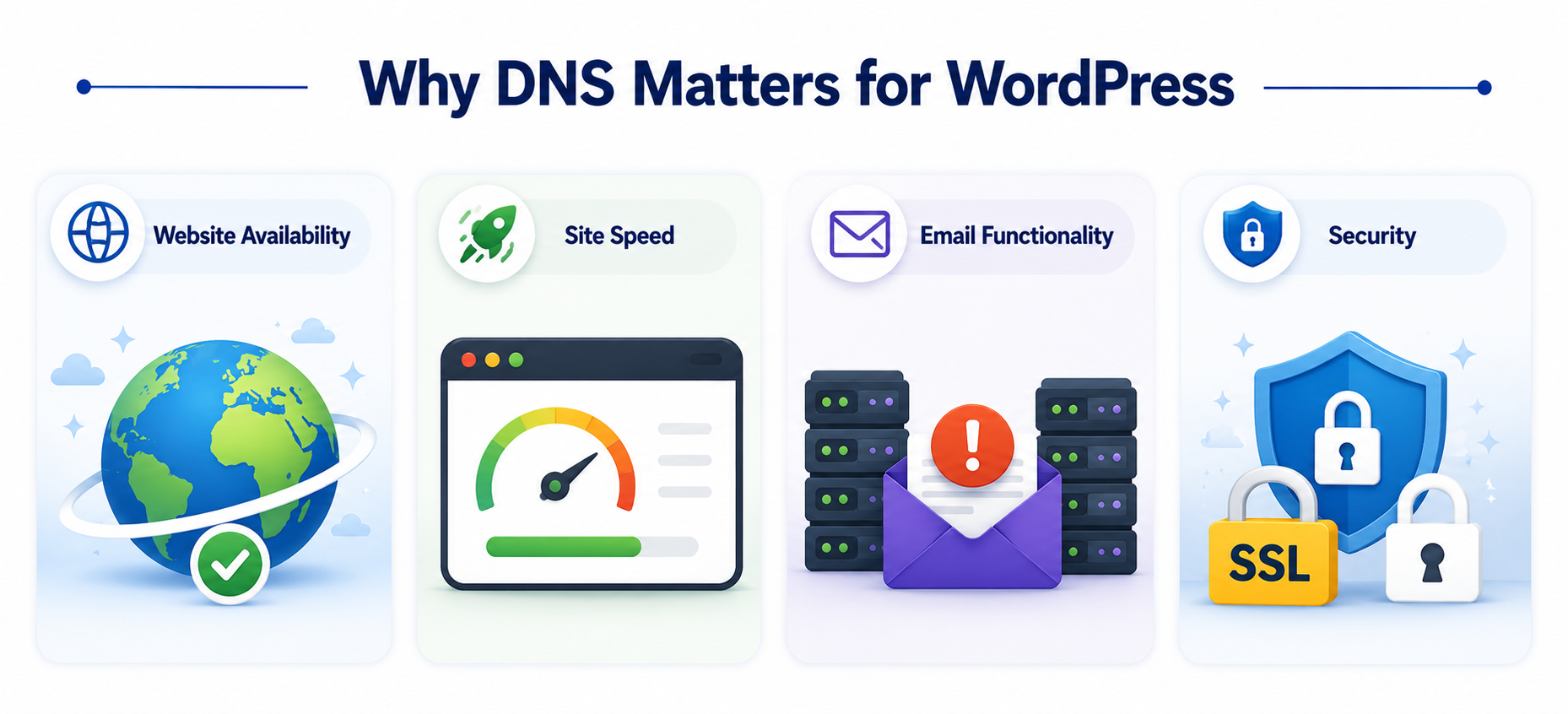
If you’re running a WordPress site, DNS plays a direct role in website availability, site speed, email functionality, and security. If DNS is misconfigured, your site won’t load - even if your hosting is perfectly fine. DNS resolution time also affects how quickly your site begins loading, and using optimized providers like Cloudflare can reduce latency. Incorrect MX records can break your email setup, especially if you’re using services like Google Workspace. DNS is also a layer where security can be implemented through tools like DNSSEC and firewall rules.
Common DNS Issues (and Fixes)
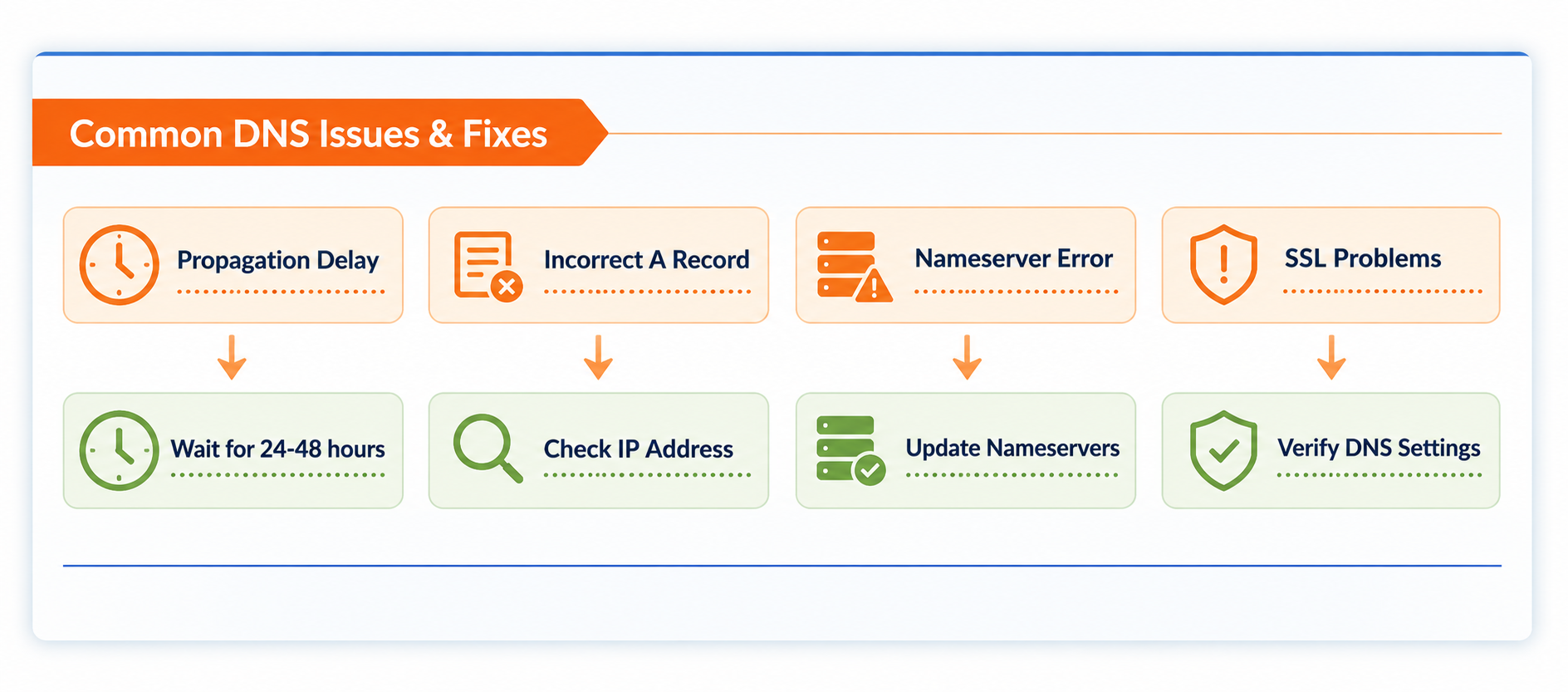
1. DNS Propagation Delay
When you update DNS records, changes don’t reflect instantly worldwide. This is called propagation and can take up to 24-48 hours.
Fix: Wait or reduce TTL (Time To Live) before making changes.
2. Incorrect A Record
If your A record points to the wrong IP, your website won’t load.
Fix: Verify the correct IP from your hosting provider.
3. Nameserver Misconfiguration
Switching hosting providers but forgetting to update nameservers is a common issue.
Fix: Ensure nameservers match your DNS provider.
4. SSL Not Working
Sometimes DNS misconfigurations prevent SSL certificates from being issued.
Fix: Ensure your domain points correctly before installing SSL.
DNS Setup Options for WordPress
When setting up your WordPress site, DNS configuration plays a critical role in ensuring your website is fast, secure, and always accessible. The good news is that with HighLevel, you don’t have to deal with the usual DNS complexity.
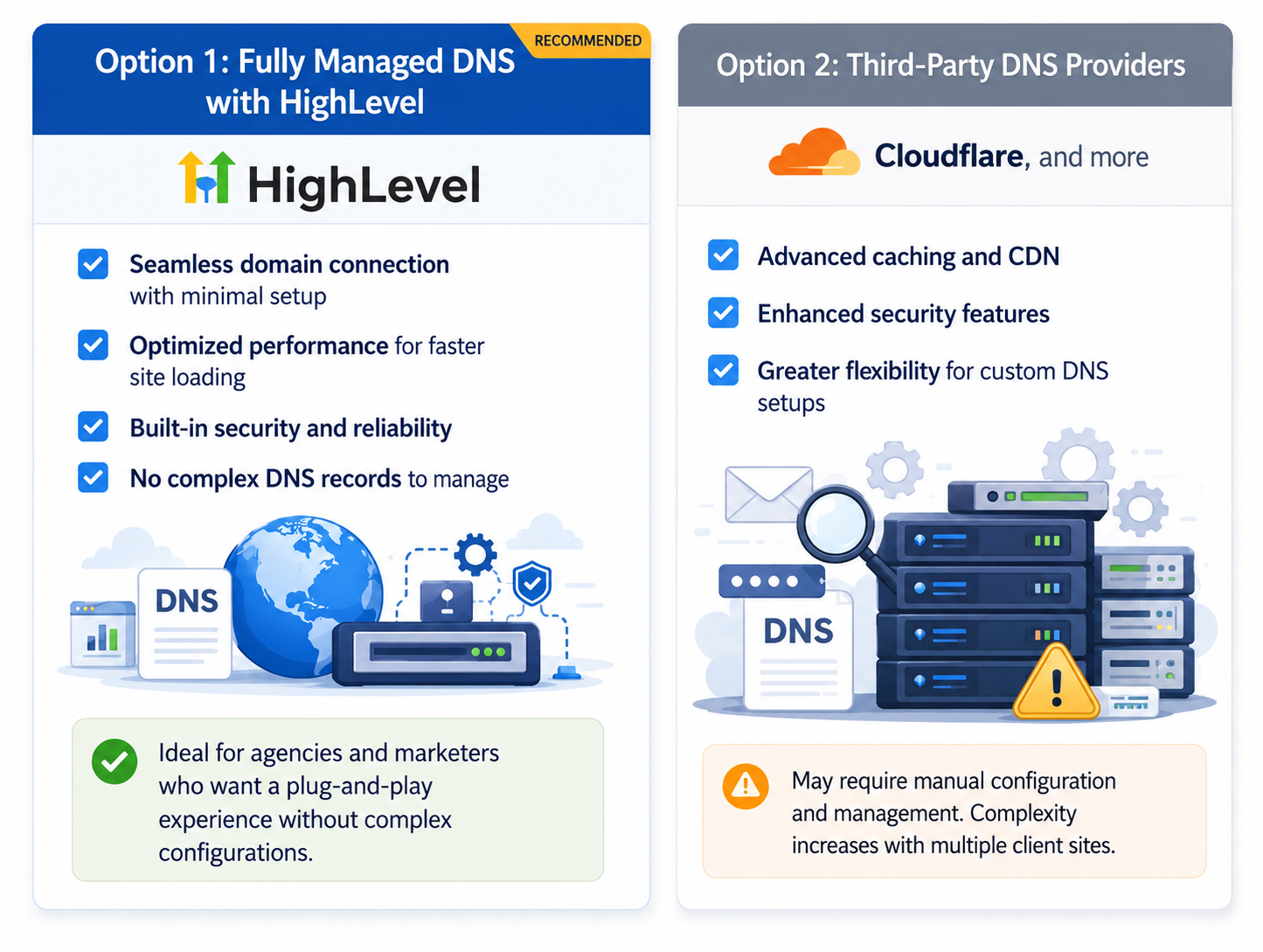
Option 1: Fully Managed DNS with HighLevel (Recommended)
With HighLevel’s fully integrated WordPress hosting, DNS management is built right into the platform—so you can focus on growing your business instead of handling technical configurations.
What You Get
Seamless domain connection with minimal setup
Optimized performance for faster site loading
Built-in security and reliability
No need to manually configure complex DNS records
This is ideal for agencies and marketers who want a plug-and-play experience without worrying about backend infrastructure.
Option 2: Third-Party DNS Providers
Some users prefer using external DNS providers like Cloudflare for additional control and advanced configurations.
Benefits Include
Advanced caching and CDN capabilities
Enhanced security features
Greater flexibility for custom DNS setups
However, this approach may require manual configuration and ongoing management, which can add complexity - especially if you’re managing multiple client sites.
Why HighLevel Stands Out
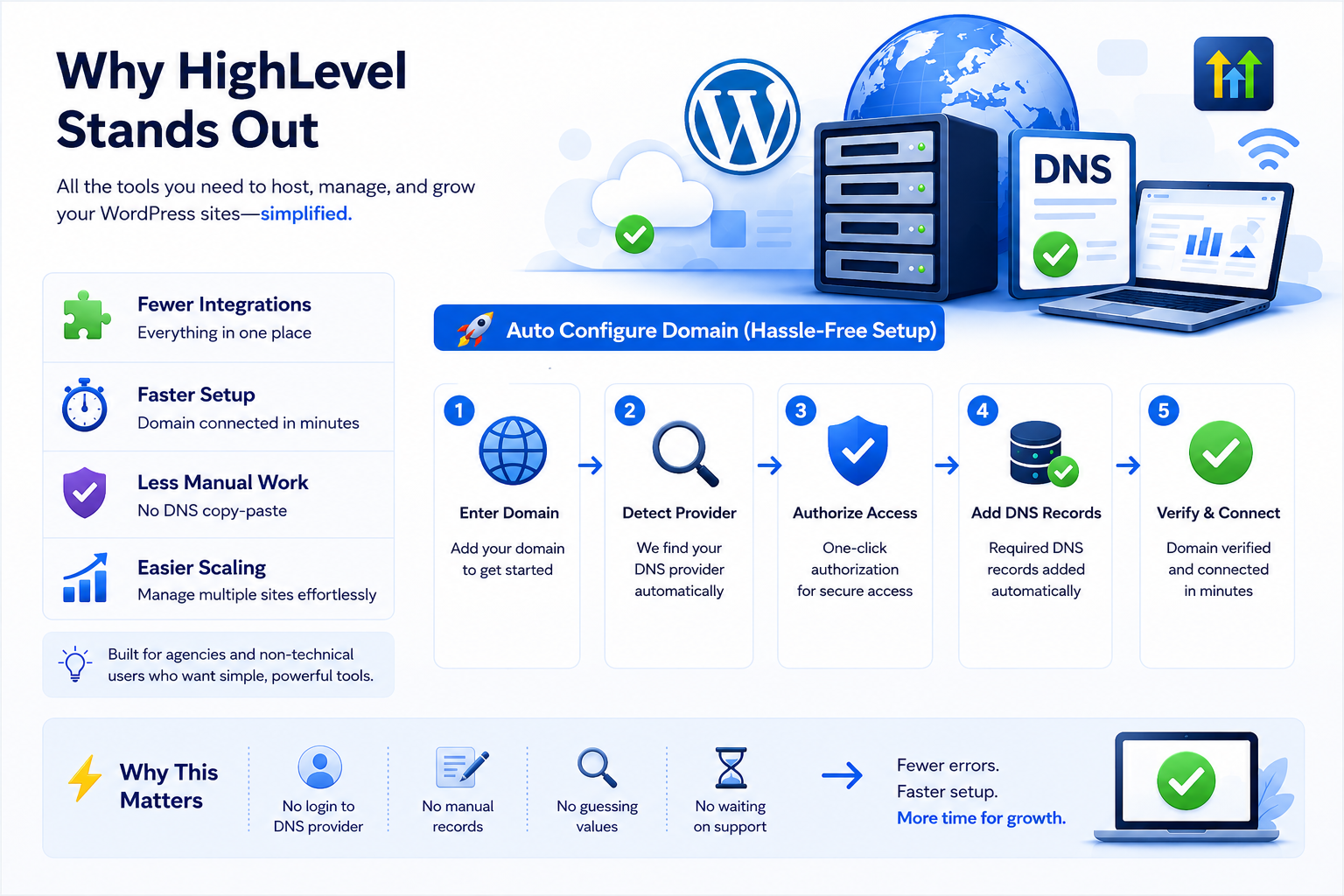
Unlike traditional hosting setups, HighLevel combines WordPress hosting, DNS, and marketing tools into a single platform—making domain setup much simpler and faster. One of the biggest advantages is the Auto Configure Domain feature, which removes the need for manual DNS setup.
Auto Configure Domain (Hassle-Free Setup)
Instead of manually adding DNS records, HighLevel can automatically handle the process for you in just a few clicks.
Here’s How It Works
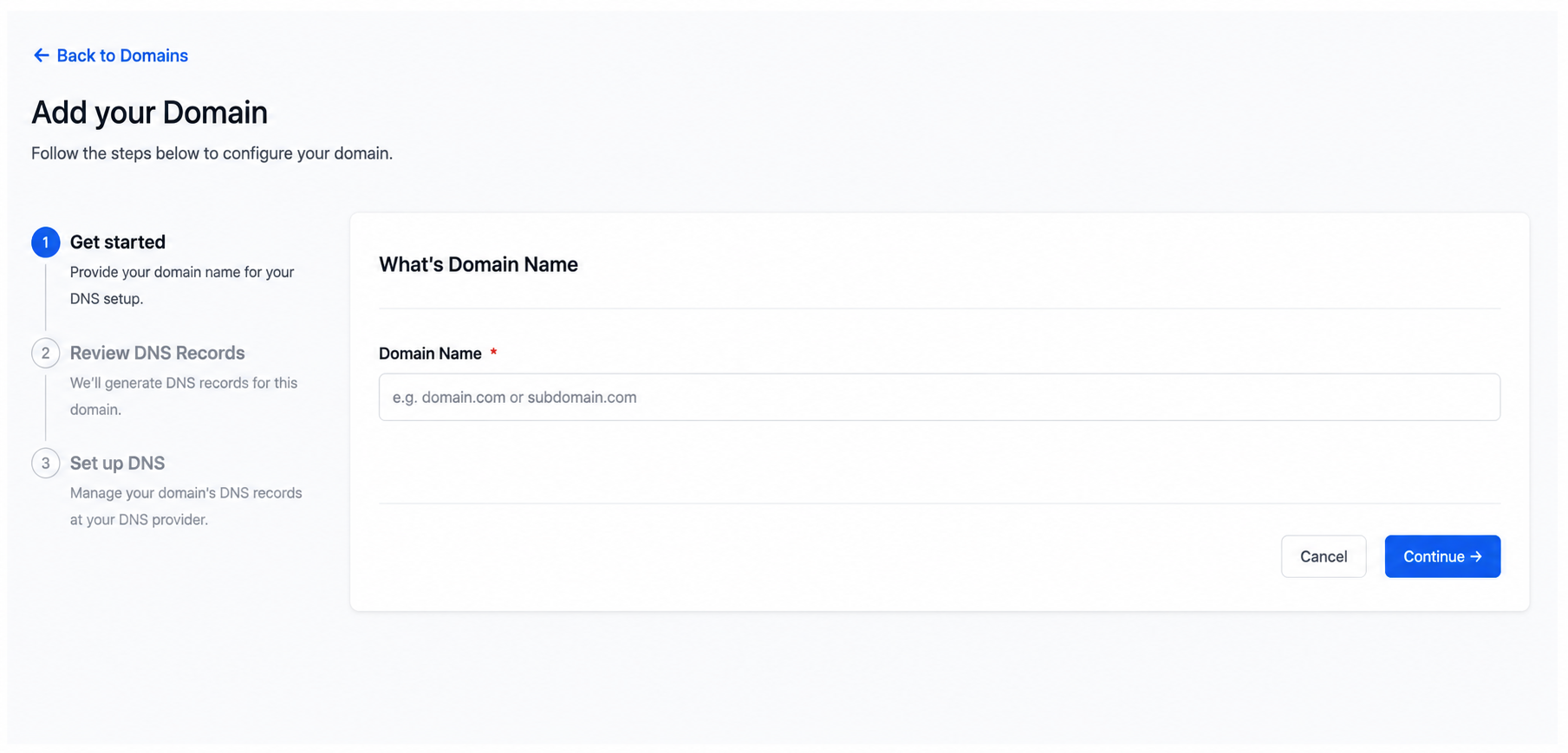
Enter Your Domain
Simply add your domain (e.g., yourwebsite.dentistsnear.me) inside the platform.
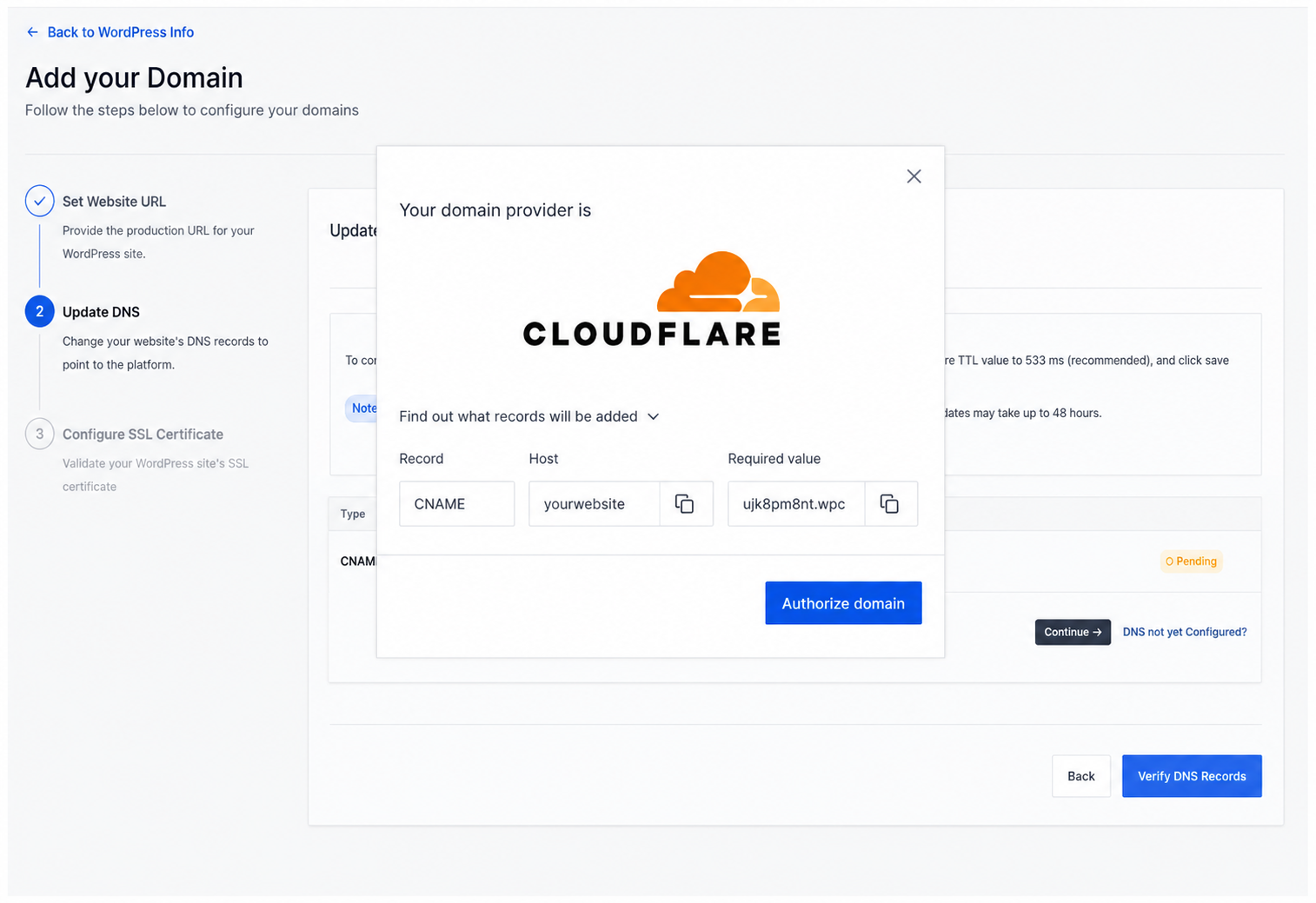
Auto-Detect DNS Provider
HighLevel identifies your DNS provider (like Cloudflare) automatically.
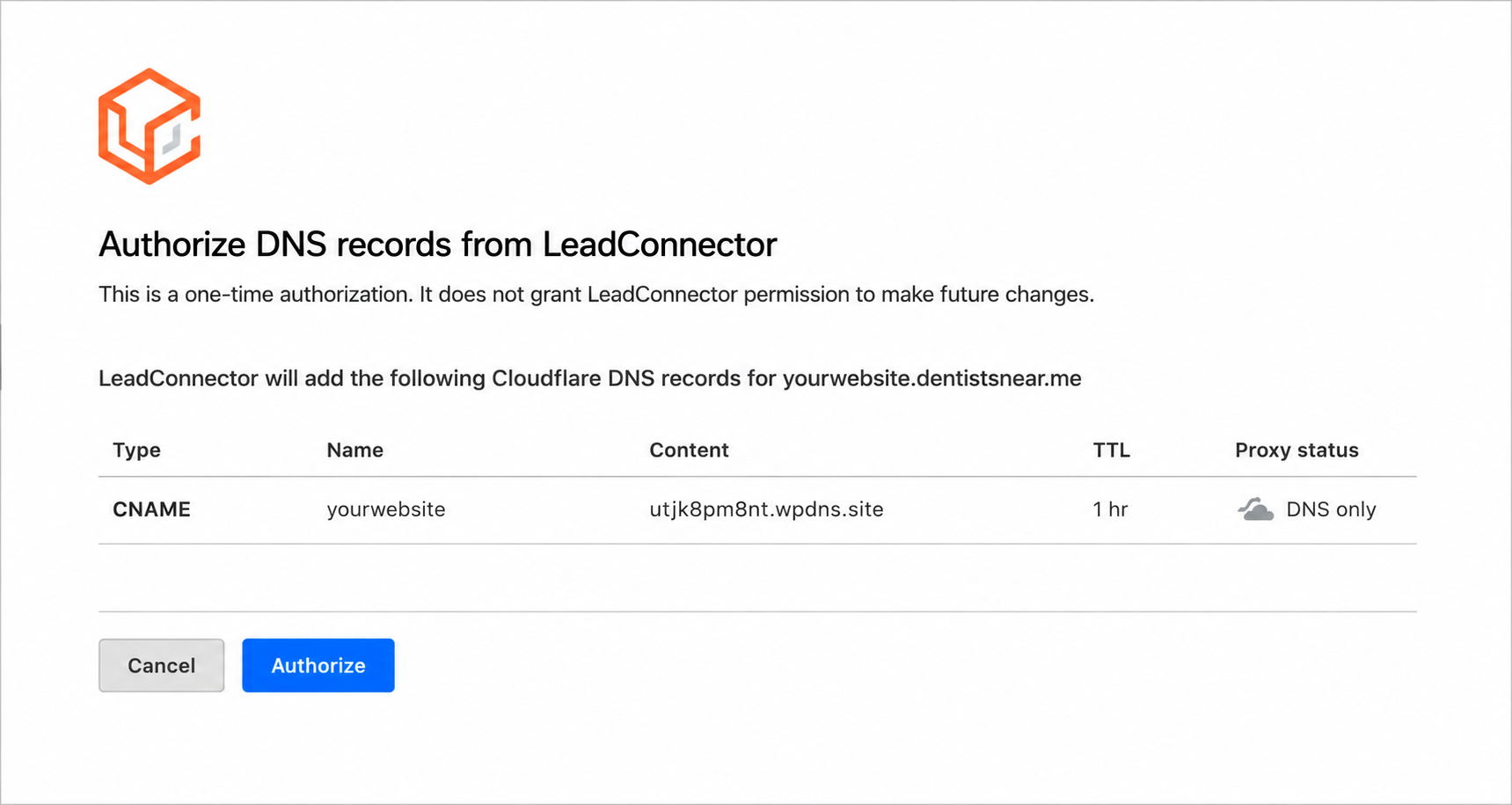
One-Click Authorization
You’ll be prompted to authorize access. This is a one-time secure action, allowing HighLevel to add the required DNS records on your behalf.
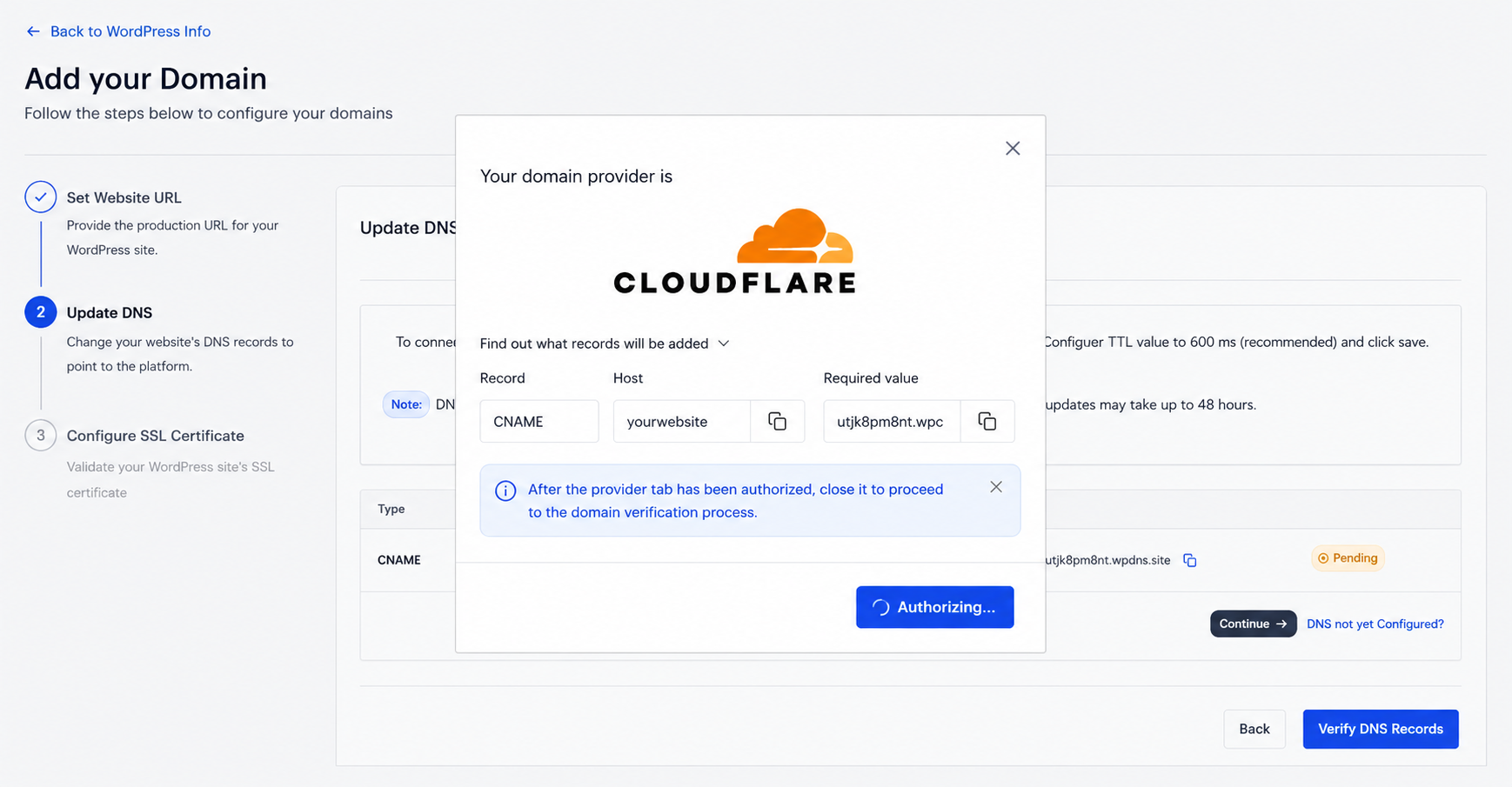
Automatic Record Setup
Required records (like CNAME or A record) are added instantly—no need to copy-paste values or worry about mistakes.
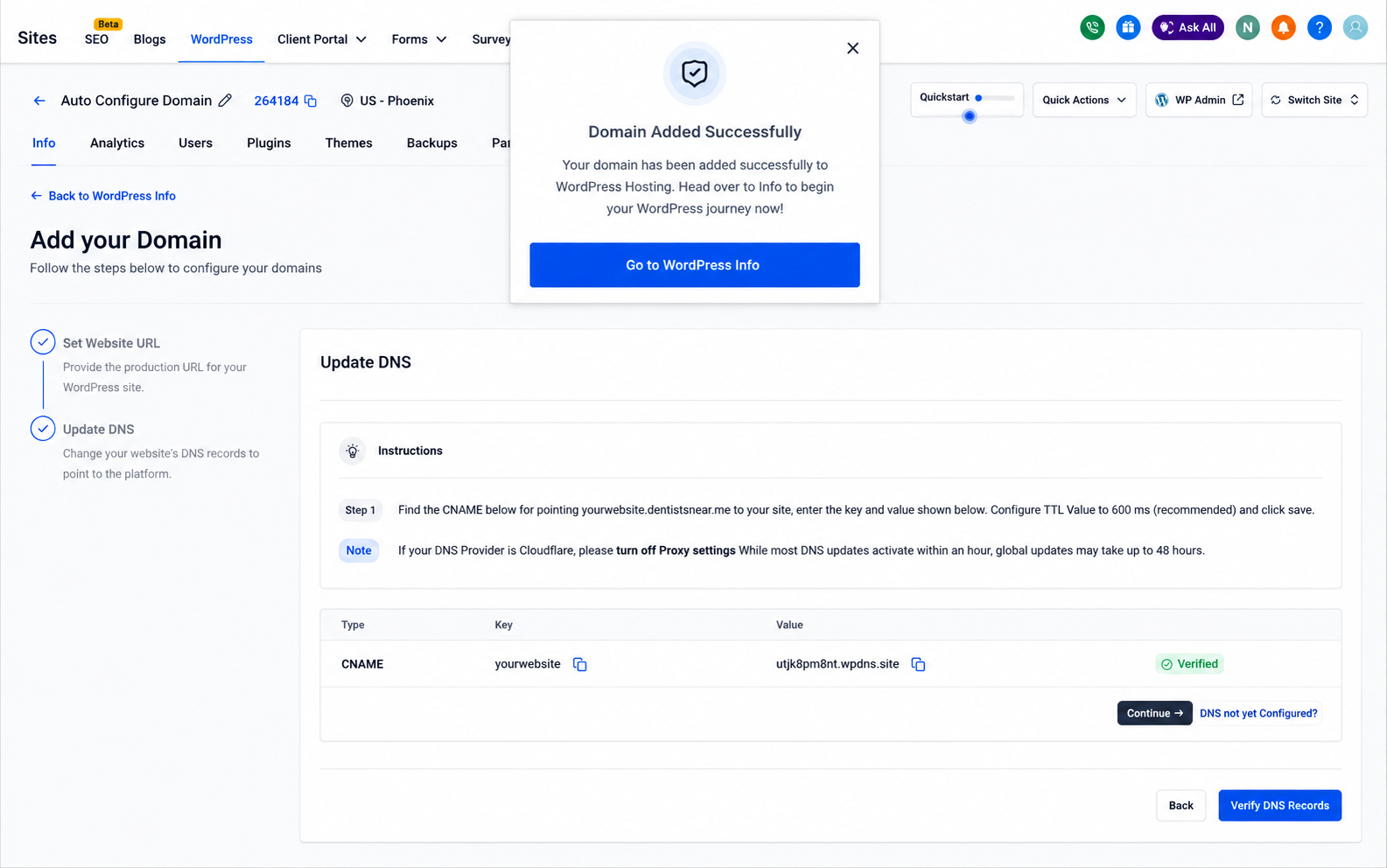
Verification & Completion
Once configured, your domain is verified and connected to your WordPress site within minutes.
Why This Matters
With traditional setups, you would need to log in to your DNS provider, manually add records, double-check values, wait, and troubleshoot errors. With HighLevel’s auto configuration, this entire process is streamlined—reducing the chances of misconfiguration that could otherwise break your website or delay setup.
Key Benefits
Fewer integrations → Everything managed in one place
Faster setup → Domain connected in minutes
Less room for error → No manual DNS handling
Better scalability → Easily manage multiple client domains
This makes HighLevel especially useful for agencies and non-technical users who want a plug-and-play WordPress + DNS experience without dealing with the usual complexity.
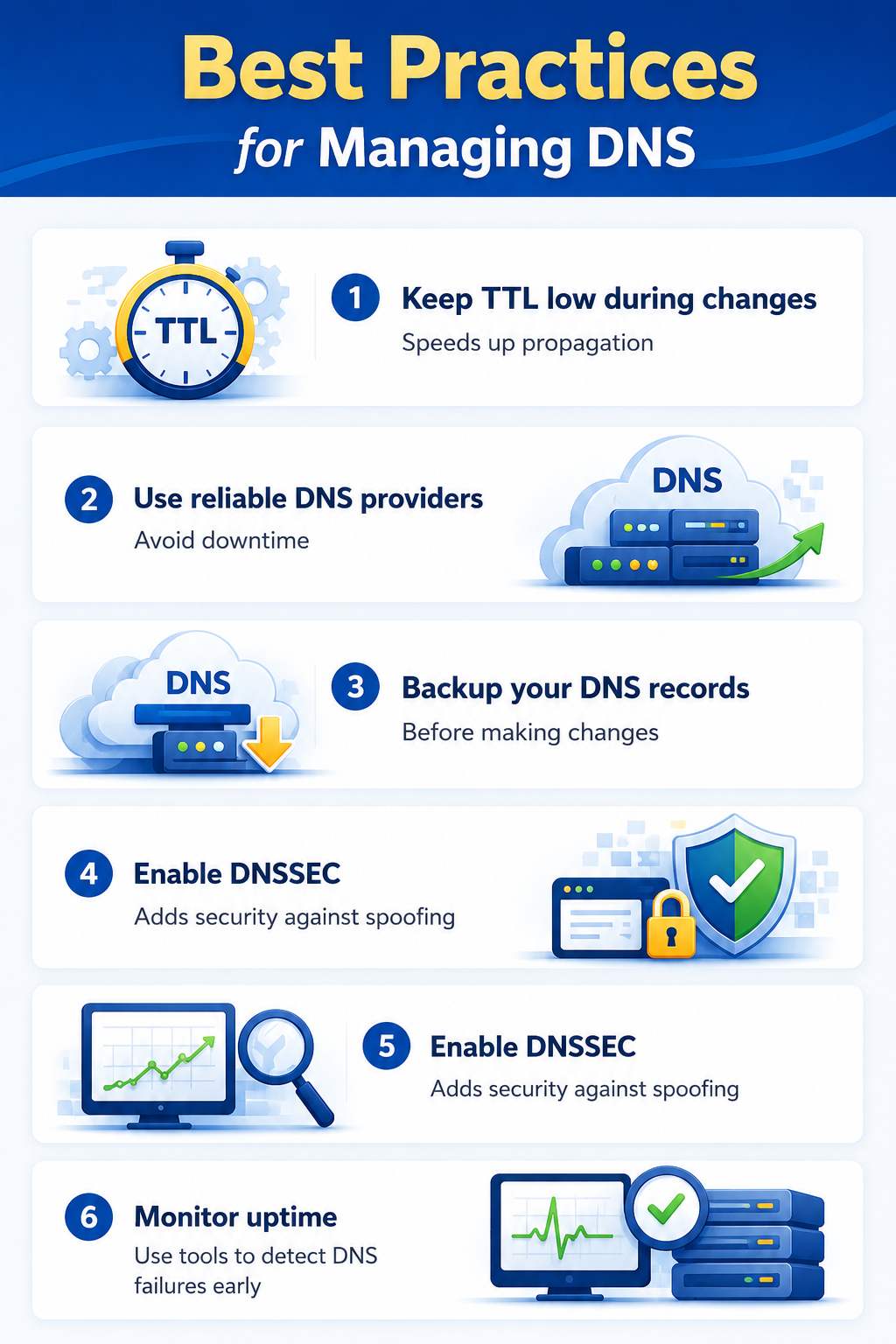
Best Practices for Managing DNS
Keep TTL low during changes → Speeds up propagation
Use reliable DNS providers → Avoid downtime
Backup your DNS records → Before making changes
Enable DNSSEC → Adds security against spoofing
Monitor uptime → Use tools to detect DNS failures early
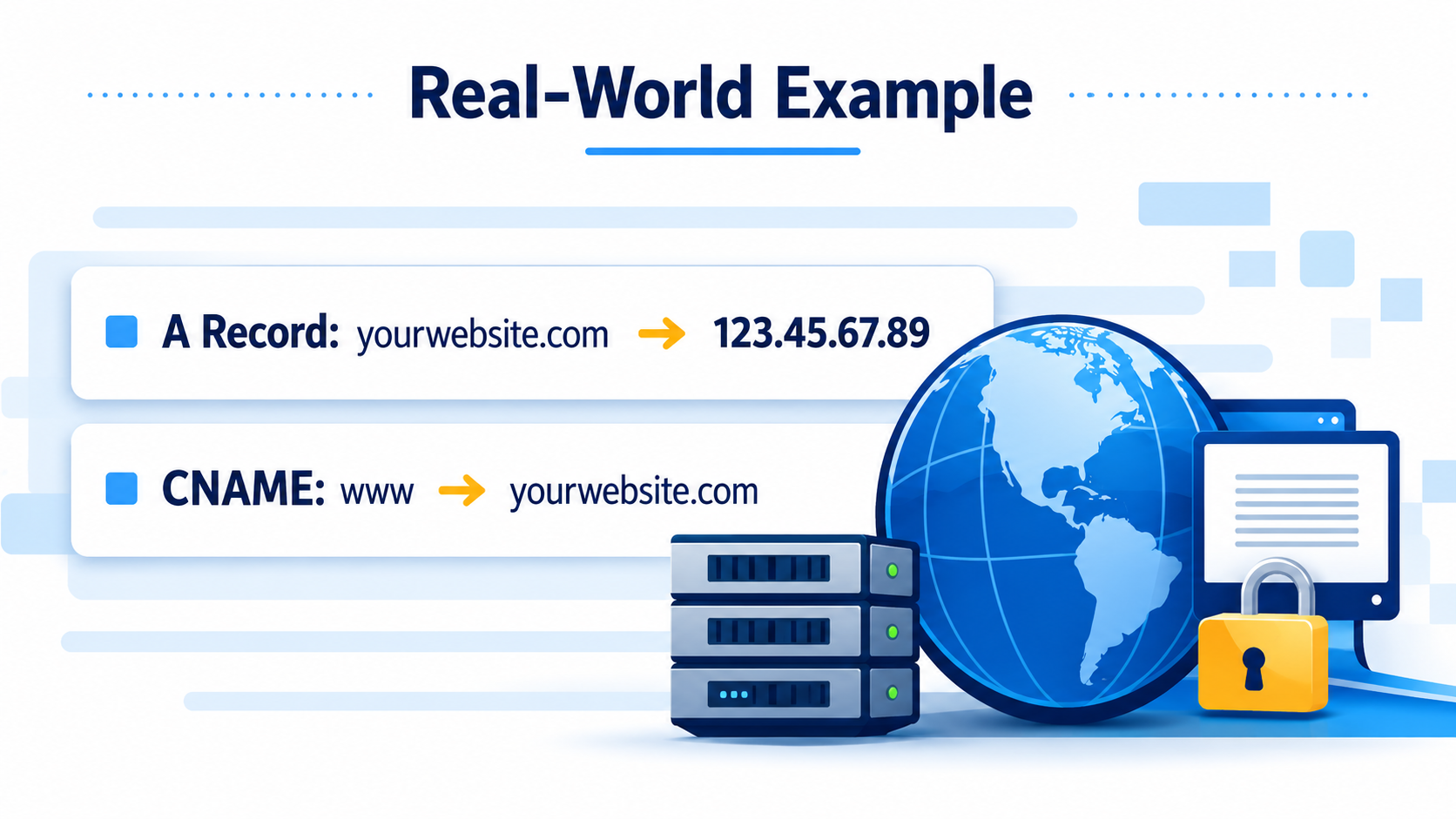
Real-World Example
Let’s say your WordPress site is hosted on a server with IP 123.45.67.89.
You would:
Set an A record pointing
yourwebsite.com→123.45.67.89Add a CNAME record for
www→yourwebsite.com
Once DNS propagates, your site becomes accessible globally.
Final Thoughts
DNS might seem technical at first, but once you understand the basics, it becomes much easier to manage your WordPress site effectively. Whether you’re troubleshooting downtime, improving speed, or setting up email, DNS is always part of the equation. Think of DNS as the invisible system quietly ensuring your website is reachable, fast, and secure. Mastering it gives you a strong foundation for managing any online presence.
Ready to simplify WordPress hosting, DNS management, and domain setup in one place? Explore HighLevel WordPress Hosting and get started today.


