
Migrate a WordPress Site Without Downtime Using HighLevel
A Beginner-Friendly Guide to Smooth Website Migration
Migrating a WordPress website can feel overwhelming - especially if your business depends on your website staying online 24/7.
Many website owners worry about:
“Will my website go down?”
“Will I lose SEO rankings?”
“What if something breaks?”
“Will customers still be able to access my site?”
The good news is - A WordPress site can be migrated with little to no downtime when done correctly.
In this guide, we’ll walk through:
What causes downtime during migration
How to migrate safely
Common mistakes to avoid
How HighLevel simplifies WordPress migrations using the LC Migrator Plugin and White-Glove Migration Assistance
Why Downtime Happens During Website Migration
Website downtime usually occurs when:
DNS settings are updated incorrectly
Website files are incomplete
Databases fail during transfer
SSL certificates are not configured
Hosting environments are not tested beforehand
Even a few minutes of downtime can impact:
Customer trust
SEO rankings
Lead generation
Online sales
That’s why having a proper migration process matters.
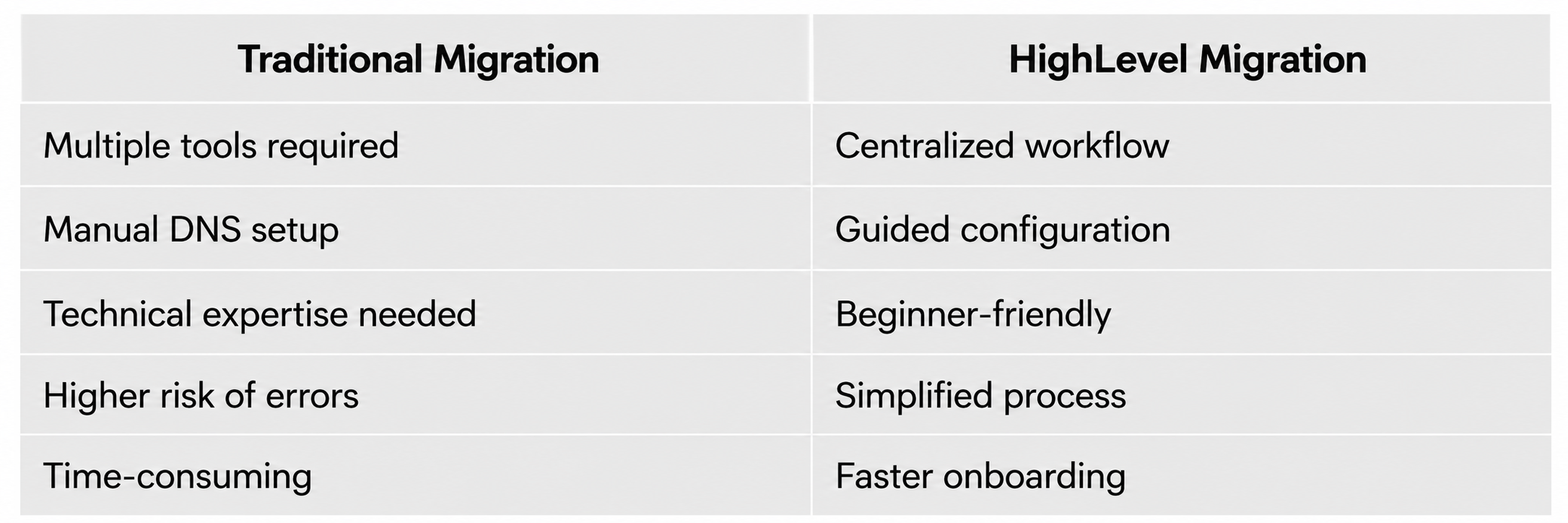
Traditional WordPress Migration Can Be Complicated
A traditional migration often involves:
Downloading website files manually
Exporting/importing databases
Using FTP tools
Updating DNS records
Configuring SSL certificates
Troubleshooting plugin conflicts
For beginners, this can quickly become technical and time-consuming.
This is where HighLevel simplifies the process.
Migrate Your Sites Using LC Migrator & White-Glove Migration Assistance
HighLevel provides two migration options depending on your needs:
1. LC Migrator Plugin
A fast, self-service migration option.
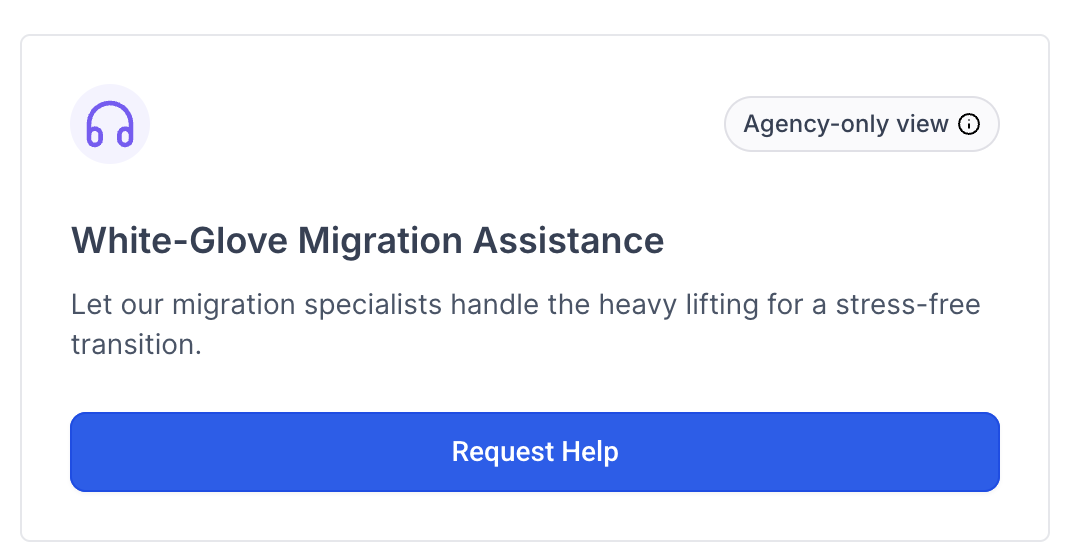
2. White-Glove Migration Assistance
A fully managed migration experience with free White-Glove Migration Assistance handled by migration experts.
HighLevel Migration Dashboard
Below is the migration dashboard inside HighLevel where users can choose their preferred migration method.
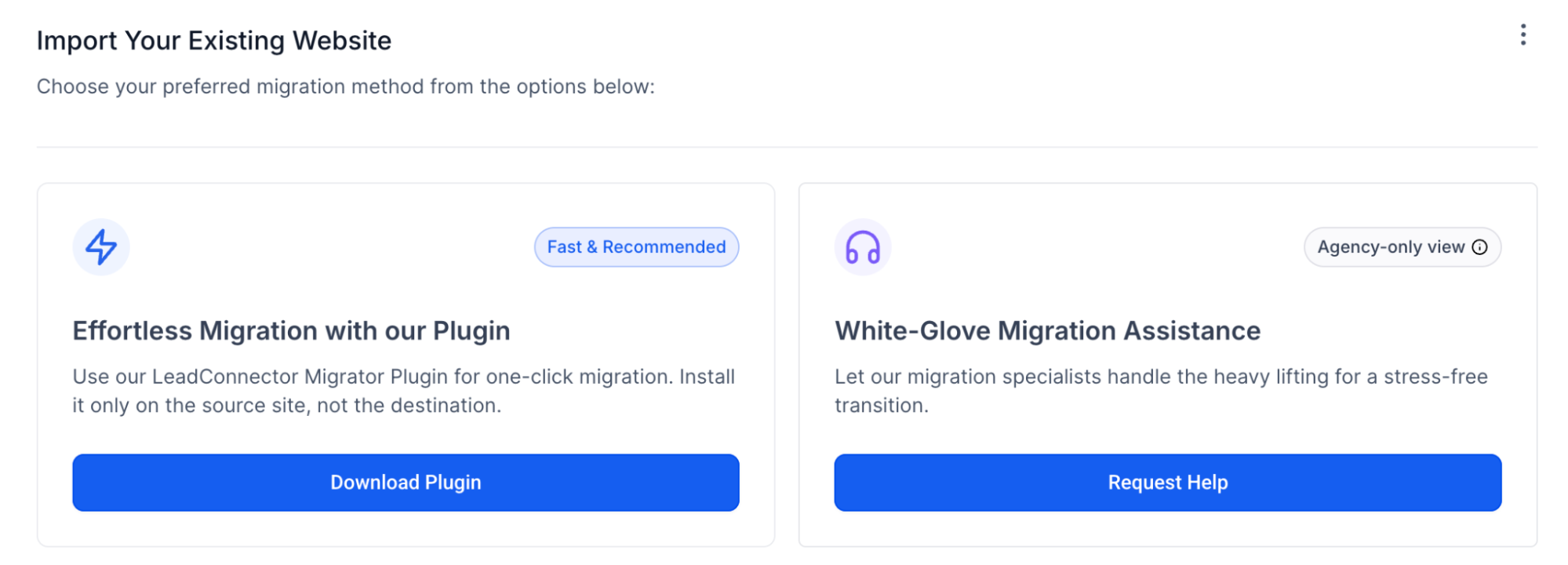
The dashboard is designed to keep migrations simple and beginner-friendly.
Option 1: Effortless Migration with LC Migrator Plugin
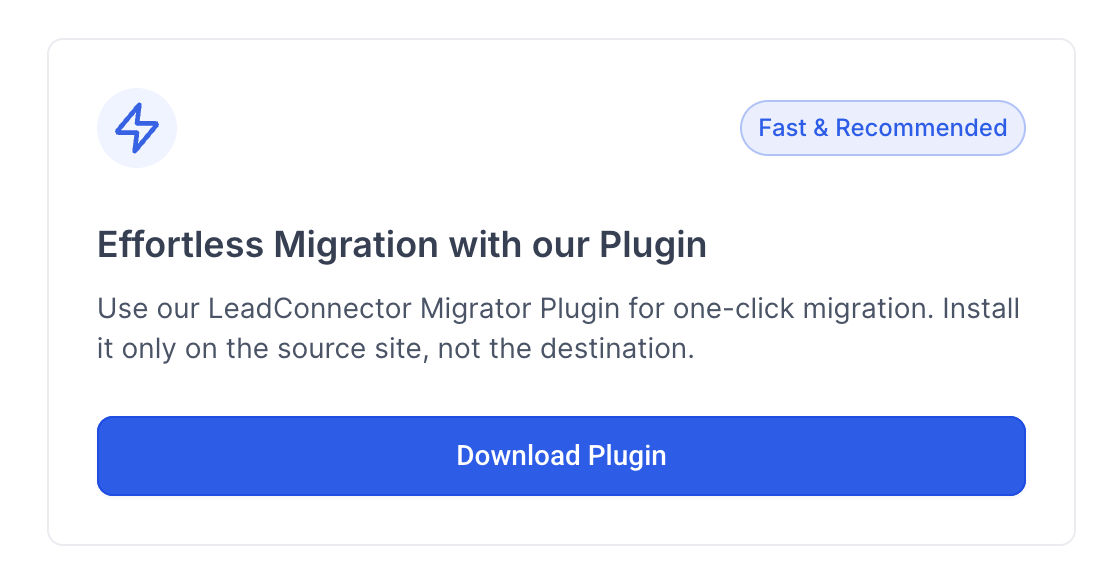
The LC Migrator Plugin is the fastest and most recommended option for most users.
It helps automate the migration process without requiring advanced technical knowledge.
How the LC Migrator Plugin Works
Step 1: Download & Install the Plugin
Inside the migration dashboard, click Download Plugin and install it on your source WordPress website.
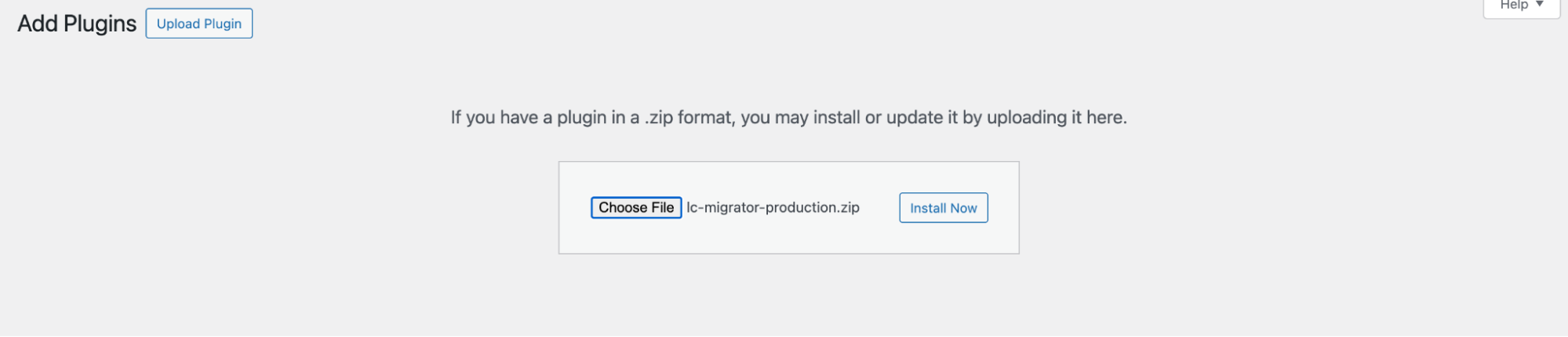
Step 2: Connect Your Destination Site
The plugin securely connects your current WordPress site with your new HighLevel hosting environment.
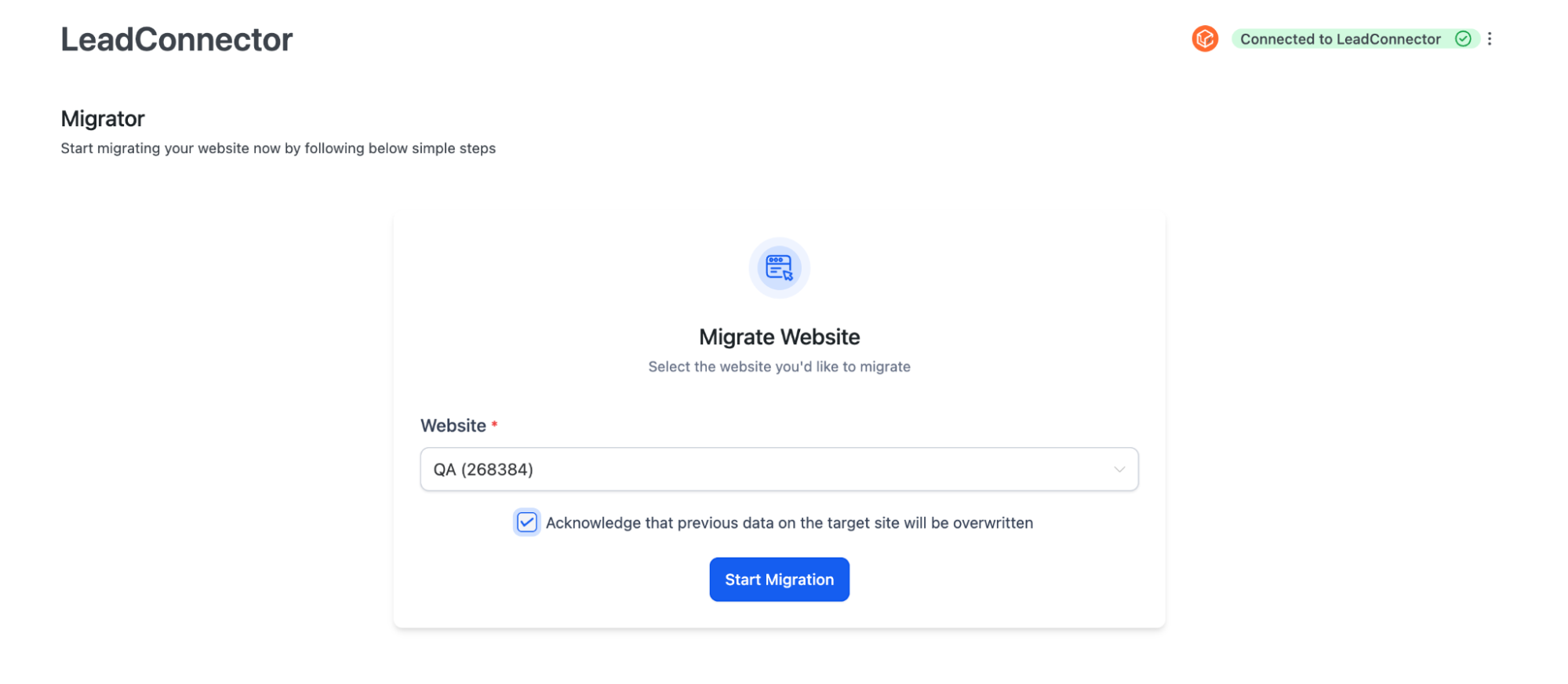
Step 3: Start Migration
The plugin automatically transfers:
Website files
Themes
Plugins
Media uploads
WordPress database
This removes much of the manual work involved in traditional migrations.
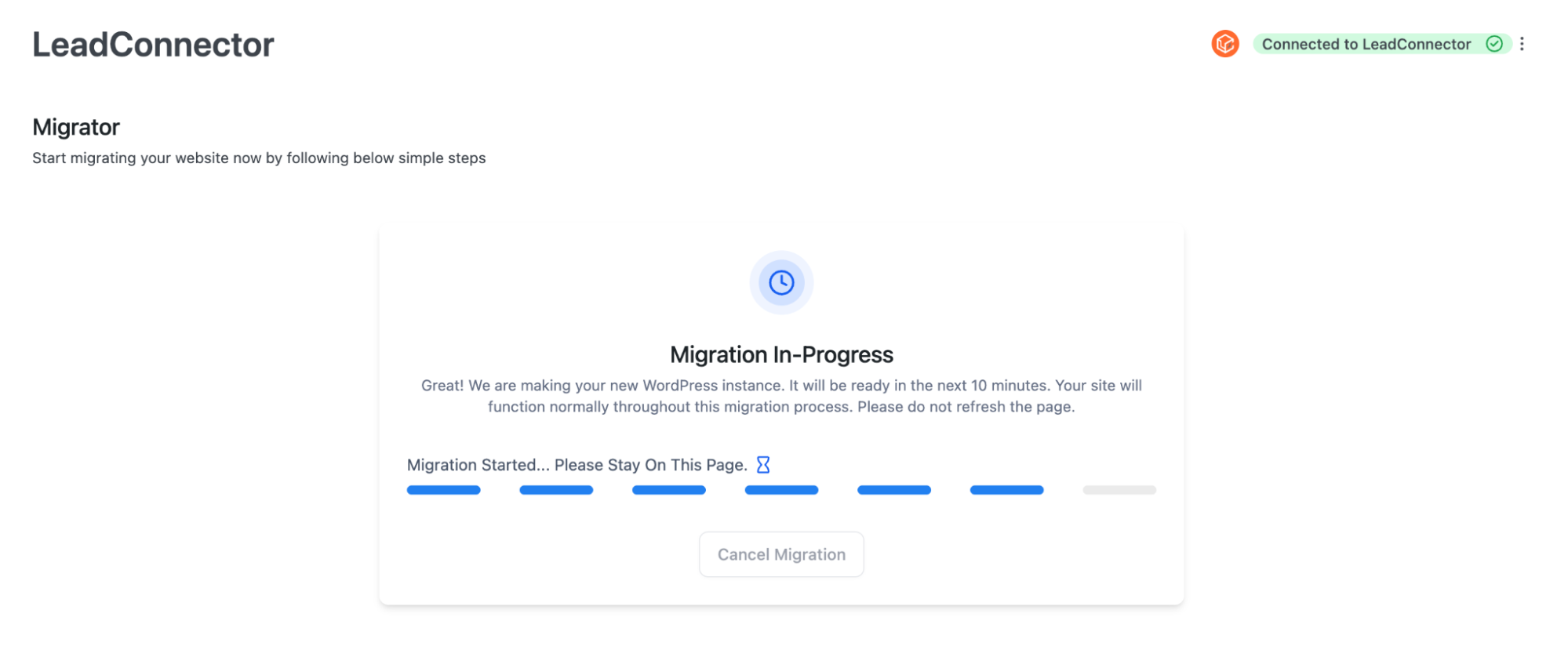
Step 4: Test Before Going Live
Before switching domains:
Test website pages
Verify forms
Check images
Confirm plugins are functioning correctly
This step helps avoid downtime after launch.
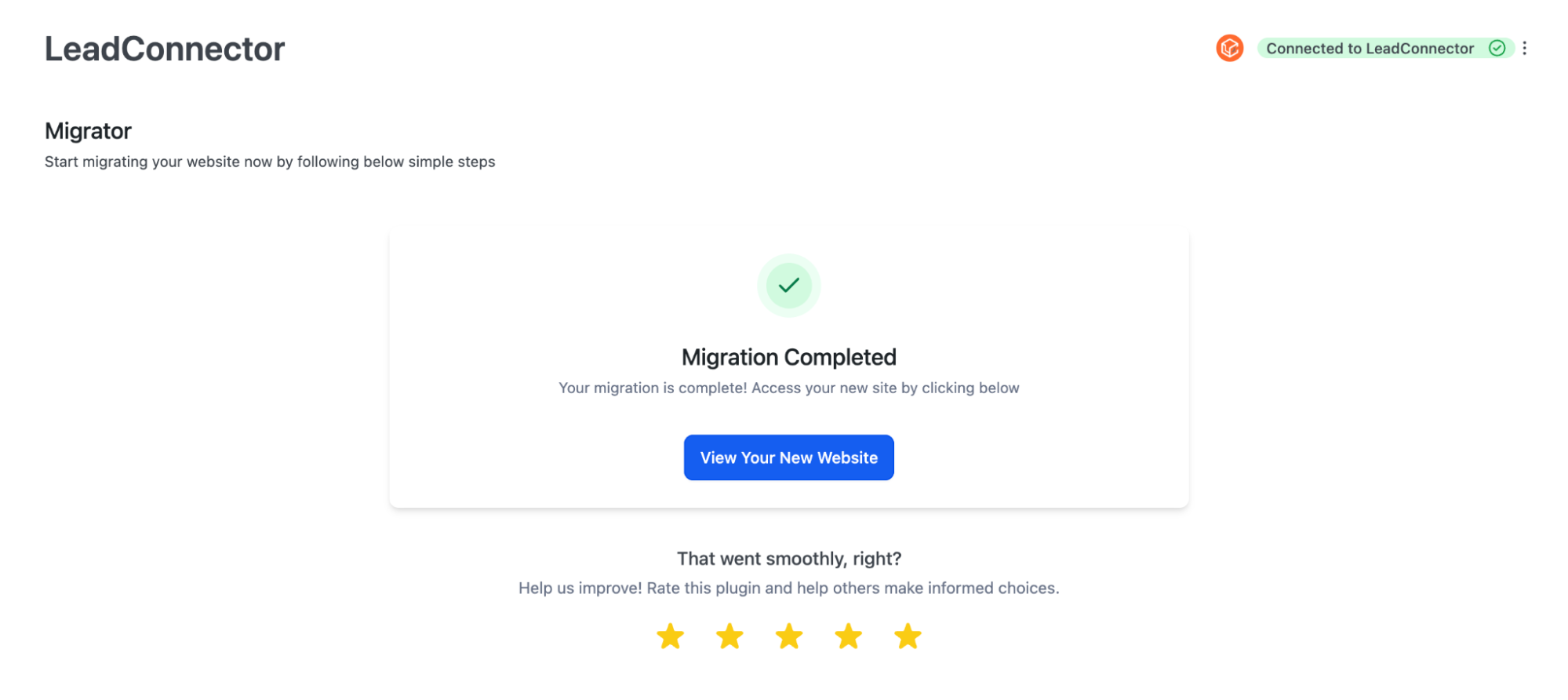
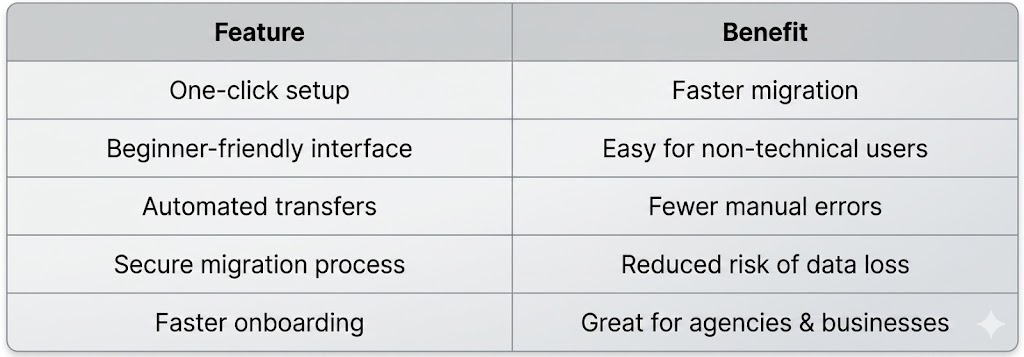
Why Users Prefer the LC Migrator Plugin
Option 2: White-Glove Migration Assistance
Not everyone wants to handle migration themselves.
For larger or more complex websites, HighLevel offers free White-Glove Migration Assistance handled by migration experts.
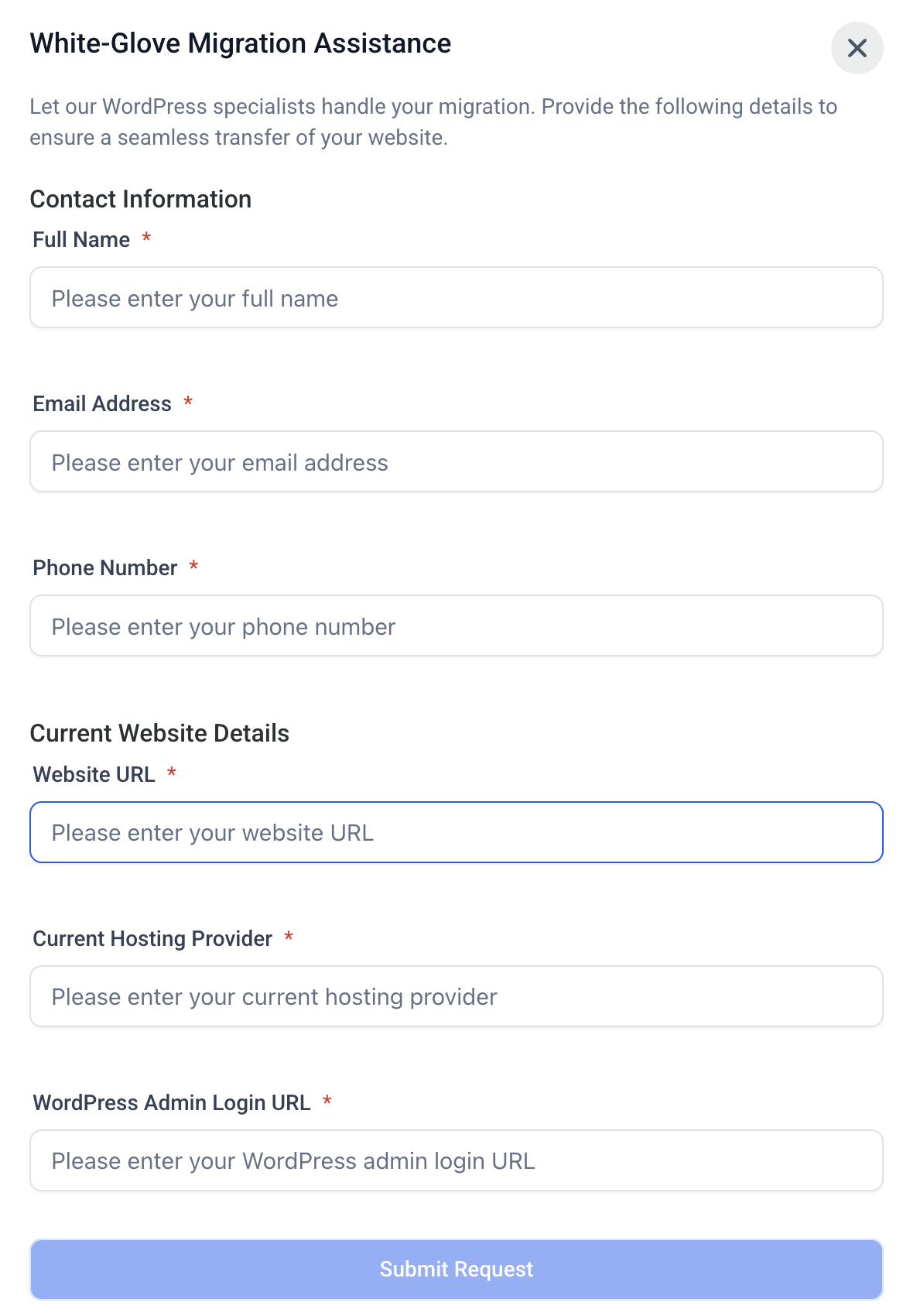
This service is ideal for:
WooCommerce stores
Large business websites
Agency client projects
High-traffic websites
Complex WordPress setups
With White-Glove Migration:
Migration specialists handle the process
DNS settings are configured properly
SSL setup is managed
Technical troubleshooting is handled professionally
This reduces risk and provides a more stress-free experience.
How to Avoid Downtime During Migration
Even with migration tools, following best practices is important.
1. Lower DNS TTL Before Migration
TTL (Time To Live) controls how quickly DNS changes update globally.
Recommended: Set TTL to 300 seconds (5 minutes)
Do this at least 24 hours before migration.
2. Always Use a Staging Environment
Never migrate directly to a live website without testing.
A staging environment helps verify:
Website functionality
Plugin compatibility
Design consistency
Mobile responsiveness
3. Keep the Old Website Active Temporarily
Do not cancel your old hosting immediately.
Keep it active for: 24–48 hours after DNS changes
This ensures visitors can still access the site while DNS propagation completes.
4. Verify SSL Certificates
Always confirm HTTPS is working correctly after migration.
Without SSL:
Browsers may show security warnings
SEO performance may suffer
Common Migration Issues (and How to Fix Them)
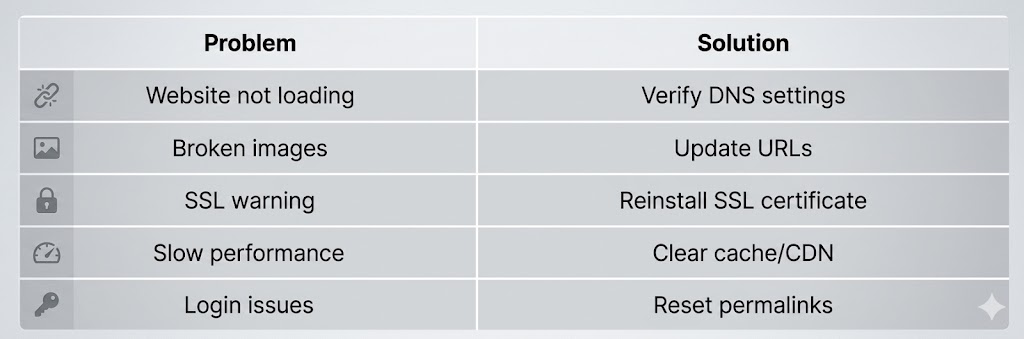
Traditional Migration vs HighLevel Migration
Final Thoughts
Migrating a WordPress website doesn’t have to be stressful.
With tools like the LC Migrator Plugin and services like White-Glove Migration Assistance, businesses can move websites more efficiently while minimizing downtime and technical complications.
For agencies and growing businesses, HighLevel simplifies WordPress hosting, migration, DNS setup, and website management into one streamlined platform.
A successful migration means:
Your visitors stay uninterrupted
Your SEO remains protected
Your website stays secure
Your business keeps running smoothly
And most importantly, your website stays online while everything moves behind the scenes.
Migrate your Wordpress site to HighLevel with ease.Learn more about GHL WordPress Hosting →


