

Release Radar blog for the week of October 12th
October 12th - October 16th 2026
Welcome back to the Release Radar Blog! This week brings powerful updates across the platform to help you build, optimize and automate your business. From connecting GitHub to AI Studio for seamless version control to centralizing schema markup in Funnels and Websites, here is a breakdown of the top features you will want to know about.
AI Studio: GitHub integration and version control
Connect a GitHub account to AI Studio to automatically create private repositories, push saved versions and pull external commits. Managing code versions and collaborating with external coding agents previously required manual code exports or copy-pasting between editors. Users can now connect personal or organizational GitHub accounts to automatically sync agent turns, code edits and visual changes bidirectionally between AI Studio and external editors.
Web developers and technical agencies will find this useful for maintaining version control and utilizing external coding agents like Cursor or GitHub Copilot without losing AI Studio preview capabilities.
Push and pull code changes automatically: Sync every saved version to GitHub automatically and pull external commits back into AI Studio to generate fresh preview builds.
Resolve branch conflicts and manage permissions: Handle diverged branches with force push or new branch options while controlling repository access through the new Manage Git & download code user permission.
Get started with this feature
1. Open an AI Studio project → click More → select Git
2. Connect your GitHub account or organization → authorize the Lead Connector application
3. View the automatically created private repository → configure push and pull preferences
4. Open the repository in your preferred external code editor to make changes → save to automatically sync commits back to AI Studio

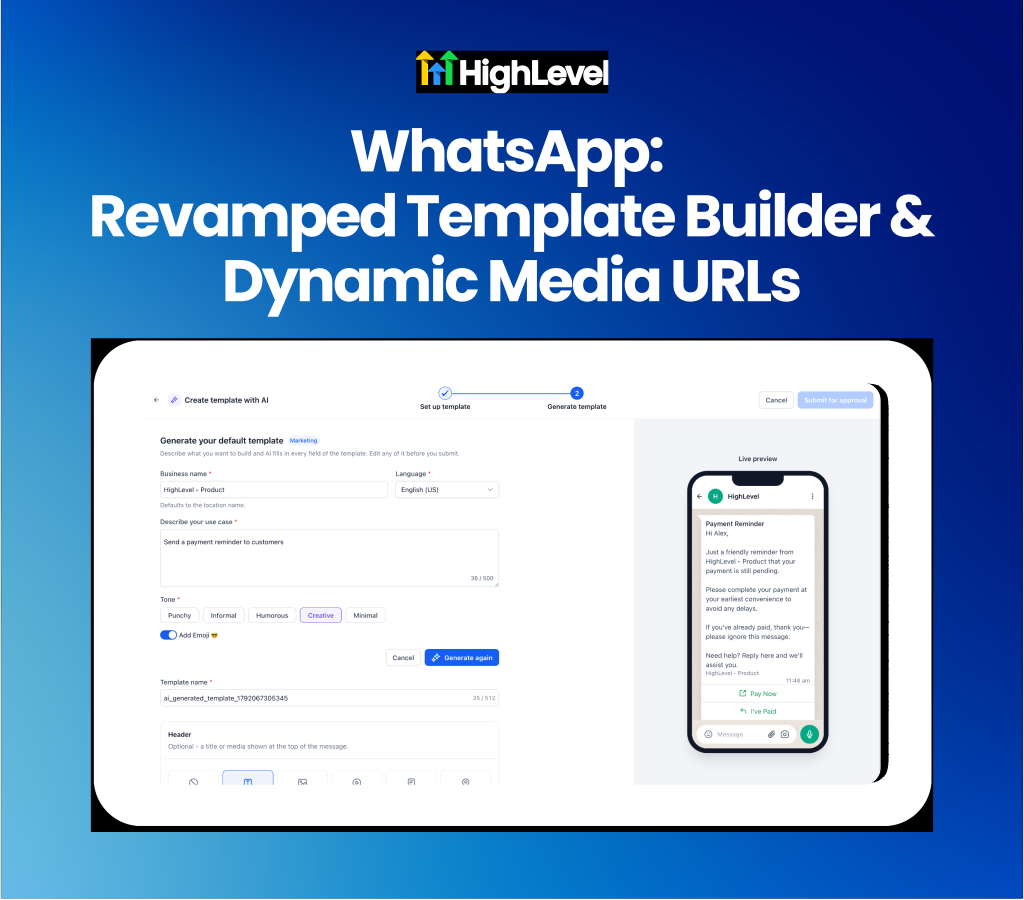
WhatsApp: Revamped template builder and dynamic media URLs
Build WhatsApp templates with a live phone preview and utilize dynamic URLs for media headers. Creating WhatsApp templates previously lacked accurate real-time previews and required static, hard-coded public URLs for media attachments. The newly revamped Highrise builder aligns template authoring with a unified layout, live phone previews and the ability to map custom fields to media headers so URLs resolve dynamically per contact at send time.
Support teams will find this useful for automating personalized media delivery like invoices or product images without cloning templates for every interaction.
Author templates with a live phone preview: Manage categories, body text, buttons and media in a unified layout that updates a real-time mobile preview as you type.
Send personalized media using custom fields: Map media header URLs to dynamic custom fields that resolve to unique public URLs for each contact during automated workflow sends.
Get started with this feature
1. Go to Settings → WhatsApp → Templates → Create / Edit to open the revamped builder
2. Draft your template → watch the live phone preview update in real time
3. Map your media header URL to a custom field containing a public image, video or document URL
4. Use the template in workflows, conversations or bulk actions to send contact-specific media
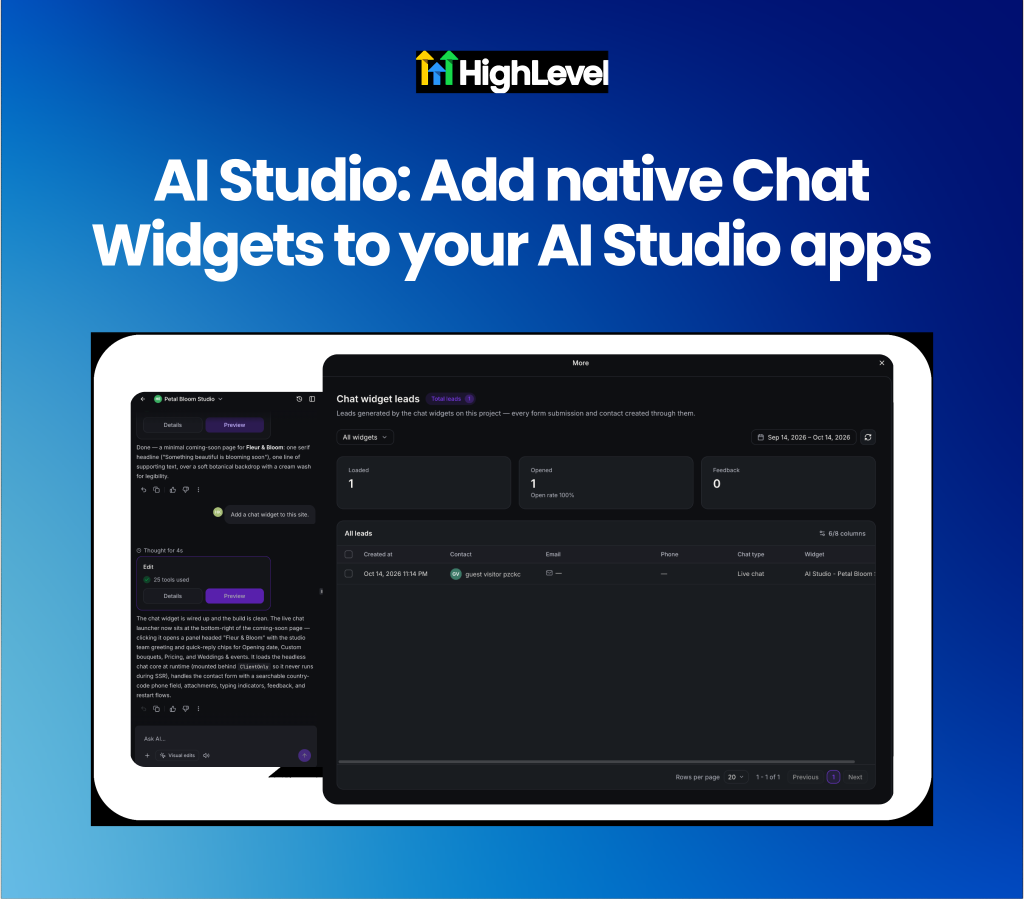
AI Studio: Native chat widget integration
Embed native HighLevel chat widgets directly into custom web applications built with AI Studio. Adding live chat functionality to custom-built web applications previously meant embedding generic third-party scripts that clashed with site branding and fragmented conversation data. Users can now ask the AI Studio agent to generate a live chat or email chat widget that automatically matches the site's layout, colors and typography while routing all messages directly into HighLevel Conversations.
Generate branded chat widgets conversationally: Ask the AI Studio agent to add a live chat and answer quick design questions to build a widget that matches your site's exact visual style.
Manage settings and view analytics inside AI Studio: Configure welcome messages, business hours and spam protection or view chat analytics directly from the AI Studio project dashboard.
Get started with this feature
1. Open your project in AI Studio → ask the agent to "add a live chat"
2. Answer the agent's prompts regarding greeting text, placement and tone
3. Approve the connection card to generate and style the native chat widget
4. Go to More → Chat Widgets to configure business hours, compliance notices and spam settings
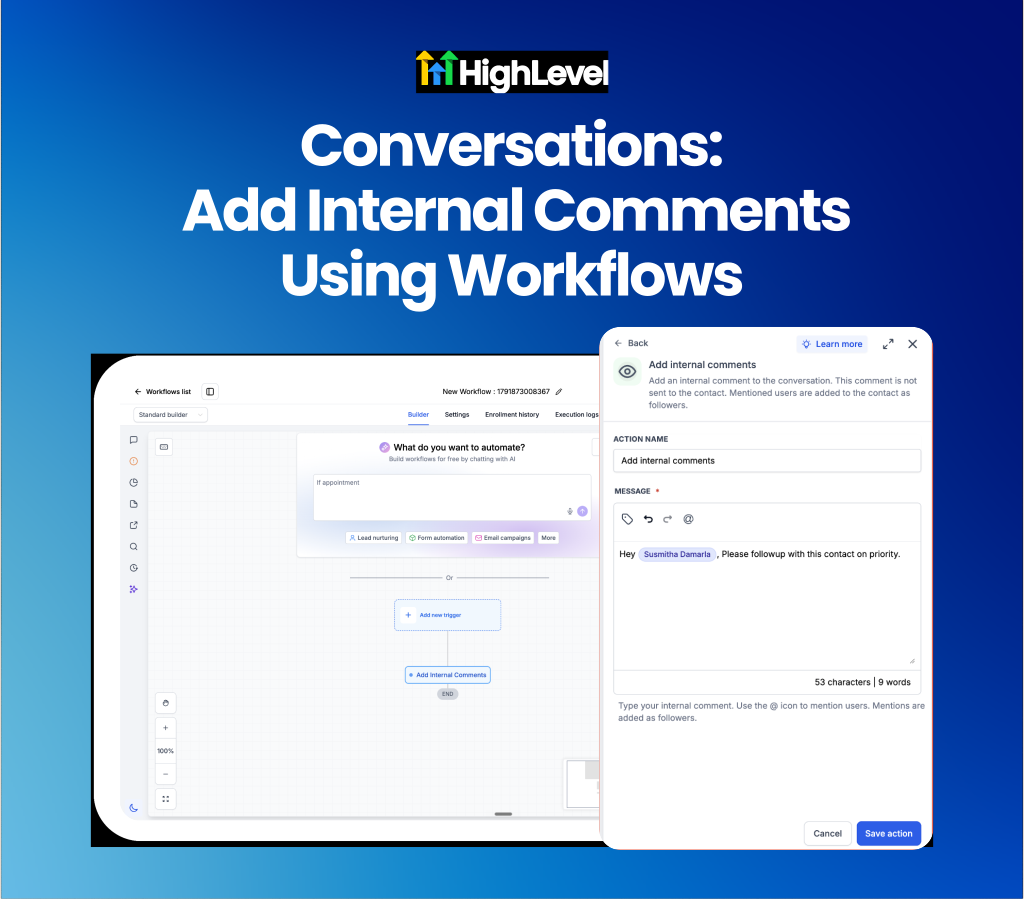
Conversations: Automated internal comments
Post internal comments automatically to conversations using customized workflow actions. Leaving private notes for team members or flagging specific conversations previously required staff to manually open the chat thread and type an internal comment. Teams can now utilize the Add Internal Comment workflow action to automatically share context, drop instructions and tag specific team members when a contact meets specific automation triggers.
Customer support managers and sales teams will find this useful for seamlessly handing off high-priority leads and escalating missed appointments without relying on manual communication.
Automate context sharing and team handoffs: Trigger internal comments to automatically appear in the conversation history when a contact progresses through a workflow.
Notify specific staff members automatically: Use the @mention feature within the workflow action to ping assigned team members with specific next steps.
Get started with this feature
1. Go to Automation → Workflows → create a new workflow or open an existing one
2. Add the Internal Comment action to your workflow path
3. Draft your internal note and use @ to tag relevant team members
4. Save and publish the workflow to begin automating internal communication
Funnels and Websites: Centralized schema management
Manage schema markup across entire websites and funnels from a centralized SEO & AEO dashboard. Ensuring pages are eligible for Google rich results and AI answer engines previously required opening every individual page in the builder to check or update its schema. Users can now view overall schema health, spot outdated pages and generate structured data using AI across multiple pages simultaneously from a single tab.
Monitor schema health and spot outdated pages: View an overall coverage score and quickly filter for pages marked with No schema or Might be outdated to identify areas needing attention.
Generate and apply schema in bulk: Select multiple pages to automatically generate structured data with AI, review the proposed markup and hit Save and publish to apply changes without opening the page editor.
Get started with this feature
1. Go to Sites → Websites or Funnels → select a site and click the new SEO & AEO tab
2. Review the Schema coverage card to assess overall health
3. Filter the page list by No schema or Might be outdated to find pages requiring updates
4. Select pages and click Generate schema or click + Add schema to write it manually
5. Review the results and click Save and publish to apply the new schema markup

For a complete overview of this week’s updates 👉🏻Check out the slides here!
Want to help your clients or team master these new tools under your own brand?
Explore our collection of customizable guides and materials in the HighLevel University White Label Resources Course.
New to HighLevel? Start a FREE TRIAL today!