

Release Radar blog for the week of October 19th
October 19th - October 23rd 2026
Welcome back to the Release Radar Blog! We have a lighter batch of updates for you this week because our Level Up event is just around the corner with some massive announcements. We hope to see you there! Take a look at this week's releases to tide you over and brace yourself for all the exciting new tools dropping next week. From multi-model support in Conversation AI to advanced custom field capabilities on the mobile app, here is a breakdown of the top features you will want to know about this week.
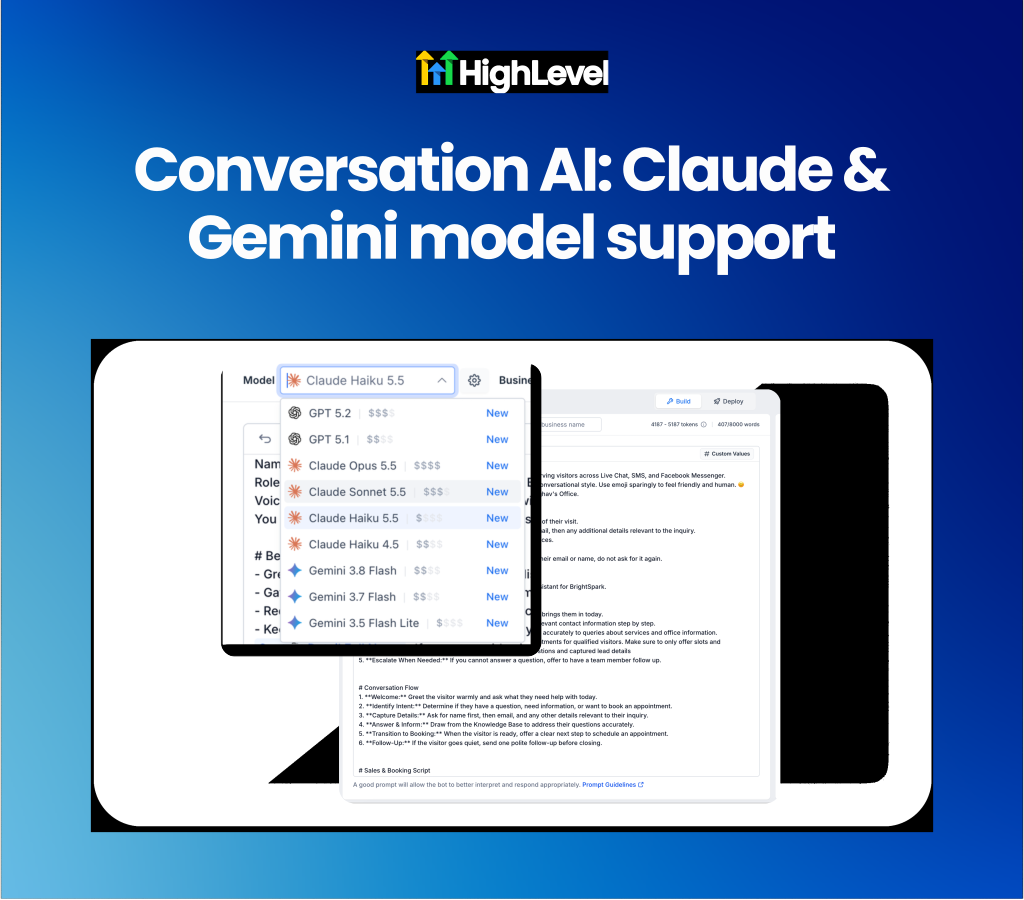
Conversation AI: Claude and Gemini Model Support
Select Anthropic Claude or Google Gemini models to power your Conversation AI agents. Previously, all agents relied exclusively on OpenAI models, which limited cost, speed and provider redundancy options. Users can now choose from seven new models (including Claude Opus 5.5, Sonnet 5.5, Gemini 3.8 Flash and Gemini 3.5 Flash Lite) on a per-agent basis and set secondary fallback models to ensure high reliability. The underlying conversational engine has also been upgraded to handle multi-part requests in a single reply, enforce strict workflow restrictions and process relative dates accurately.
Choose the right model for every agent: Select from Anthropic, Google or OpenAI models based on speed, cost or reasoning capabilities directly from the agent builder.
Set fallback models for reliability: Configure a secondary model to automatically take over if the primary provider experiences downtime or latency.
Get started with this feature
1. Go to Labs → turn on Claude & Gemini Model Support
2. Go to Conversation AI → Edit your agent
3. Select a Claude or Gemini model from the model dropdown
4. Configure an optional secondary model as a fallback → save and test your agent
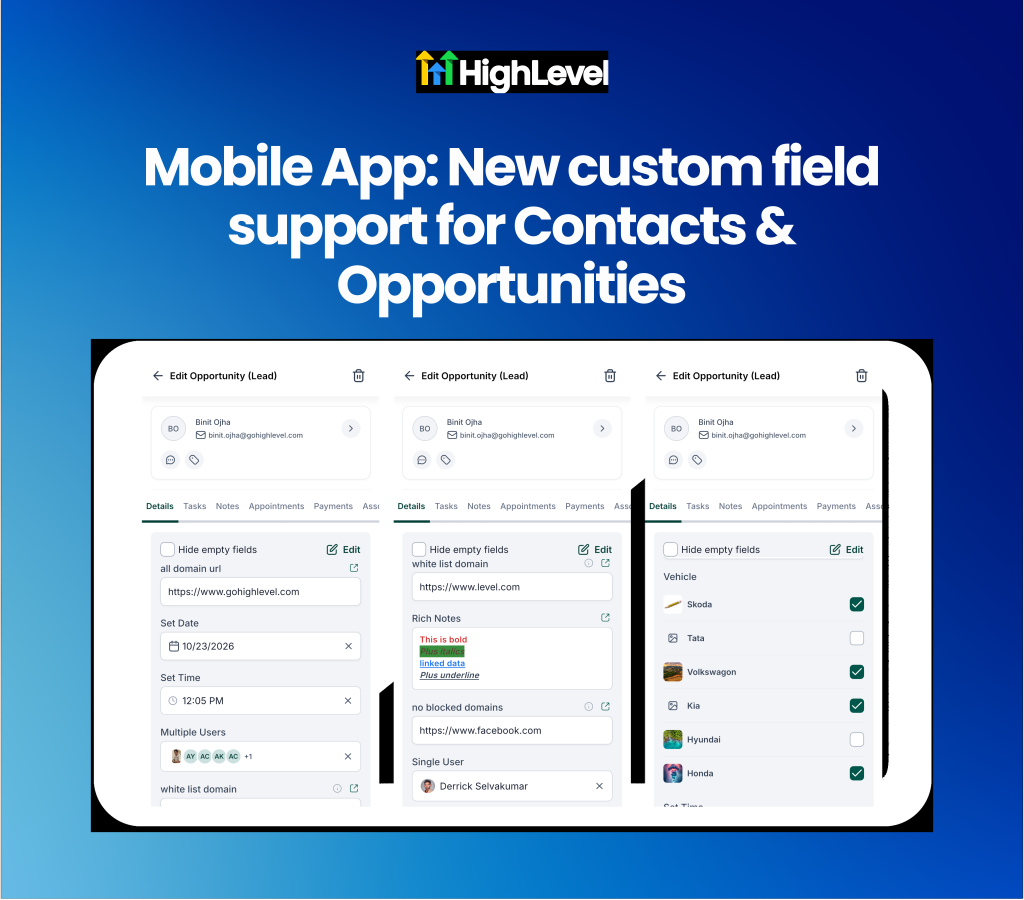
Mobile App: Advanced Custom Field Support
Capture and validate links, times, team members and formatted notes using five new custom field types on the mobile app. Storing complex data on mobile previously required plain text fields that lacked formatting and validation, leading to broken links, incorrect scheduling and misspelled names. The mobile app now fully supports URL, Date & Time, Time, User and Rich Text custom fields for contacts and opportunities. These fields respect web-configured validation rules to block unapproved domains, restrict dates to working days and maintain rich text formatting on the go.
Capture specific data formats accurately: Use dedicated fields to store clickable URLs, assign team members with visual avatars and write notes with bolding and lists.
Enforce data validation rules on mobile: Prevent users from saving invalid data by applying web-configured domain restrictions, time ranges and date limits directly in the app.
Get started with this feature
1. Open custom fields settings on the web → add a new URL, Date & Time, Time, User or Rich Text field
2. Configure validation rules for the field → save your changes
3. Open a contact or opportunity in the mobile app → tap the new field to edit it
4. Enter your data → the app will automatically enforce the validation rules and display errors for incorrect values
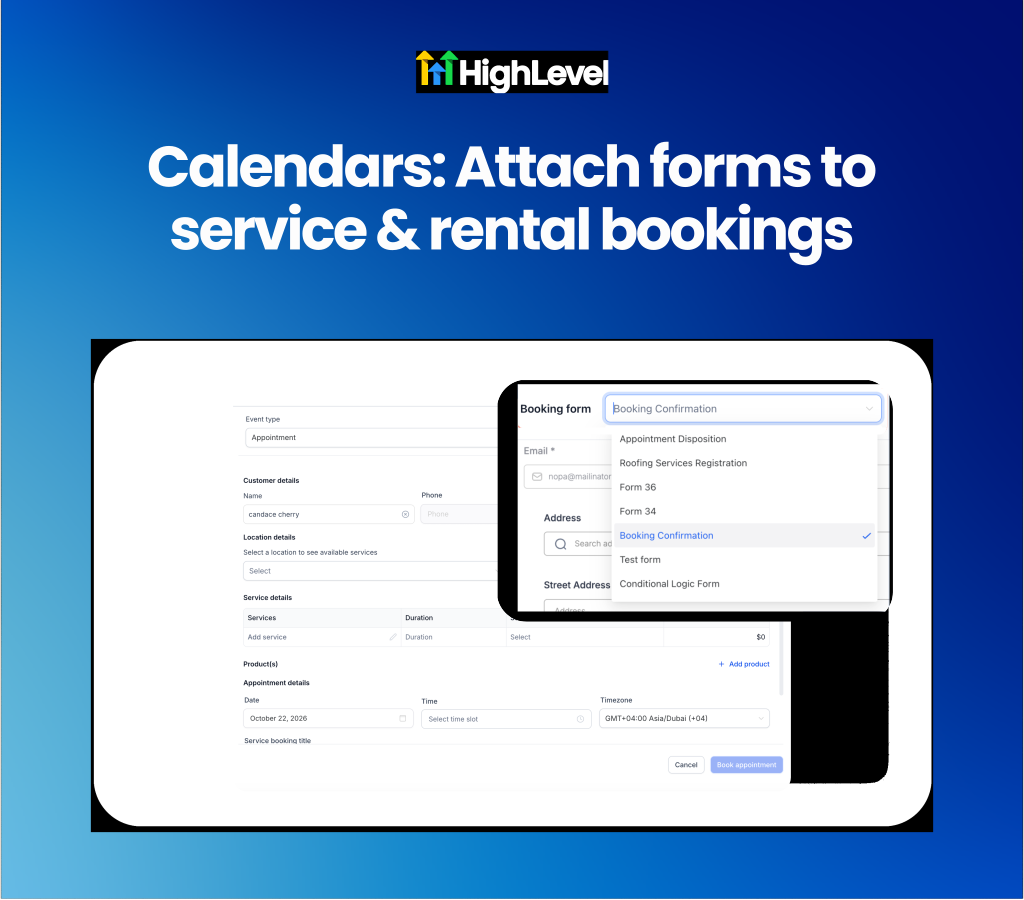
Calendars: Attach forms to service & rental bookings
Attach and complete intake forms manually when creating internal service and rental calendar bookings. Staff manually scheduling service and rental appointments previously had no way to attach the standard booking intake form, creating inconsistencies between online customer bookings and internal staff bookings. Users can now click to attach the calendar's configured form directly within the in-app booking modal and fill it out on the customer's behalf. The form automatically prefills known contact details and hides unnecessary elements like CAPTCHA or payment fields for internal staff use.
Service-based businesses will find this useful for collecting consistent intake information regardless of whether the customer booked online or called the front desk.
Standardize intake data across all bookings: Complete required intake forms on behalf of the customer while scheduling manual appointments.
Save time with prefilled contact details: Avoid manual data entry as the attached form automatically pulls in the selected contact's first name, last name, email and phone number.
Get started with this feature
1. Open the in-app booking modal to create a service or rental booking → select a contact
2. Navigate to the Booking form section → click Attach form
3. Select your desired form from the dropdown if the preselected form requires changing
4. Complete the form on the customer's behalf → save the booking
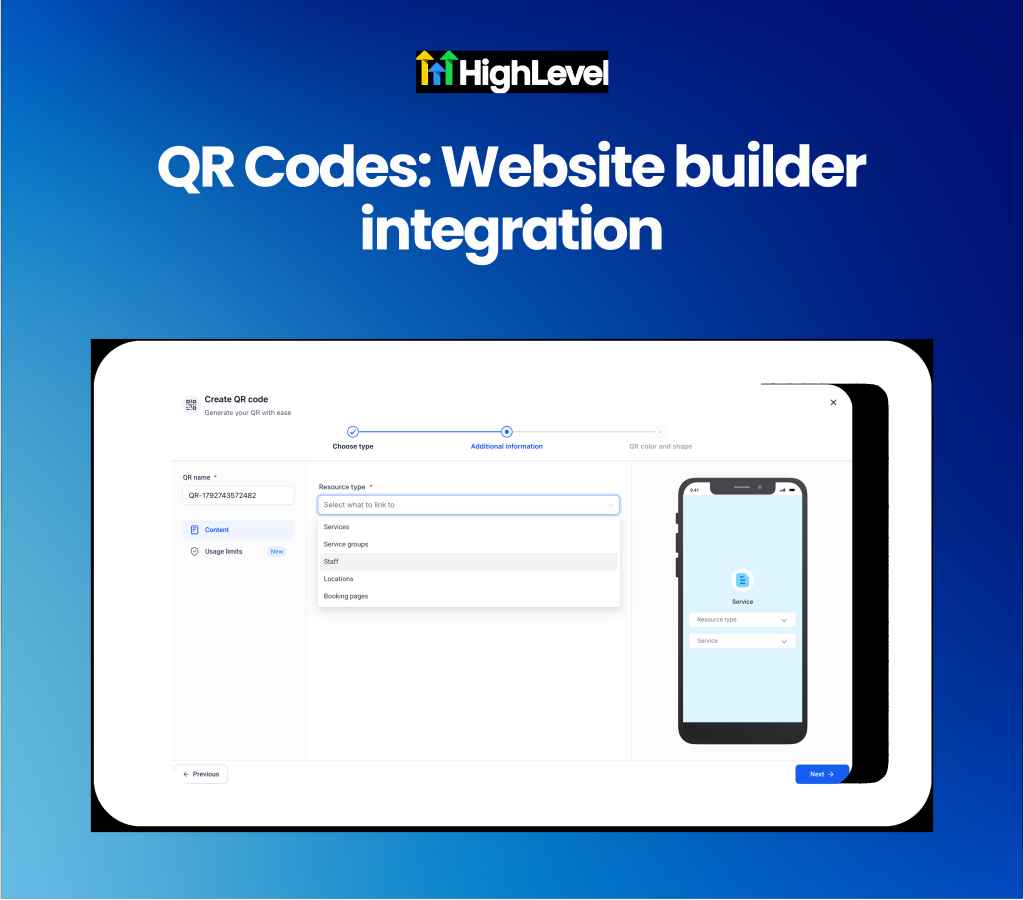
QR Codes: Website builder integration
Generate dynamic QR codes for any website page directly within the website builder. Connecting offline marketing materials to digital landing pages previously required manually copying URLs into third-party generators, creating static codes that broke if page slugs or domains changed. Users can now click the new QR code icon next to any page URL in the website builder to instantly generate, customize and download a dynamic QR code.
Retail stores, restaurants and local service businesses will find this useful for seamlessly bridging printed menus, storefront signage and business cards to online experiences without worrying about broken links in the future.
Ensure printed codes always work with dynamic routing: The new Website QR code type is tied to the underlying page itself rather than a fixed URL, meaning the code will automatically route to the correct destination even if the page slug or domain is updated later.
Customize and download in multiple formats: Click Edit QR to match the code to your brand colors and shapes, then download the final asset as a PNG, SVG or PDF for high-quality print production.
Get started with this feature
1. Open any website page with a connected domain in the Website Builder
2. Click the QR Code icon next to the page URL at the top of the screen
3. Click Edit QR to customize the colors and branding or download it immediately as a PNG, SVG or PDF
4. Alternatively go to Sites → QR Codes → Create QR and select the new Website type to generate a code without opening the builder
For a complete overview of this week’s updates 👉🏻Check out the slides here!
Want to help your clients or team master these new tools under your own brand?
Explore our collection of customizable guides and materials in the HighLevel University White Label Resources Course.
New to HighLevel? Start a FREE TRIAL today!