

Release Radar blog for the week of September 14th
September 14th - September 18th 2026
Welcome back to the Release Radar Blog! From creating workflows directly in Ask AI and running managed AI agents inside automations to user-based agency AI seats, here is a breakdown of the top features you'll want to know about.
Ask AI: Direct Workflow generation
Create workflows directly from Ask AI without opening the builder first. Building complex automations previously required navigating directly into the workflow builder to manually assemble triggers and actions. You can now prompt Ask AI to generate, inspect and conversationally edit complete workflows in real time or even build automations directly from WhatsApp.
Generate and preview automations instantly: Describe your desired workflow logic to Ask AI and review the generated structure in a live preview panel.
Edit conversationally and launch in builder: Ask the agent to refine triggers or actions directly in chat, then click through to the workflow builder to test and publish.
Get started with this feature
1. Open Ask AI → start a new chat
2. Describe the workflow you want to build
3. Review the generated workflow preview panel → click triggers or actions to check configurations
4. Prompt the AI to make adjustments until satisfied
5. Click the CTA link to open the workflow in Workflow Builder → test and publish
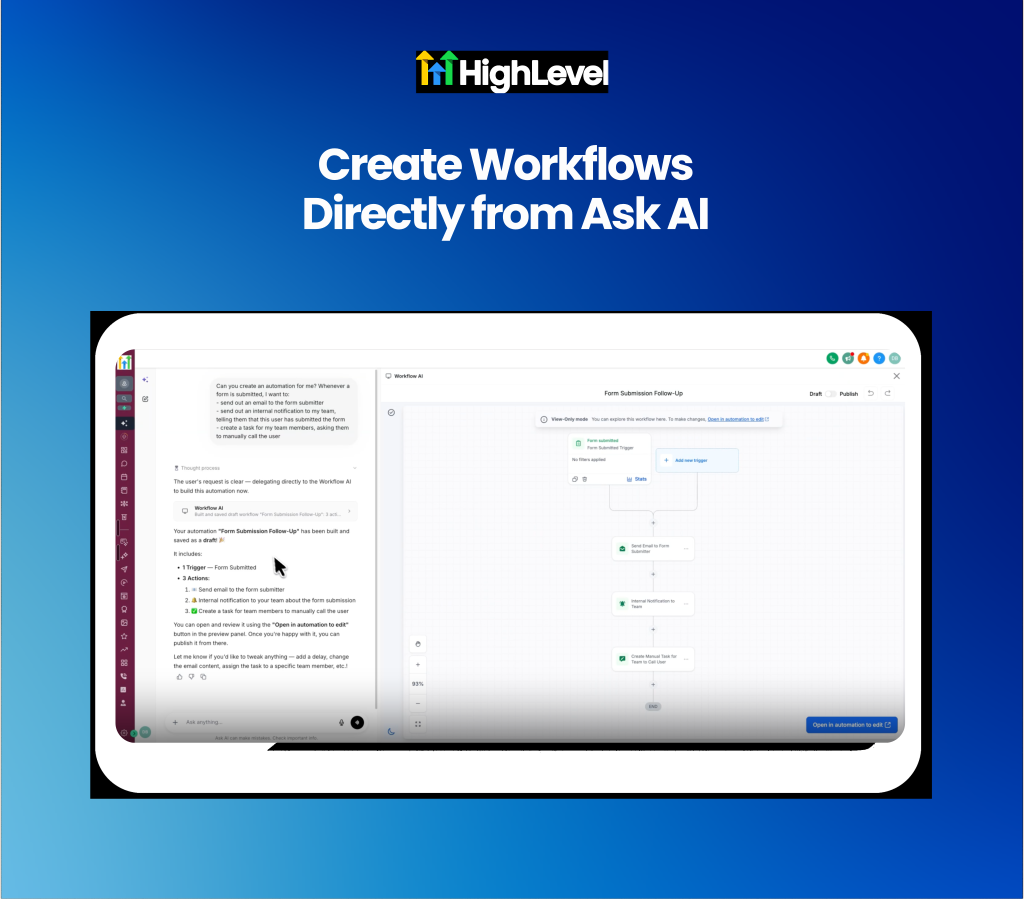
Workflows: Run Managed Agents directly in Workflows
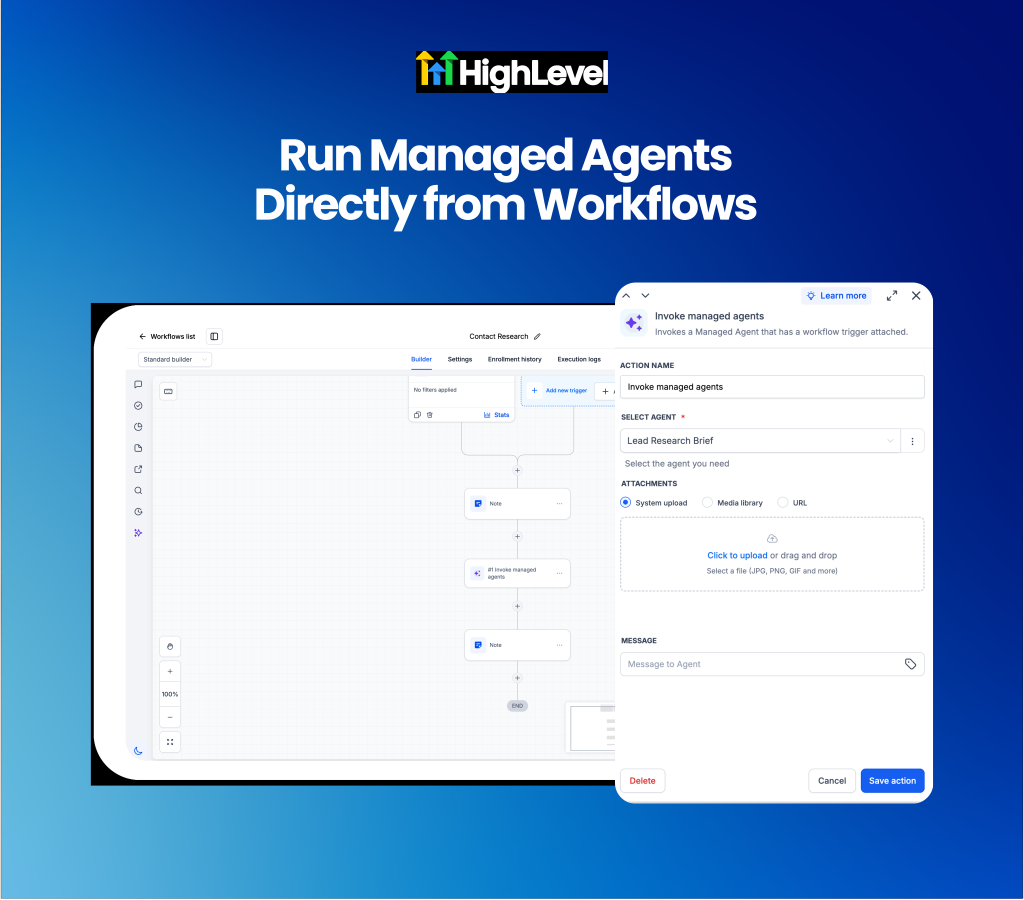
Run managed agents directly inside workflows to combine structured automations with AI reasoning. Standard workflow steps excel at linear logic but often fail when handling unstructured context or complex decisions. You can now add the Invoke Managed Agent action to any workflow, allowing AI agents to evaluate dynamic contact data, process attachments and pass intelligent outputs back into downstream CRM steps.
Operations teams and agencies will find this ideal for lead scoring, advanced ticket routing and automated document analysis.
Pass dynamic context to intelligent agents: Send workflow fields, contact data and file attachments to managed agents for real-time task execution.
Branch and update records based on AI outputs: Use agent responses in subsequent workflow steps to update CRM records, send messages or route conditional paths.
Get started with this feature
1. Go to Agent Studio → Managed Agents → open or create an agent
2. Add the Invoked from a workflow trigger → publish the agent
3. Navigate to Automation → Workflows → open a workflow
4. Click + → add the Invoke Managed Agent action → select your agent and write your dynamic instructions
5. Click Save → publish your workflow
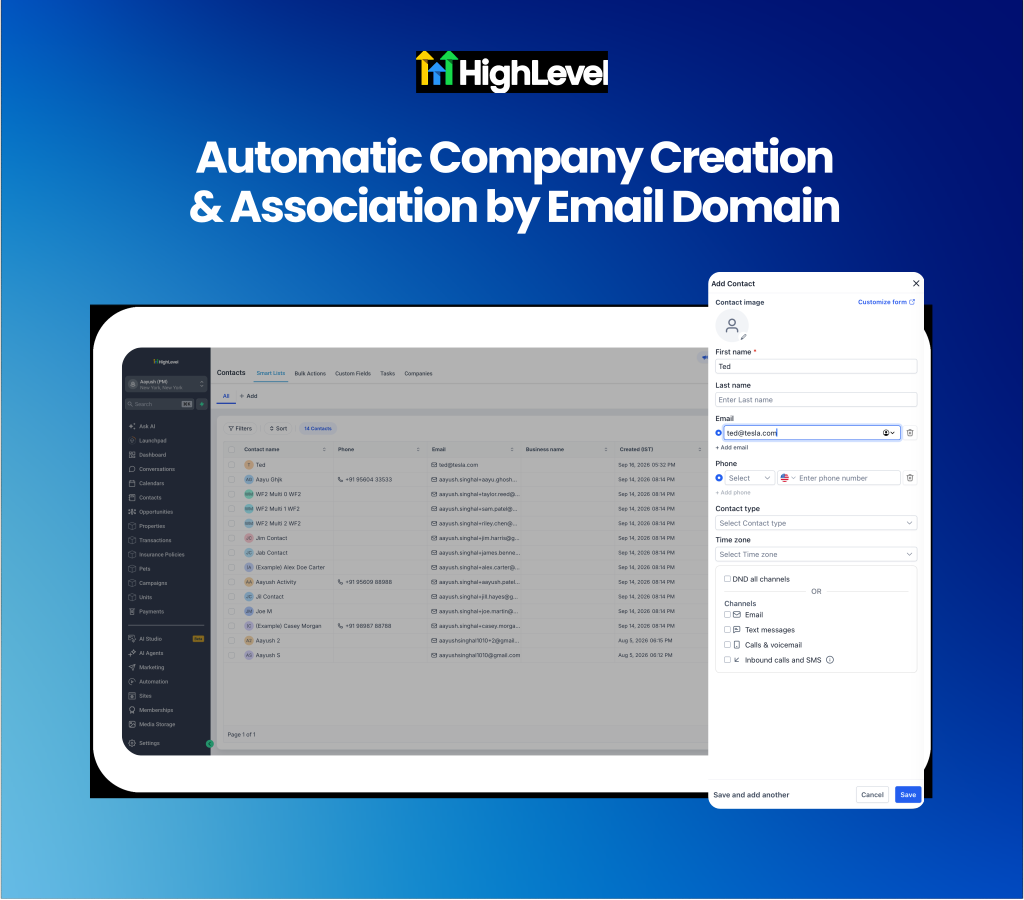
Companies: Automatic company creation and association by Email Domain
Associate contacts to company records automatically using business email domains. Manually sorting new contacts into corporate account records or managing duplicate company entries wastes administrative time and clutter CRMs. The new automatic company creation engine reads a contact's business email domain to link them to an existing company record or automatically generate a new enriched company profile complete with business name and logo.
B2B sales agencies and account-based marketing teams will find this essential for maintaining clean CRM account structures at scale.
Enrich company profiles automatically from email domains: Generate new company records with domain names, business titles and brand logos automatically when a matching corporate domain is detected.
Prevent account duplicates with smart domain matching: Match incoming leads against existing company records before creating new profiles while excluding common free email providers like Gmail or Yahoo.
Get started with this feature
1. Go to Settings → Labs → enable Automatic Company Creation for your sub-account
2. Navigate to Settings → Objects → Companies
3. Under Automations, toggle Create companies from contact's email domain, Enrich companies automatically, and Automatically prevent duplicate companies
4. Add any internal or partner domains to Exclude domains from automatic association → click Save
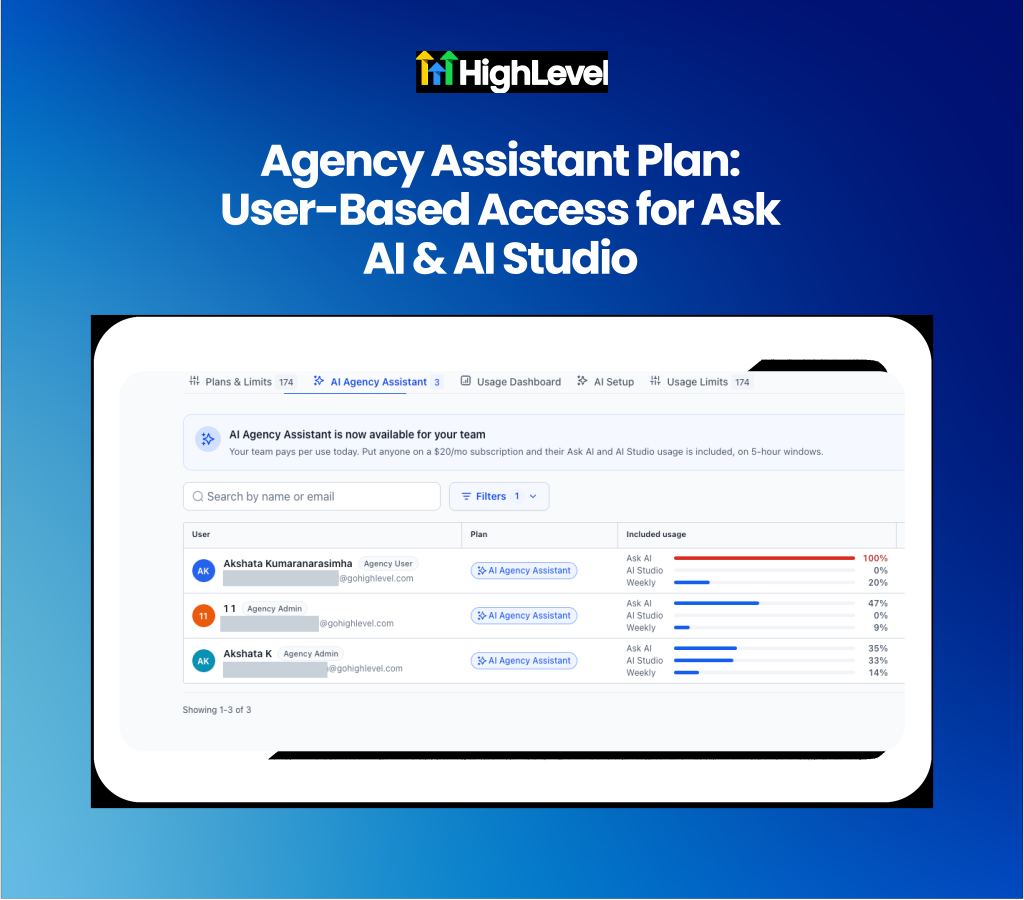
Ask AI & AI Studio: AI Agency Assistant Plan
Provision user-based AI subscriptions that follow agency team members across all sub-accounts. Managing separate AI tool access or billing plans for every individual sub-account creates unnecessary administrative overhead for growing teams. The AI Agency Assistant Plan provides a single subscription per agency user, unlocking full access to Ask AI and AI Studio across every client location they manage.
Marketing agencies with account managers handling multiple sub-accounts will find useful how this simplifies AI access and usage management.
Provide portable AI access across sub-accounts: Grant agency admins and users access to Ask AI and AI Studio across all client locations with one central seat subscription.
Control additional usage limits and monthly spend: Set custom monthly spending limits and configure automated usage notifications or hard stops to manage agency AI budgets easily.
Get started with this feature
1. Go to Settings → Labs → enable AI Agency Assistant Plan
2. Navigate to Agency Settings → Billing or Team Management
3. Select eligible Agency Admins or Agency Users → assign AI Agency Assistant Plan seats
4. Configure optional additional usage spending limits and notification thresholds → save changes
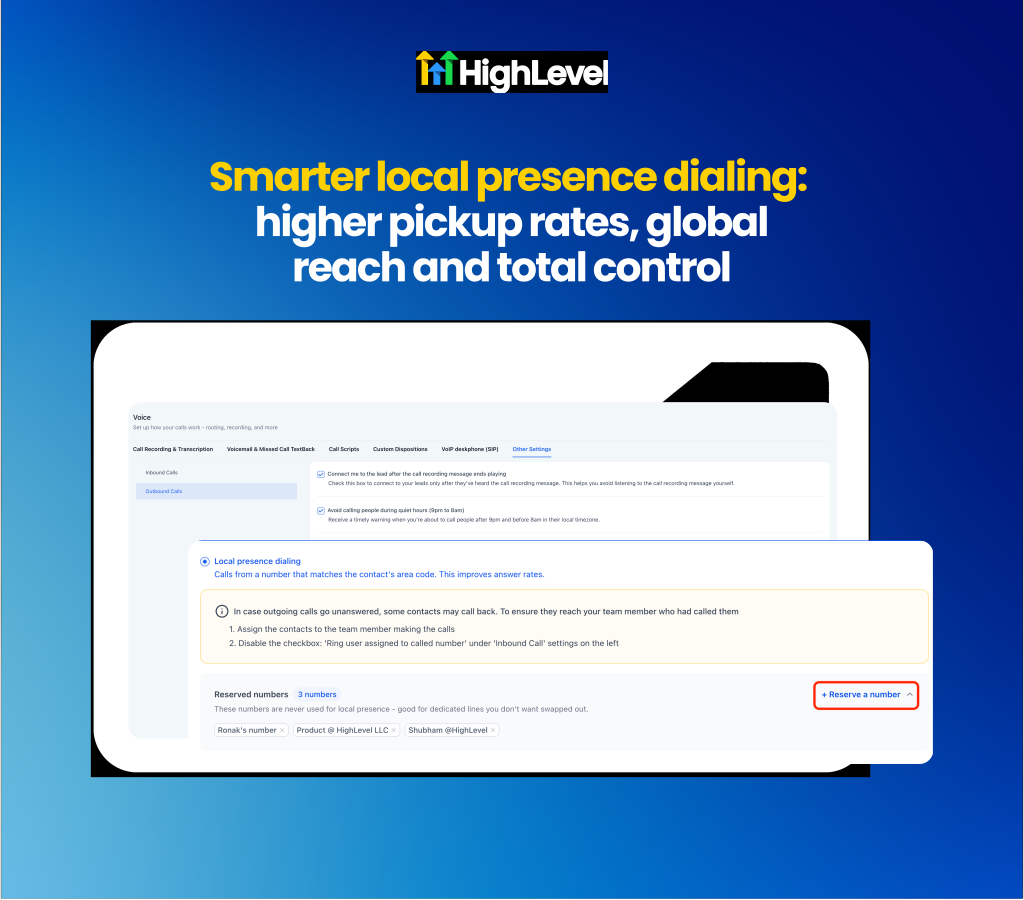
Phone System: Smarter Local Presence Dialing
Improve outbound call connection rates using intelligent local presence caller ID matching. Prospects frequently ignore incoming calls from unfamiliar area codes or out-of-state phone numbers, lowering outreach performance. The rebuilt local presence engine uses real-time postal code distance calculations across the US, Canada, UK and Australia to dynamically assign the closest local caller ID to every outbound call made via web, mobile or desk phones.
Establish consistent caller identity across international markets: Utilize postal code proximity matching across US, CA, UK and AU leads while maintaining the exact same caller ID for repeat outreach attempts.
Protect primary business lines with reserved numbers: Mark up to 50 phone numbers per sub-account as reserved to prevent them from auto-selecting during local presence dialing runs.
Get started with this feature
1. Go to Settings → Phone System → Voice → Other Settings → Outbound calls
2. Scroll down to the Local presence dialing section
3. Select any phone numbers you want to mark as Reserved to protect main office lines
4. Save your changes → local presence matching will now apply across web dialer, mobile app and desk phone calls
Learn more in the Local Presence Dialing Help Doc.
For a complete overview of this week’s updates 👉🏻Check out the slides here!
Want to help your clients or team master these new tools under your own brand?
Explore our collection of customizable guides and materials in the HighLevel University White Label Resources Course.
New to HighLevel? Start a FREE TRIAL today!