
Release Radar blog for the week of September 21st
September 21st - September 25th 2026
Welcome back to the Release Radar Blog! From connecting managed AI agents to external applications via Public API and migrating AI Studio projects to SSR to conversational calendar troubleshooting, here is a breakdown of the top features you'll want to know about.
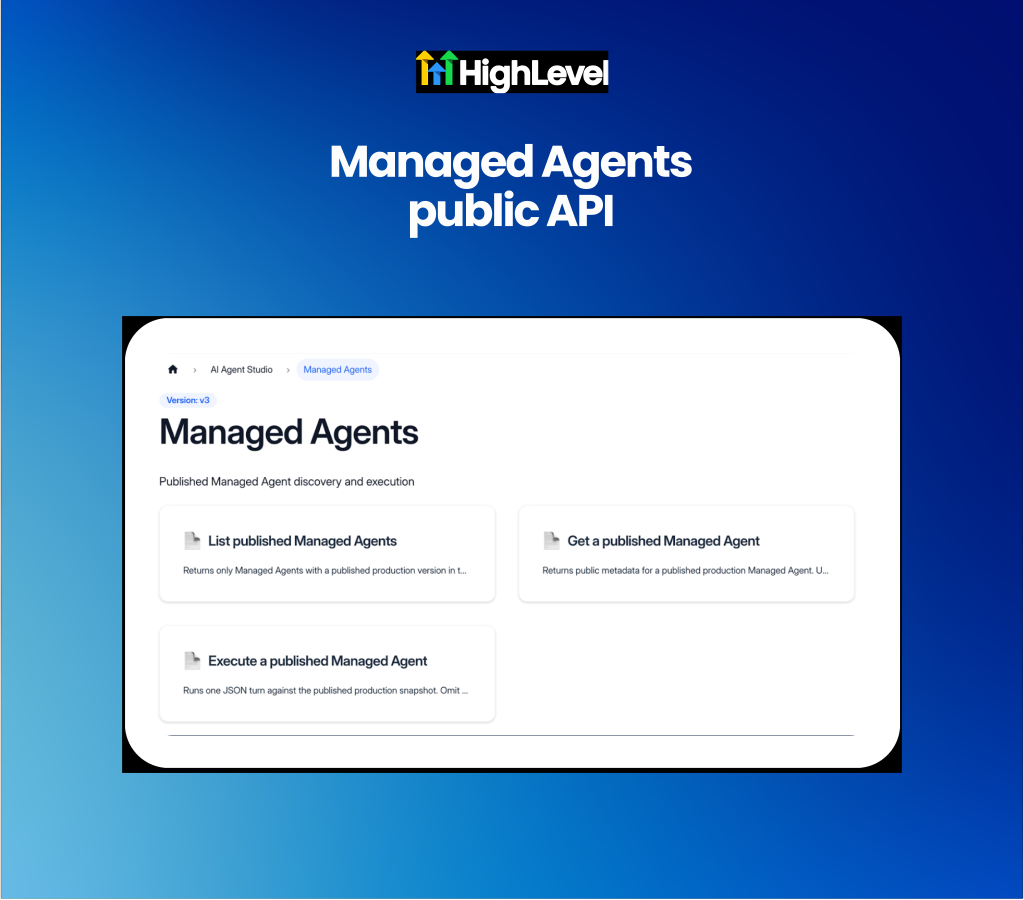
Managed Agents: Managed Agents Public API
Integrate published managed agents into external applications using the Managed Agents Public API. Deploying customized AI agent capabilities into custom web portals, mobile apps or internal backends previously required building custom middleware wrappers or keeping interactions constrained to HighLevel interfaces. Developers and agencies can now use the Public API to connect published agents directly to external platforms while preserving conversation history and context across multiple messages.
Deploy published agents across external channels: Connect live managed agent configurations directly to third-party web apps, proprietary software and custom backends without exposing drafts or system prompts.
Maintain multi-turn conversation context and granular access control: Preserve conversation history across user interactions while configuring role-based API permissions to control whether external integrations can discover agents, execute runs or both.
Get started with this feature
1. Go to Settings → Developer → API Keys or Private Integrations
2. Create or configure an API key with permissions for Managed Agents
3. Use the GET endpoint to inspect available published agents and review their tools, plugins and knowledge sources
4. Call the conversation execution endpoint from your external app or backend to initiate or continue agent chats using the published agent version
AI Studio: Project Migration to SSR
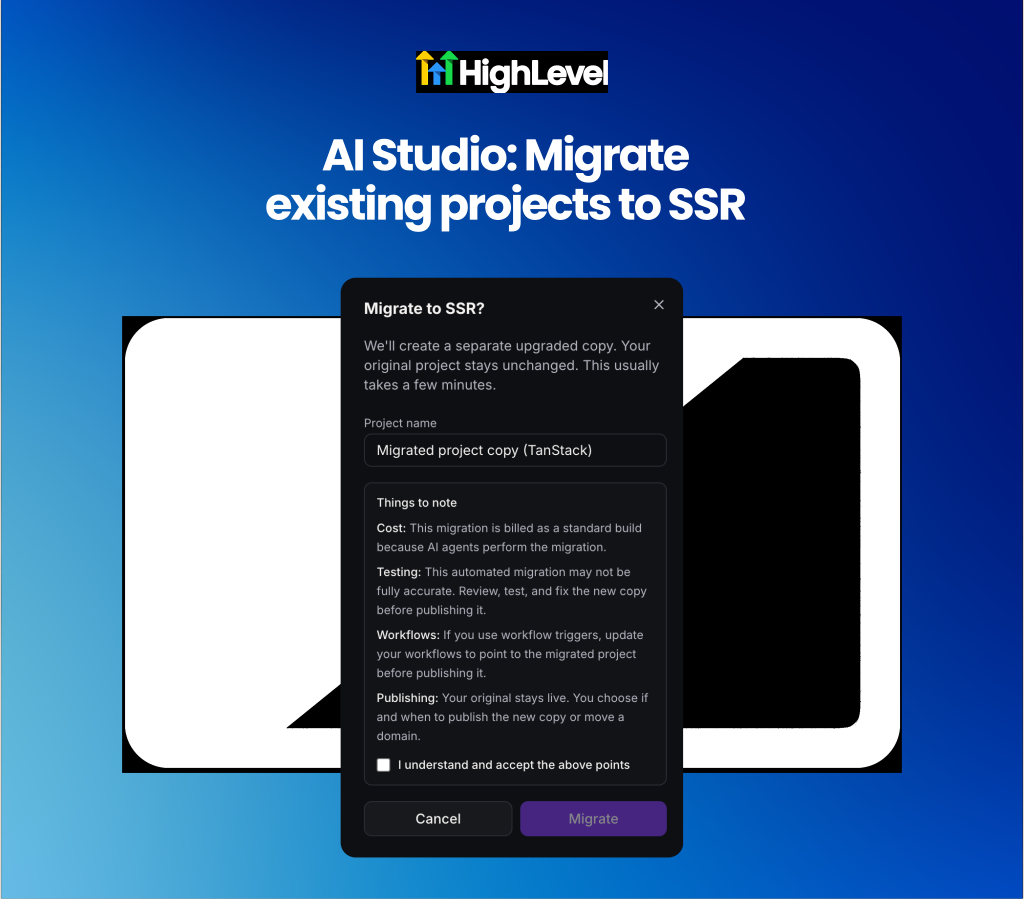
Upgrade existing projects to server-side rendering (SSR) without affecting live published sites. Adding server functions, server-side rendering or secure secrets to an existing React/Vite web application previously required starting from scratch or risking disruptions to live domains. AI Studio now offers an advanced migration path that duplicates your project into a new TanStack framework draft where AI agents handle the technical code conversion.
Web developers and agency builders will find this useful for safely upgrading client web apps that require backend server logic or API security.
Upgrade web applications without risking live domain downtime: Create a duplicate project draft to perform the SSR conversion while keeping the original React site, version history and connected domains untouched.
Convert frontend code to TanStack Start automatically: Let AI Studio agents rewrite your pages and server functions inside a dedicated migration chat while preserving your original app structure.
Get started with this feature
1. Open AI Studio → select the React project you want to upgrade
2. Go to Project Settings → locate Advanced settings → click Migrate next to Migrate to SSR
3. Confirm or edit the new project draft name (defaults to {project name} (TanStack))
4. Review the migration notes → click Migrate to launch the automated AI conversion
5. Monitor the progress in chat → inspect and test the converted draft app before attaching domains or publishing
Learn more in the AI Studio: SSR, Server Functions, REST APIs, and Secrets Help Doc
AI Studio: Full Rollout Out of Labs
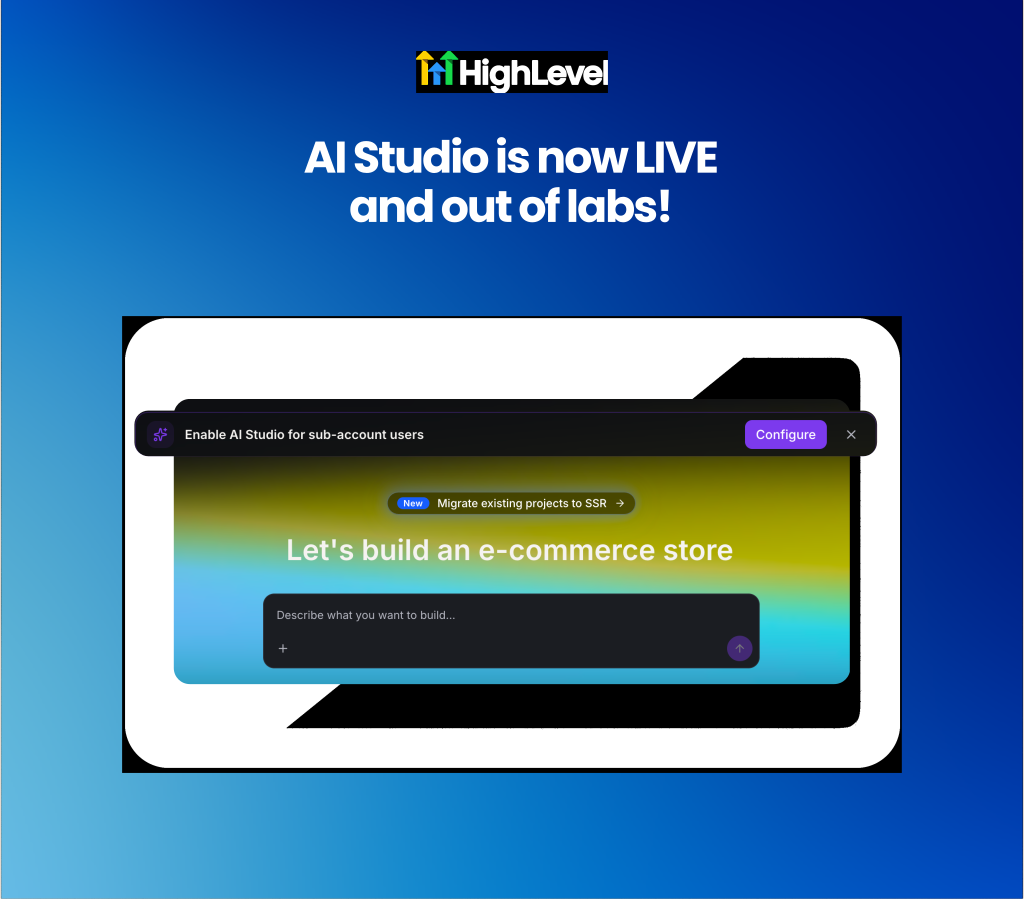
Manage sub-account user permissions for AI Studio following its general release out of Labs. AI Studio is now live for all locations, moving user and admin permissions to off by default for sub-account users who did not previously have access enabled during the Labs phase. Agency owners and admins can now use a Home banner to manage user permissions and grant AI Studio access to specific team members or entire sub-accounts.
Manage sub-account permissions centrally: Identify sub-account team members who need access and assign permissions individually or across whole teams from the Home dashboard banner.
Preserve access for existing Labs users: Maintain uninterrupted AI Studio access for sub-account users who previously had the feature enabled during its Labs release.
Get started with this feature
1. Log in as an agency owner, admin or agency user with write access
2. Check the Home dashboard banner for sub-accounts requiring AI Studio access
3. Click Configure → search or select the specific users who need access
4. Confirm your selection to grant permissions → access will activate within a few minutes
Learn more in the AI Studio Overview Help Doc
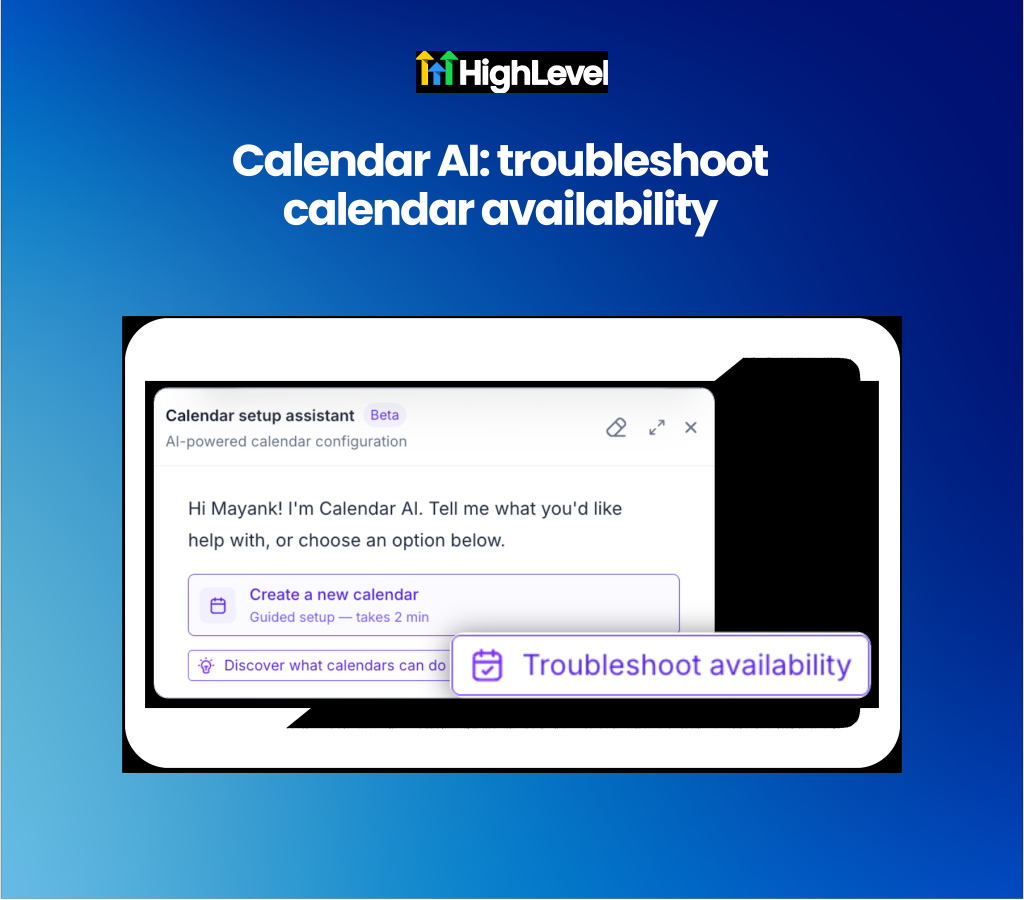
Calendars: Calendar AI Availability Troubleshooting
Diagnose calendar booking availability issues using conversational Calendar AI. Identifying why specific time slots are unbookable previously required manually inspecting multi-layered configuration grids or contacting support. Users can now ask Calendar AI plain-language questions to immediately identify calendar conflicts, business hour restrictions or user-level availability blocks across single slots, full days or entire team schedules.
Agencies and service-based businesses managing complex team calendars will find this significantly cuts down support tickets and scheduling friction.
Troubleshoot unbookable slots using natural language queries: Ask questions like "why isn't 5 PM available on my Sales Call calendar?" to receive plain-language explanations identifying exact schedule blocks.
Summarize whole-day availability across team members: Request full-day availability reports by team member or calendar to receive de-duplicated breakdowns of business hours, existing conflicts and time slot constraints.
Get started with this feature
1. Go to Calendars → click the Calendar AI launcher icon
2. Select the Troubleshoot availability chip or type a plain-language question about a slot, day, calendar or team member
3. Review the conversational breakdown detailing what is blocking availability
4. Click the provided link to open Troubleshooting View if technical overrides or deep configuration adjustments are needed
Learn more in the Troubleshooting Calendar Availability with Calendar AI
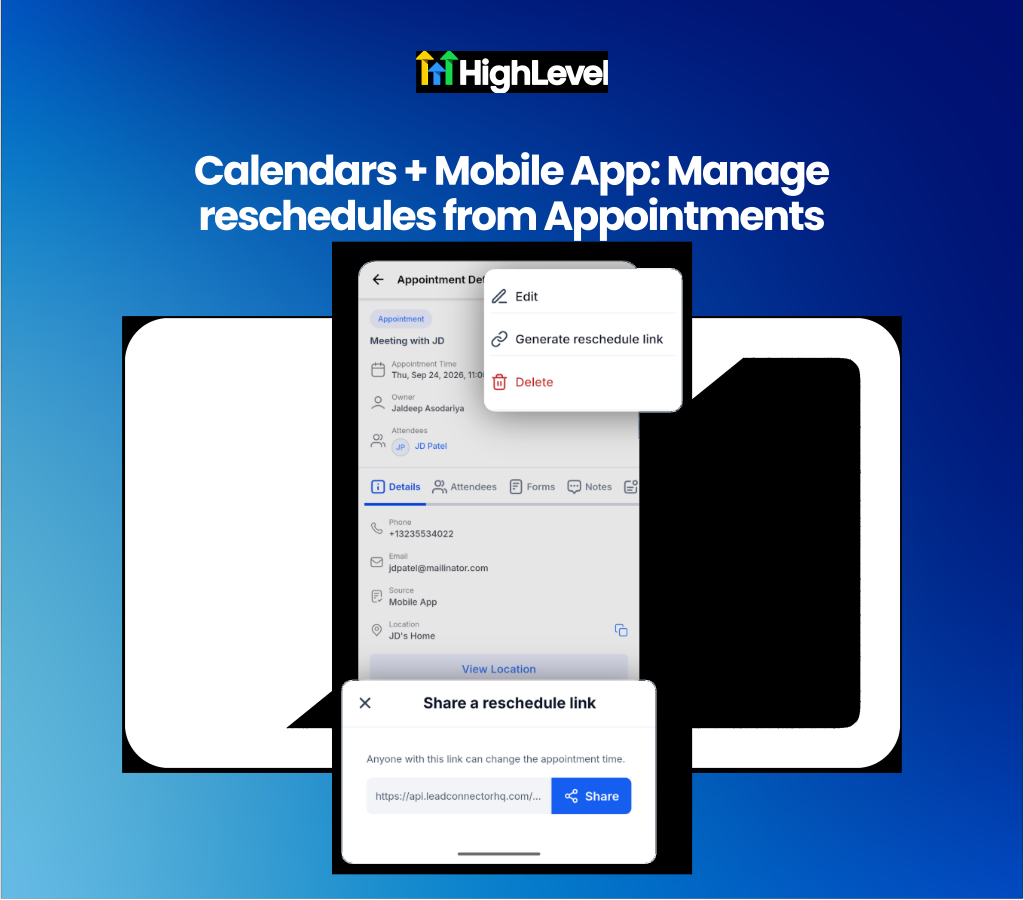
Mobile App: In-App Reschedule Link Generation
Generate and share appointment reschedule links directly from the mobile app. When customers contact staff to move an appointment, locating the original confirmation link previously required asking the client to search their email inbox or having staff manually read out available slots to rebook. Receptionists, support teams and mobile staff can now tap Generate reschedule link within any appointment screen to instantly copy and share the rescheduling link via SMS, WhatsApp, email or any native messaging app.
Service businesses, appointment-based sales teams and mobile staff will benefit from enabling customer self-service rebooking on the go.
Share reschedule links directly via native mobile apps: Generate custom appointment links in two taps to send immediately through WhatsApp, SMS, email or installed mobile messaging apps.
Enable self-service rebooking across meetings and service calendars: Allow customers to select new time slots independently for active, cancelled or no-show bookings across Meetings and Service calendars.
Get started with this feature
1. Open an appointment from Contacts, Conversations, Appointments, or Opportunities in the mobile app
2. Tap the 3-dots icon in the top header
3. Tap Generate reschedule link to open the sharing sheet
4. Tap Share to automatically copy the link and open your device's native share menu to send it to the customer
Learn more in the Manage Service v2 Appointments in Mobile Help Doc
For a complete overview of this week’s updates 👉🏻Check out the slides here!
Want to help your clients or team master these new tools under your own brand?
Explore our collection of customizable guides and materials in the HighLevel University White Label Resources Course.
New to HighLevel? Start a FREE TRIAL today!