

Release Radar blog for the week of September 28th
September 28th - October 2nd 2026
Welcome back to the Release Radar Blog! AI tools are taking center stage this week. From connecting your CRM data to Meta’s Muse agent to automatically generating full websites and Voice AI flows using simple text prompts, here is a breakdown of the top features you'll want to know about.
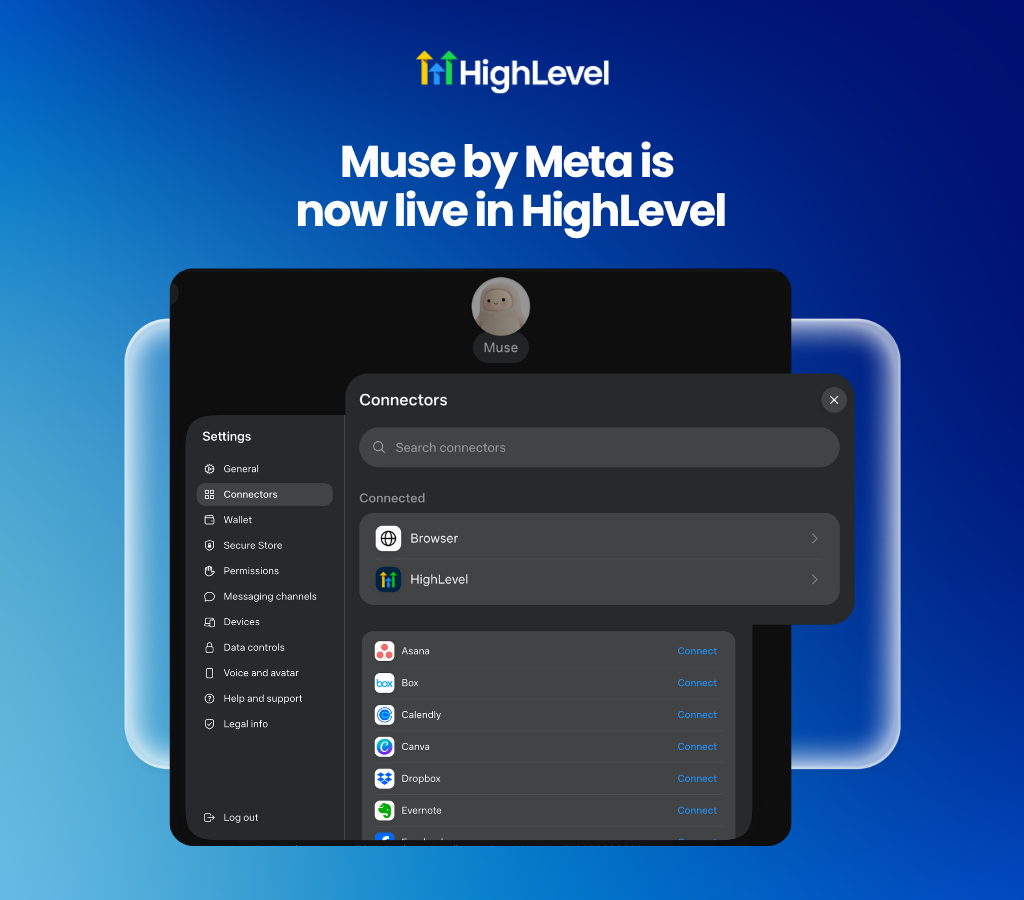
Muse by Meta is now live in HighLevel
Connect your CRM data directly to Meta's new Muse AI agent using the HighLevel MCP. Relying on AI assistants to perform complex workflows previously required disjointed third-party automation tools or manual data exports. HighLevel is now an official app within Muse by Meta, allowing users to authenticate their sub-accounts and grant the AI agent secure access to over 600 operations across 38 CRM domains.
Agencies and business owners who want to leverage Meta's new action-taking AI can now let Muse securely access HighLevel workflows, calendars and customer contexts to automate daily tasks.
Grant Meta's newest AI agent secure access to your CRM: Complete a simple OAuth flow to give Muse secure, scoped access to specific sub-accounts and data domains.
Leverage hundreds of operations across unified MCP tools: Empower Muse to read data, update records and manage workflows directly within your HighLevel CRM using four standardized connections.
Get started with this feature
Open Muse by Meta → add the HighLevel official app or connect using the LeadConnector service URL
Complete the OAuth flow → authenticate your user credentials
Select your desired CRM sub-accounts → approve access based on your required scopes
Begin prompting Muse to execute tasks across 38 CRM domains using unified MCP tools
Voice AI: Flow Builder Revamp and Build with AI
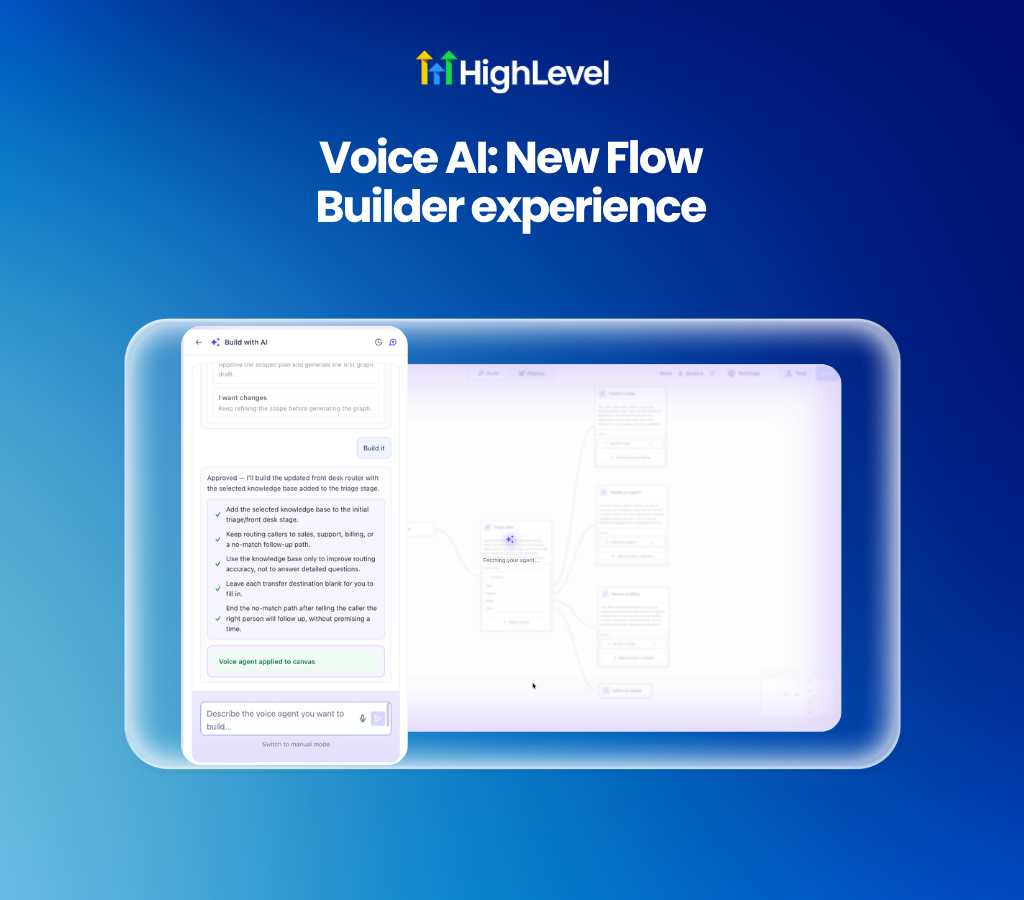
Generate Voice AI agent flows automatically using natural language descriptions. Building conversational agents from scratch previously required manually plotting nodes, configuring logic paths and setting up account connections. The revamped Flow Builder now defaults to a Build with AI prompt where users can type or dictate their desired use case to instantly generate a complete agent flow.
Generate agent flows using text or voice prompts: Describe your ideal agent or dictate instructions to automatically build custom flows for lead qualification, FAQs or post-call automation.
Refine generated flows in Review mode: Inspect the AI-generated canvas, make conversational adjustments and verify graph validations before deploying the agent to live channels.
Get started with this feature
Go to Voice AI → Agent Builder → create a new agent
Select Build with AI → type or dictate your agent instructions
Use Review mode to inspect the generated flow and make conversational adjustments
Apply the flow to the refreshed canvas → test and deploy to phone numbers or the Chat Widget
Ask AI: Funnel and Website Creation
Generate complete funnels and websites directly from conversational prompts in Ask AI. Building new landing pages and multi-step funnels from scratch previously required selecting templates and manually adjusting layouts inside the funnel builder. Users can now prompt Ask AI to build a customized lead generation funnel or website and watch the pages generate in a live preview panel. Users will find this reduces the initial setup time for new client campaigns and web projects.
Generate pages from conversational prompts: Describe your business type and campaign goals to receive an AI-generated site plan and watch the pages build step by step.
Transition instantly to the visual builder: Review the live preview and click Edit in Builder to customize the generated pages, attach domains and configure tracking.
Get started with this feature
Open Ask AI from your navigation menu
Type a prompt describing the funnel or website you want to build
Approve the proposed site plan if Ask AI requests clarification
Watch the step-by-step generation progress in the live preview panel
Click Edit in Builder to open your new funnel and make manual adjustments

Mobile App: Outbound Calling with Verified Phone Numbers
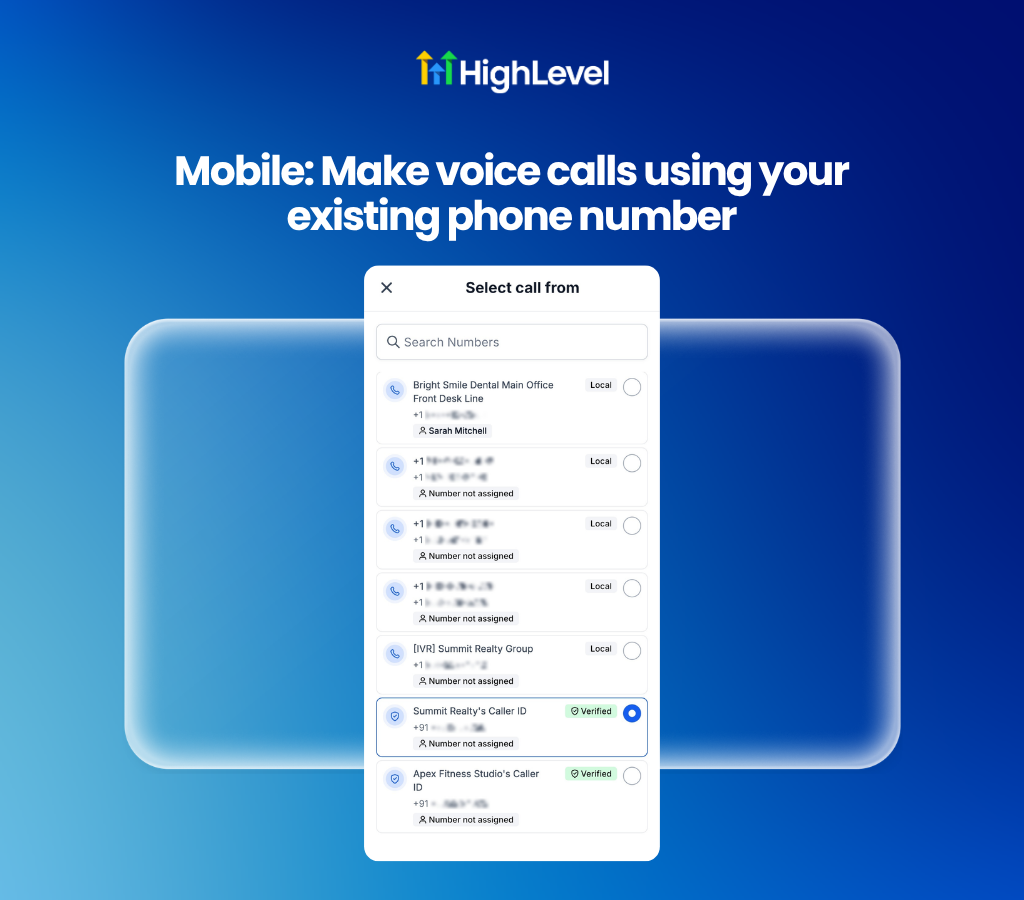
Initiate outbound voice calls from the mobile app using an existing verified personal or business phone number. Setting up mobile calling previously required purchasing a dedicated system phone number before contacting leads. Users can now select their existing verified phone numbers directly from the mobile dialer to start calling immediately without upfront number purchase costs.
Eliminate upfront number costs: Start calling leads immediately using a verified phone number you already own without purchasing dedicated system lines.
Maintain a consistent caller ID: Present a familiar phone number to your contacts to help improve outbound call answer rates and build caller familiarity.
Get started with this feature
Open the mobile app → navigate to the Call Dialer
Tap the caller ID dropdown → open the Select call from screen
Choose your existing phone number marked with a Verified badge
Enter the destination number → place your call using your verified number as the outbound caller ID
Ad Manager: Meta Campaign Budget Optimization
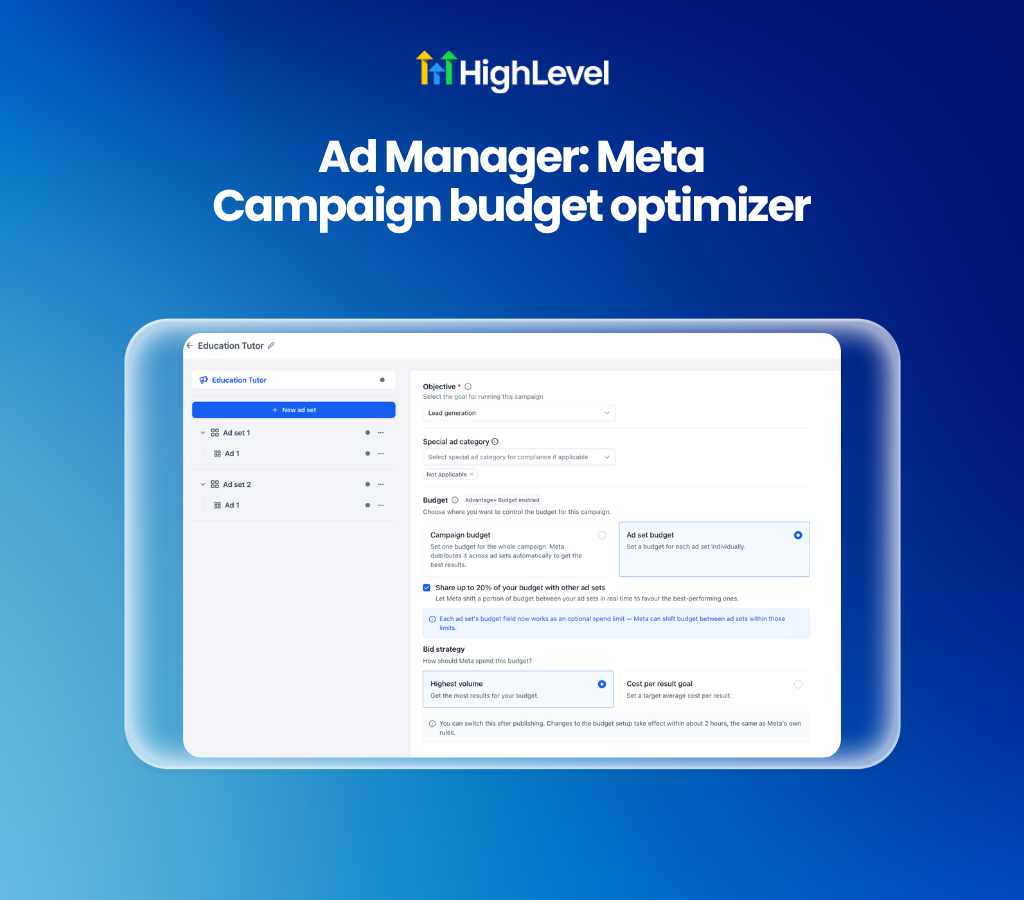
Control Meta campaign budgets and optimize ad spend distribution directly within Ad Manager. Managing ad budgets previously required choosing between strict ad set limits or full campaign-level distribution without intermediate flexibility. Advertisers can now select between campaign-level budgets or individual ad set budgets and optionally allow Meta to dynamically shift up to 20% of an ad set's budget to higher-performing ad sets.
Digital marketing agencies and media buyers will find this useful for maintaining baseline budget control while allowing algorithmic performance optimization.
Control spend at the campaign or ad set level: Choose to set one central campaign budget for automatic Meta distribution or define daily and lifetime budgets individually for each ad set.
Enable dynamic ad set budget sharing: Allow Meta to automatically shift up to 20% of individual ad set budgets to other eligible ad sets based on real-time performance metrics and bid strategies.
Get started with this feature
Go to Ad Manager → create or edit a Meta campaign
Navigate to the Budget section → select Campaign budget or Ad set budget
Enable Share up to 20% of your budget with other ad sets if using ad set budgets
Configure your Daily or Lifetime budget amounts and select your desired bid strategy
Review your overall campaign configuration → publish your updates
For a complete overview of this week’s updates 👉🏻Check out the slides here!
Want to help your clients or team master these new tools under your own brand?
Explore our collection of customizable guides and materials in the HighLevel University White Label Resources Course.
New to HighLevel? Start a FREE TRIAL today!