

Release Radar blog for the week of October 5th
October 5th - October 9th 2026
Welcome back to the Release Radar Blog! This week brings powerful updates across the platform to help you build and track your business faster. From selling products in AI Studio to analyzing revenue in the updated Lead Source Report, here is a breakdown of the top features you will want to know about.
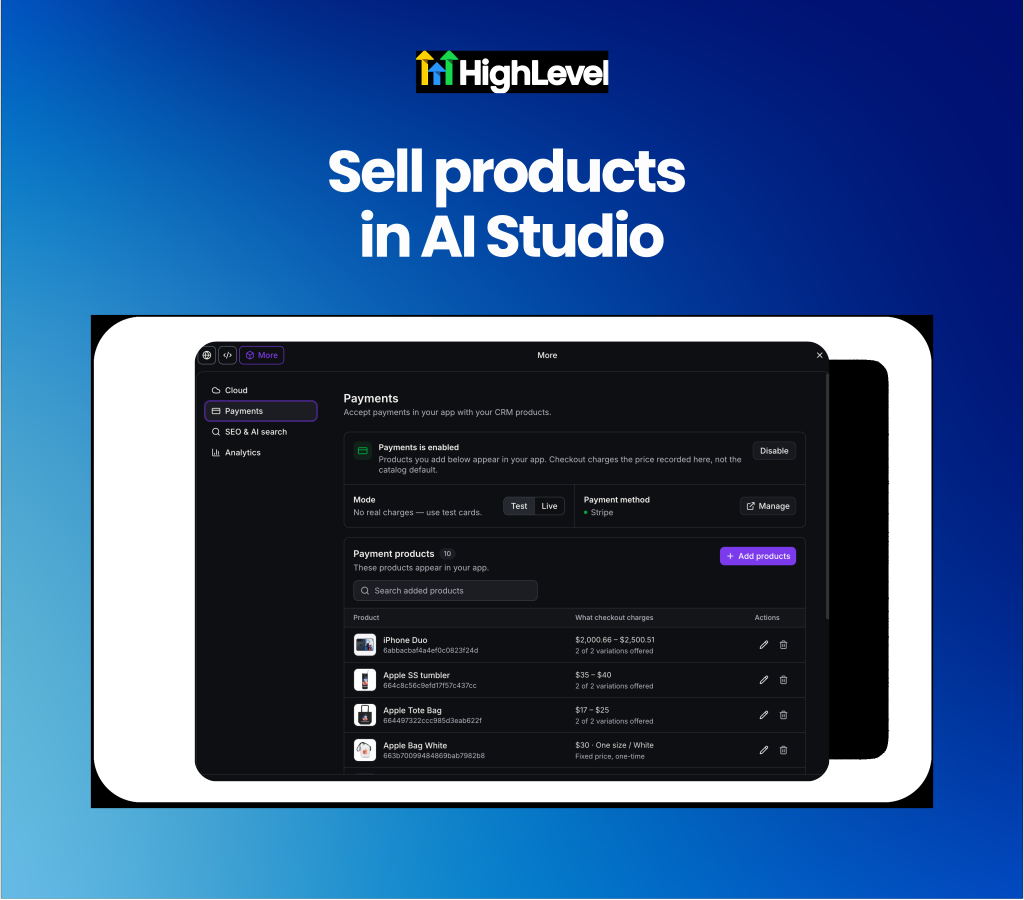
Sell products in AI Studio
Accept payments directly within applications built using AI Studio. Adding secure checkouts to custom web applications previously required third-party API integrations or custom backend code. Users can now enable native HighLevel payments to automatically generate secure storefronts and hosted checkouts for existing catalog products.
Ecommerce agencies will find this useful for rapidly deploying custom storefronts and one-click upsell flows without managing complex payment gateways manually.
Deploy hosted checkouts conversationally: Ask the AI agent to add payments to your TanStack Start app to automatically build secure checkout pages that support PayPal, coupons and subscriptions.
Configure one-click post-purchase upsells: Offer post-purchase deals that buyers can accept with a single click using saved cards from major providers like Stripe, Square or NMI.
Get started with this feature
1. Open a TanStack Start project in AI Studio (or migrate an existing React project to SSR via Project Settings)
2. Go to Settings → select the new Payments tab
3. Toggle Payments on → configure live or test mode and select allowed catalog products
4. Ask the AI agent to "add payments" in the chat interface
5. Approve the connection card to generate your storefront and hosted checkout pages
AI Studio: Analytics dashboard
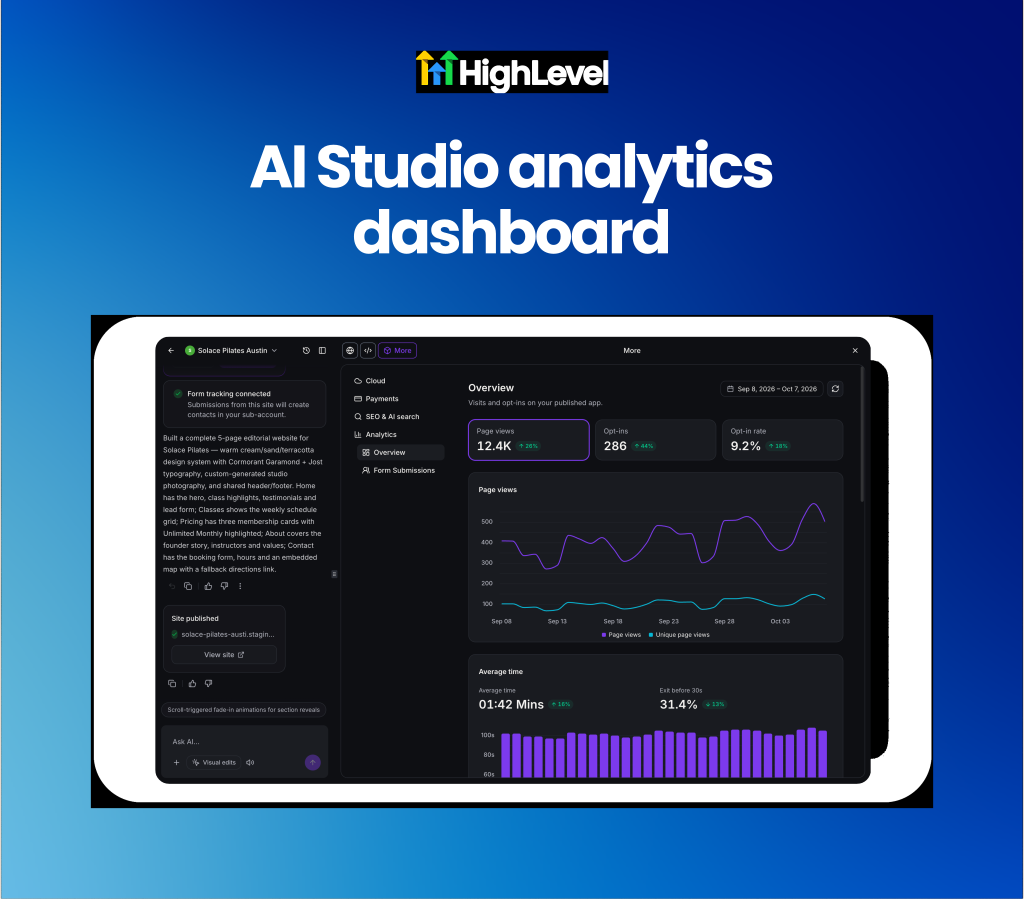
Measure page views and opt-in rates automatically across all published AI Studio sites. Tracking website performance and lead attribution previously required installing external analytics scripts or configuring manual tracking tags. Every AI Studio site now includes built-in analytics that display page views, traffic sources and form submission data directly within the project dashboard.
Marketing agencies and web developers will find this useful for monitoring site performance and attributing CRM leads to specific traffic sources without setting up third-party tracking.
Monitor site performance metrics: View page views, unique visitors, opt-ins and traffic source breakdowns by device, browser and region directly inside your project.
Track lead attribution from first visit to form submission: Follow every lead's journey from their initial page view to their submitted form and connect submissions to automated workflows.
Get started with this feature
1. Open your project in AI Studio → click More → select Analytics → Overview
2. Review page views, unique visitors, opt-ins and traffic sources
3. Click Form Submissions to view collected leads and filter by form or date
4. Navigate to Sites → Analytics → AI Studio to compare performance across all your published sites
5. Reconnect existing forms in AI Studio and republish to enable full visitor path tracking for past setups
Mobile App: Internal comments
Leave private team notes directly within the mobile message composer. Adding internal notes on mobile previously required navigating to a separate full-screen menu, disconnecting staff from the active conversation context. The mobile composer now features a dedicated internal comment toggle that changes the interface to amber, allowing users to tag teammates and leave private notes without leaving the chat thread.
Remote sales teams and mobile support staff will find this useful for coordinating quick handoffs and flagging questions without accidentally sending internal notes to customers.
Collaborate privately in context: Tap the comment icon to switch to an amber-colored internal composer that keeps your notes hidden from the contact.
Tag teammates reliably: Type @ to open the team picker and notify specific colleagues directly within the conversation timeline.
Get started with this feature
1. Open any conversation in the mobile app
2. Tap the comment icon next to the microphone in the composer
3. Type your internal note → use @ to tag specific teammates
4. Tap Post to leave the amber bubble in the thread
5. The composer automatically reverts to the previous customer-facing channel

Reporting & Dashboards: Lead source report
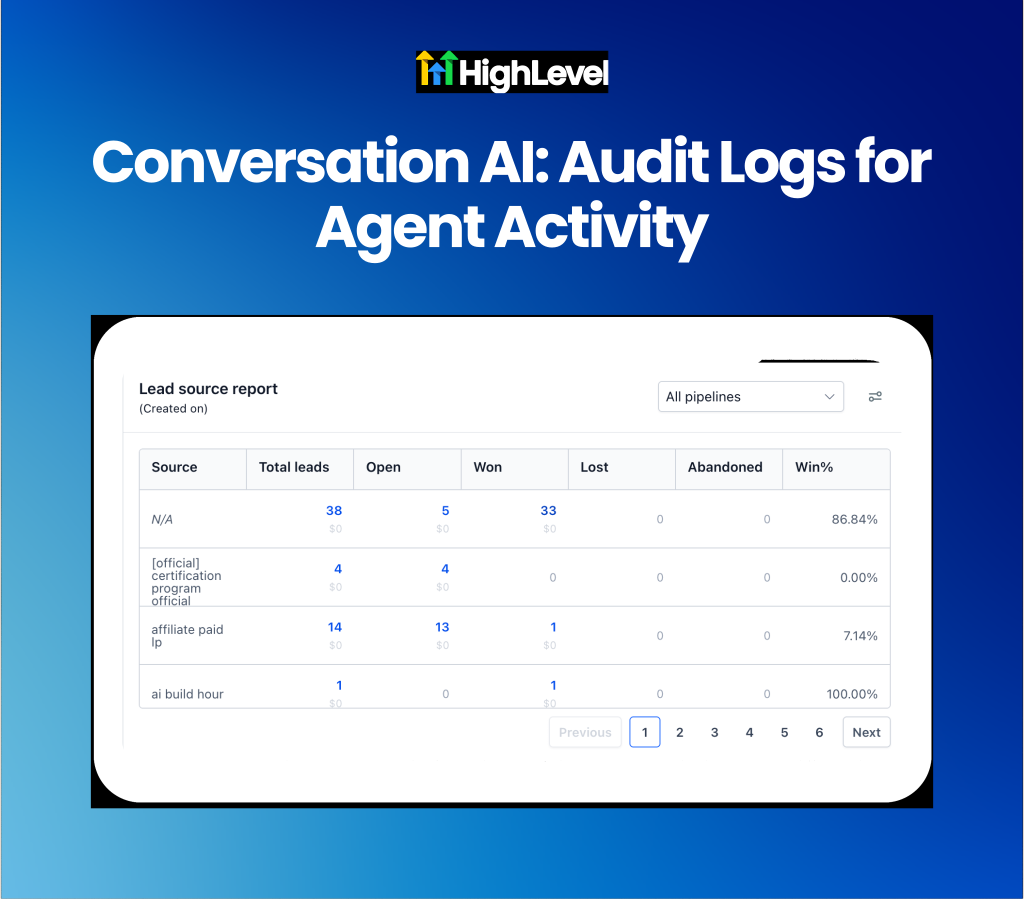
Analyze lead sources and monetary values with deeper drill-down capabilities in the Lead Source Report. Identifying which marketing channels drive actual revenue previously required building multiple separate widgets or cross-referencing different reports. The updated Lead Source Report now displays monetary values across all pipeline statuses and allows users to click any metric to view the specific opportunities behind it.
Marketing agencies will find this useful for accurately attributing revenue to specific campaigns and tracking unassigned leads.
Audit specific opportunities instantly: Click any numerical count across open, won, lost or abandoned columns to view the exact list of associated opportunities.
Track leads with missing sources: Use the new source filters to find empty source fields or view unassigned opportunities clearly labeled as N/A.
Get started with this feature
1. Go to Reporting → open the Lead Source Report
2. Review monetary values displayed under Open, Won, Lost and Abandoned statuses
3. Click any count greater than zero to drill down into the underlying opportunities
4. Use the new Source filter → select Is empty or Is not empty to audit unassigned leads
Conversation AI: Audit Logs for Agent Activity
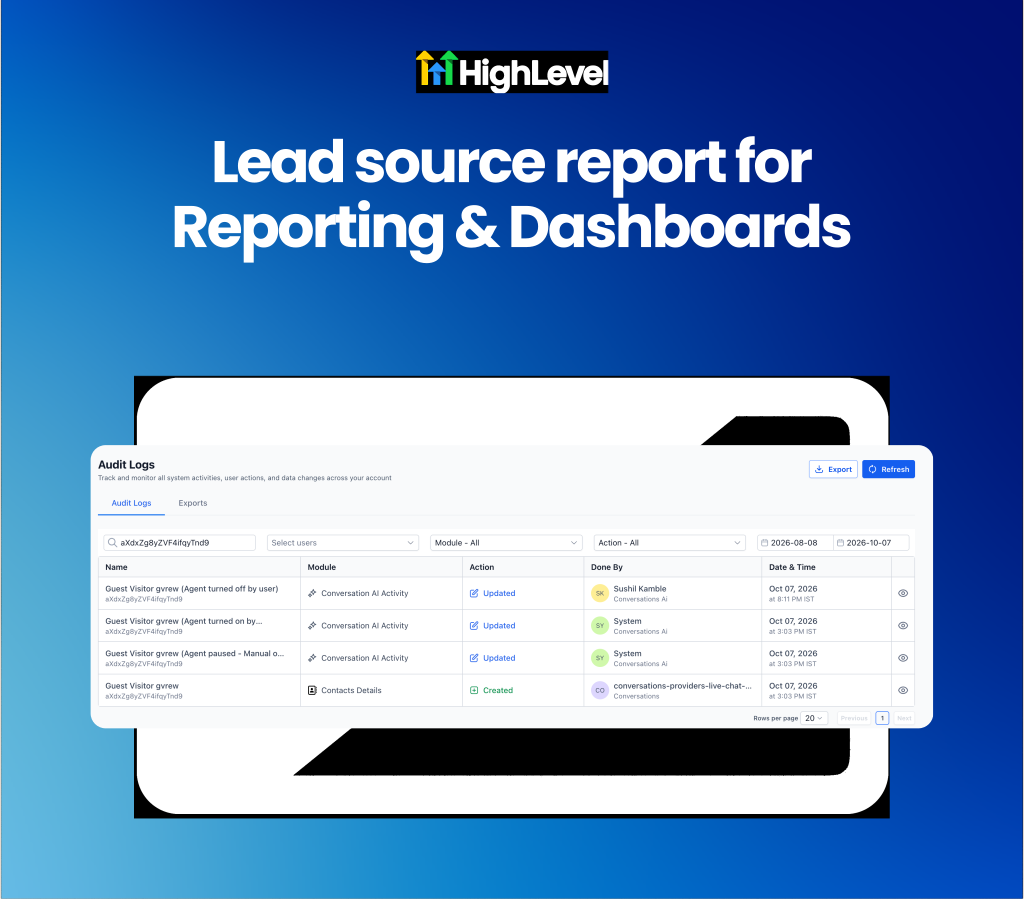
Track Conversation AI agent status changes and handoffs using dedicated audit logs. Investigating why an AI agent paused or was reassigned previously required submitting support tickets to trace the system behavior. Conversation AI now logs all status changes, showing exactly when an agent was turned on, paused or handed off, along with the specific trigger that caused the change.
Agency support teams and account managers will find this useful for independently troubleshooting AI behavior and understanding human-to-agent handoffs.
Monitor agent status changes: View exact timestamps for when agents are paused, turned on or reassigned across your entire location.
Identify specific change triggers: See whether a workflow, appointment booking, human intervention or system event caused the agent to change status.
Get started with this feature
1. Go to Settings → Audit Logs
2. Select Conversation AI Activity from the module filter to view location-wide changes
3. Alternatively open a specific contact's conversation → click Audit logs at the bottom of the Contact Details panel
4. Open any log entry to review the date, time, trigger and user responsible for the change
For a complete overview of this week’s updates 👉🏻Check out the slides here!
Want to help your clients or team master these new tools under your own brand?
Explore our collection of customizable guides and materials in the HighLevel University White Label Resources Course.
New to HighLevel? Start a FREE TRIAL today!