
How to Optimize Your WordPress Site Using Plugins in 2026
How to Optimize Your WordPress Site Using Plugins in 2026
If your WordPress site feels sluggish, difficult to manage or like it’s barely keeping up, you’re not alone. Many WordPress users leave major performance improvements on the table simply because they aren’t using the right plugins in the right way.
The good news? WordPress itself isn’t slow. Performance depends on how your site is configured. And with WordPress 7.0 arriving in 2026, optimization strategies are evolving in ways that impact every site owner, agency and developer.
In this guide, you’ll learn how to optimize your WordPress site using plugins for speed, SEO, security, media handling and workflow management - so you can publish faster, rank higher and spend less time troubleshooting.
Why Plugin-Based Optimization Still Matters in 2026
WordPress 7.0 introduces major improvements, including:
Client-side media processing using WebAssembly
Real-time collaboration editing
Better performance handling
However, these features work best when paired with the right plugin stack and hosting environment.
A modern WordPress setup relies on three optimization layers:
Core WordPress → Provides the foundation
Hosting infrastructure → Handles CDN, WAF, backups, malware scanning and caching
Plugins → Fill in application-level gaps like SEO, editorial workflow and media compression
Using the wrong layer for certain tasks can actually reduce performance. For example, relying entirely on plugin-based security instead of infrastructure-level protection can add unnecessary overhead to every page load.
1. Speed Optimization Plugins
Page speed directly impacts SEO rankings, user experience and conversion rates.
Best Plugins for Speed
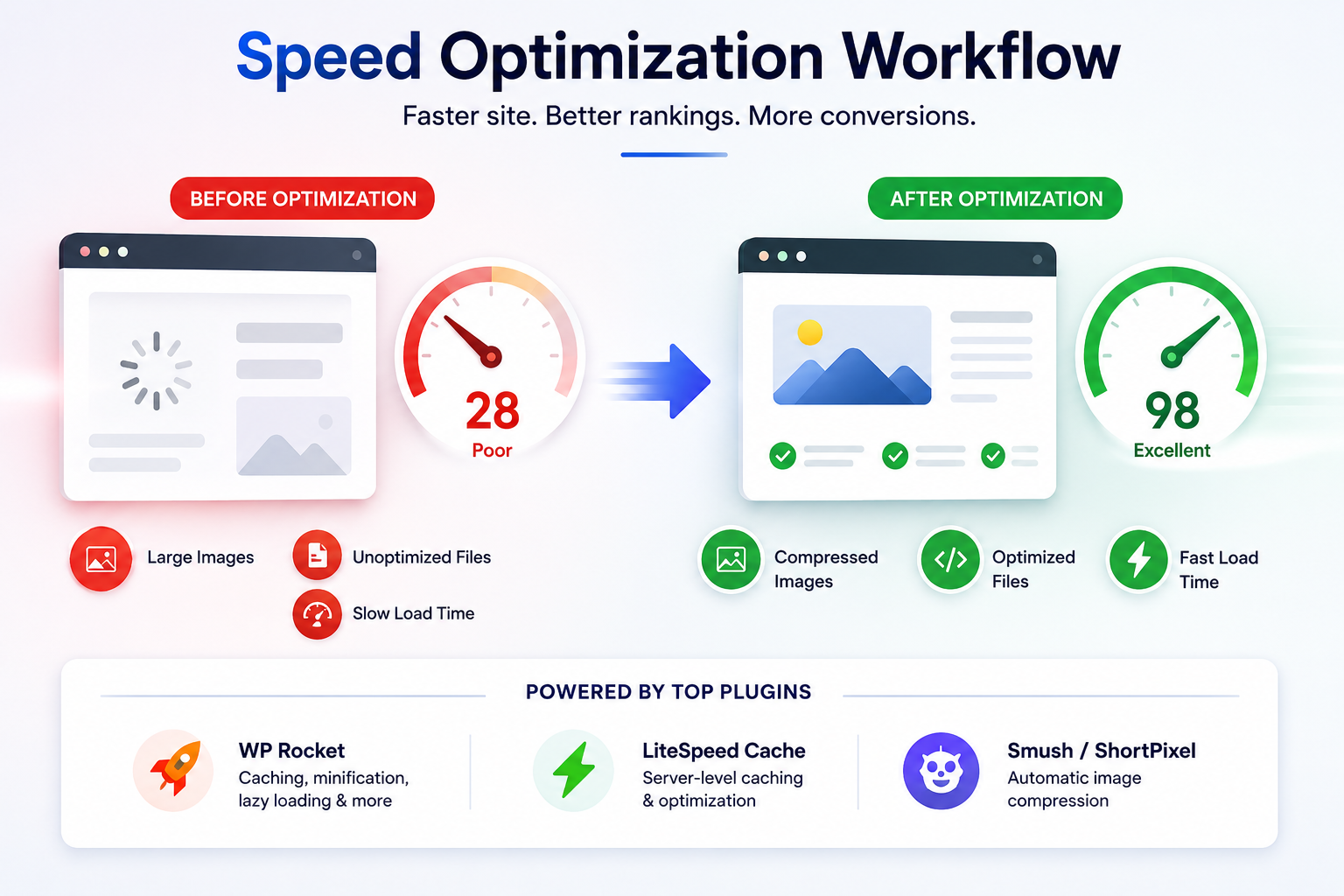
WP Rocket
A premium caching plugin that handles:
Page caching
CSS/JS minification
Lazy loading
Database optimization
LiteSpeed Cache
Best for hosting environments running LiteSpeed servers, with deep server-level caching and image optimization.
Smush or ShortPixel
Automatically compresses images during upload to reduce page size and loading time.
Actionable Steps
Install WP Rocket or LiteSpeed Cache
Enable lazy loading
Minify CSS and JavaScript
Schedule weekly database cleanup
Test performance with Google PageSpeed Insights
WordPress 7.0 Note
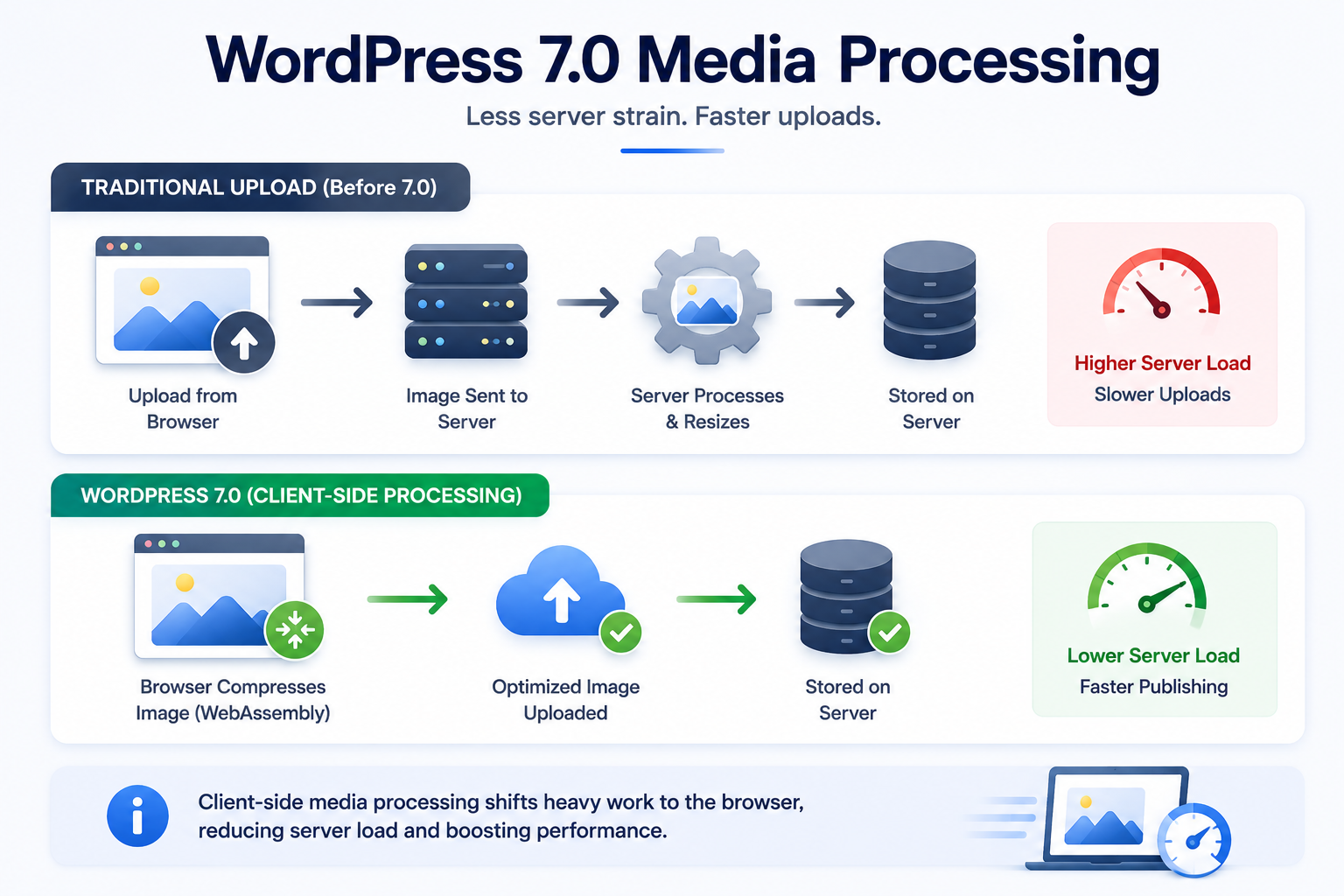
WordPress 7.0 introduces client-side media processing, shifting image resizing to the browser instead of the server. Pairing this with an image optimization plugin significantly reduces server strain during large media uploads.
2. SEO Plugins That Actually Move the Needle
Even great content needs proper SEO structure to rank well in search engines.
Top SEO Plugins
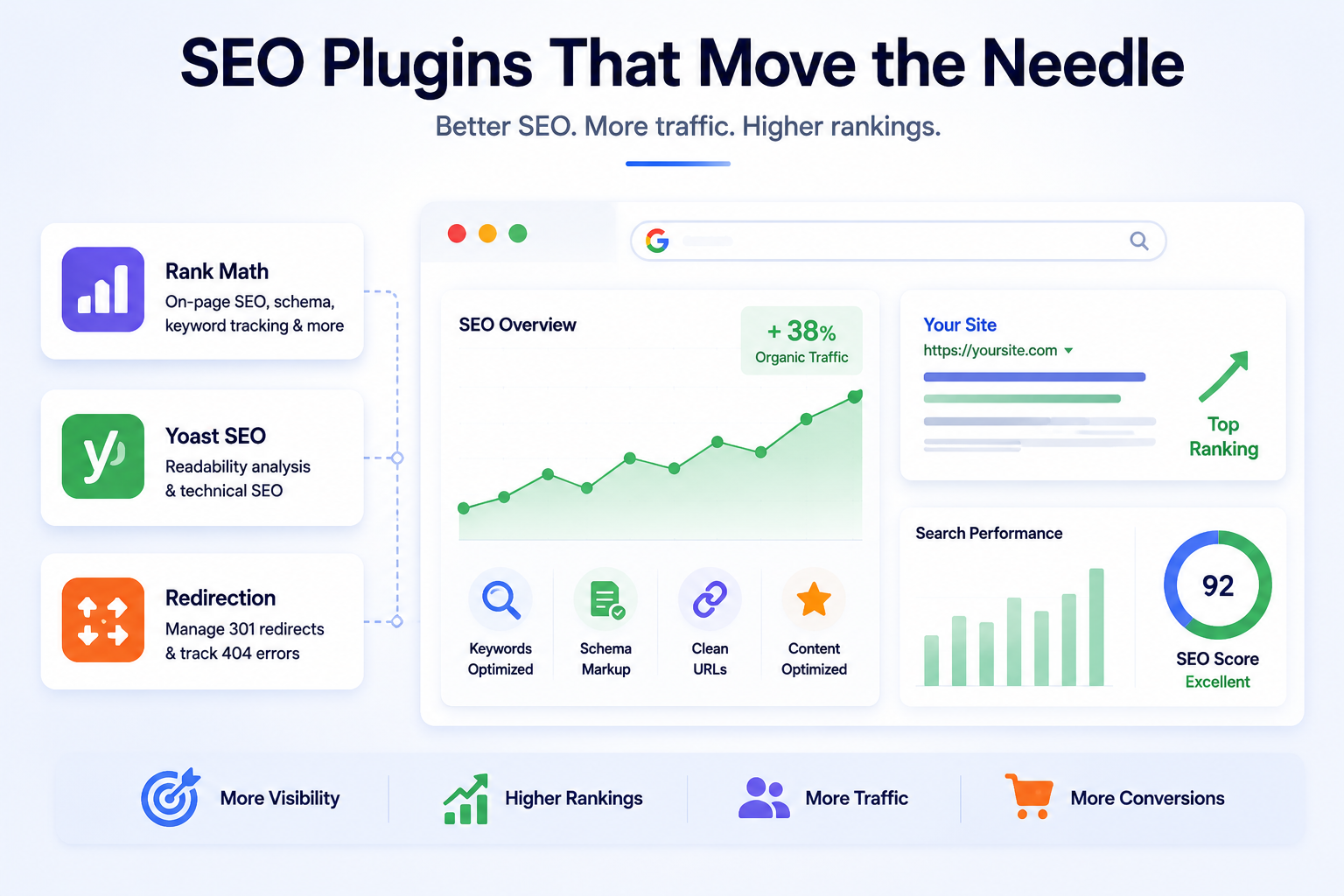
Rank Math
One of the strongest all-around SEO plugins in 2026, featuring:
On-page SEO analysis
Schema markup
Keyword tracking
AI-powered content assistance
Yoast SEO
A long-standing SEO favorite with strong readability analysis and technical SEO tools.
Redirection
Simplifies 301 redirects and tracks 404 errors without editing .htaccess manually.
Actionable Steps
Connect Rank Math to Google Search Console
Enable breadcrumbs and schema markup
Run an SEO audit and fix critical issues first
Optimize every post with a focus keyword
3. Security: Where Plugins Help and Where They Don’t
WordPress sites are constantly targeted by bots scanning for vulnerabilities, outdated plugins and old PHP versions.
WordPress 7.0 requires a minimum of PHP 7.4, with PHP 8.3 strongly recommended.
If your site still runs PHP 7.2 or 7.3, you won’t be able to upgrade to WordPress 7.0 until PHP is updated.
Infrastructure-Level Security vs Plugin-Level Security
The best-performing WordPress security happens at the infrastructure layer through:
Edge WAF protection
DDoS protection
Malware scanning
Container isolation
Security plugins that run inside WordPress add PHP processing overhead to every request, while edge-level security blocks threats before they ever reach your server.
If you’re using GHL WordPress Hosting, much of this protection is already handled at the platform level.
Security Plugins Still Worth Using
WP 2FA
Protects admin accounts with two-factor authentication.
UpdraftPlus
Automates backups to Google Drive, Dropbox, or Amazon S3.
Actionable Steps
Upgrade to PHP 8.2 or 8.3
Confirm your host provides edge-level security
Enable two-factor authentication
Schedule automated backups
4. Workflow & Collaboration Plugins
One of the biggest WordPress 7.0 features is Real-Time Collaboration (RTC), allowing multiple users to edit content simultaneously.
To support better editorial workflows, consider these plugins:
PublishPress
Provides:
Editorial calendars
Content planning
Custom workflow statuses
Advanced Custom Fields (ACF)
Great for structured content and actively being updated for WordPress 7.0 compatibility.
WP 2FA
Adds security for editors and contributors.
Pro Tip
Real-Time Collaboration is disabled when classic meta boxes are active. Before upgrading to WordPress 7.0, audit your plugins and migrate to registered post meta where possible.
5. GoHighLevel + WordPress: The Agency Power Combo
For agencies and marketers managing multiple sites, HighLevel pairs naturally with WordPress.
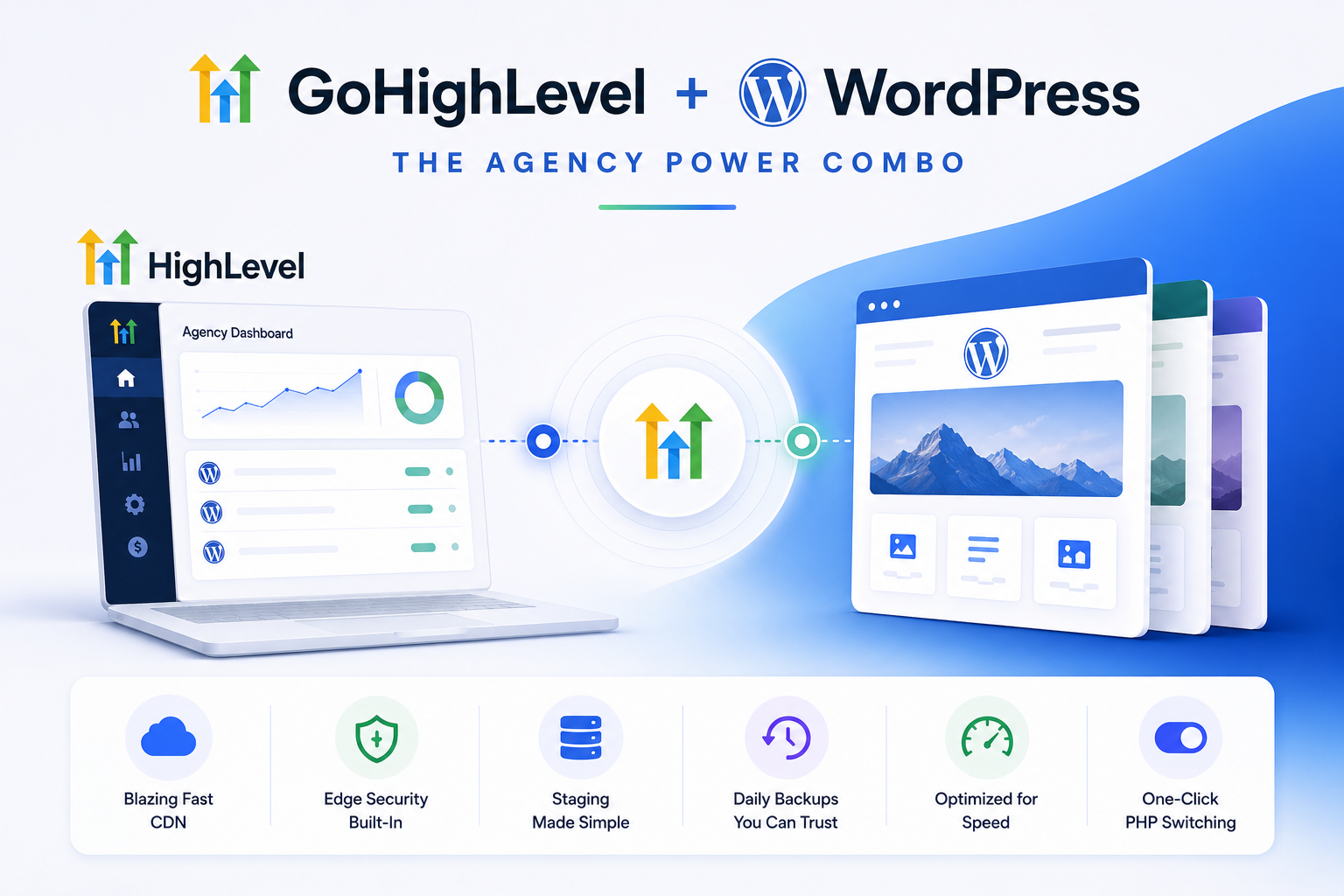
What GHL WordPress Hosting Includes
One-click PHP version switching (7.4–8.3)
Built-in staging environments
Cloudflare Enterprise CDN
Edge-level WAF and DDoS protection
Daily backups with 30-day retention
This removes much of the infrastructure complexity before plugins even enter the equation.
Conclusion
Optimizing your WordPress site isn’t a one-time project. It’s an ongoing process of using the right tools at the right layers while adapting to platform updates like WordPress 7.0.
With features like client-side media processing, real-time collaboration, and updated PHP requirements, preparing now will help your site stay fast, secure and scalable moving forward.
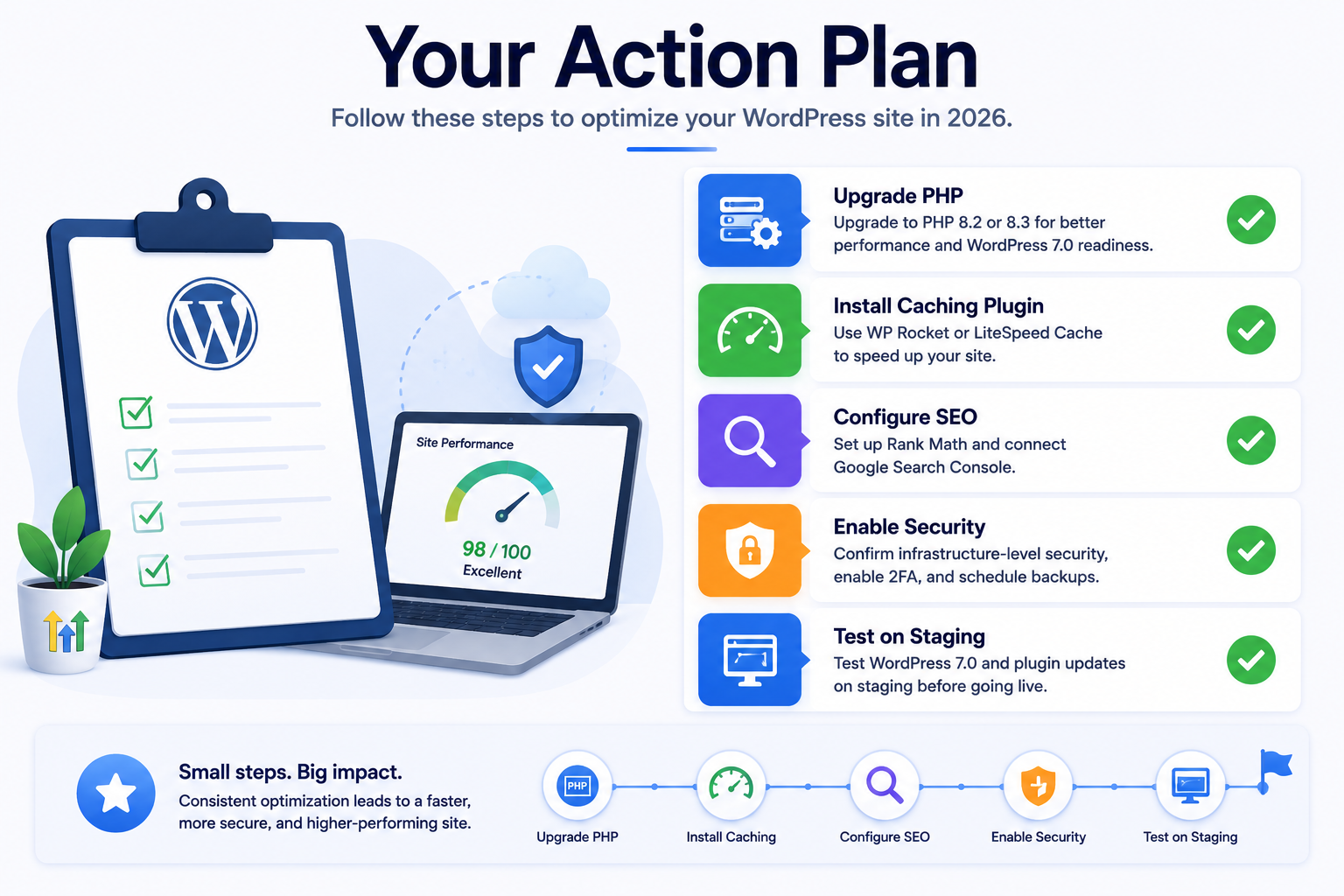
Your Action Plan
Upgrade to PHP 8.2 or 8.3
Install a caching plugin
Configure Rank Math and Google Search Console
Confirm infrastructure-level security protections
Test WordPress 7.0 updates in staging before going live
Small improvements compound over time.
Frequently Asked Questions
Q1: Do I need to upgrade to WordPress 7.0 immediately?
No. Test it in a staging environment first and monitor plugin compatibility before deploying to production.
Q2: What happens if my site is still on PHP 7.2 or 7.3?
Your site will continue running, but you won’t be able to upgrade to WordPress 7.0 until your PHP version is updated.
Q3: Will plugins break with WordPress 7.0?
Most actively maintained plugins should remain compatible, but plugins relying on classic meta boxes may interfere with Real-Time Collaboration features.
Q4: Is GHL hosting only for agencies?
No. While designed with agencies in mind, any WordPress user can benefit from managed hosting, CDN, backups, staging, and infrastructure-level security.
Q5: How many plugins are too many?
There’s no perfect number. The goal is to keep only plugins that provide real value and remove anything unnecessary or unused.
🚀 Ready to simplify and optimize your WordPress website and hosting? Explore HighLevel WordPress Hosting and get started today.


