
WordPress Security & Hardening: Malware Protection, Detection & Recovery
WordPress is the world's most popular website builder, making it a frequent target for hackers. Malware attacks can slow down your site, hurt your search engine rankings and damage visitor trust.
This guide provides a practical and easy-to-follow approach to keeping your site safe, even if you aren't a technical expert.
Understanding WordPress Malware
WordPress malware is malicious code injected into your website without your permission. It can silently run in the background and harm your website or users.
Common Types of Threats:
Backdoors: Hidden ways for hackers to get back into your site.
SEO Spam: Strange links or ads appearing on your pages.
Malicious Redirects: Sending your visitors to dangerous websites.
Phishing Pages: Fake pages used to steal user passwords.
Cryptojacking: Using your server to mine digital currency without your knowledge.
Why Sites Get Compromised
Most hacks happen because of outdated software, weak passwords, or insecure hosting. Automated bots constantly scan the web looking for these common weaknesses.
Warning Signs to Watch For
Sudden drop in traffic
Unknown redirects
Google security warnings
New unknown admin users
Slow website performance
Phase 1: Prevention and Hardening
Sixteen steps that, taken together, will keep most WordPress sites out of trouble. They fall into four categories - Configuration & File Lockdown, Access Control, Updates & Monitoring and Network & Hosting Layer - and the diagram below shows which step belongs to which.
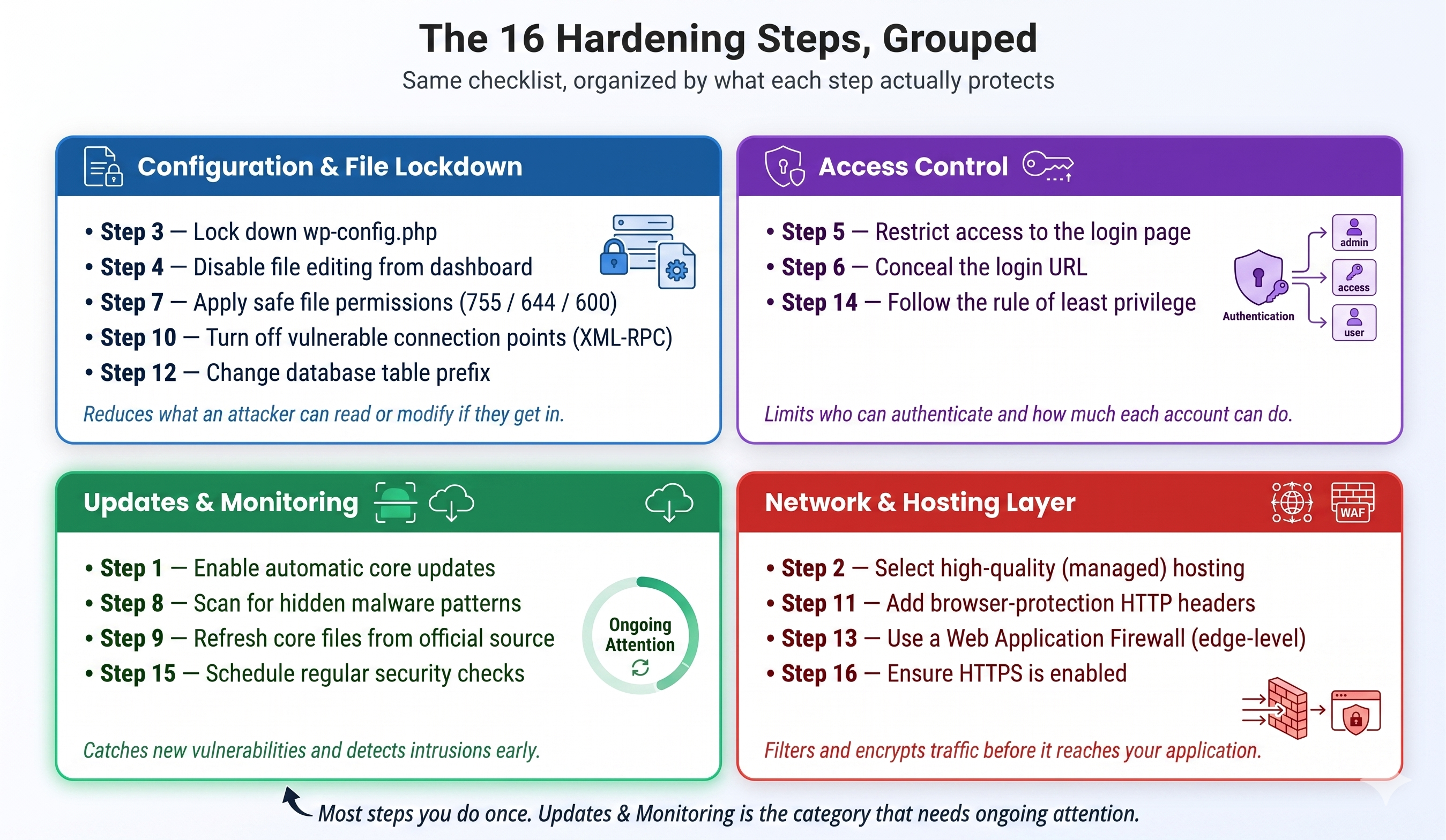
Figure: The 16 hardening steps, grouped by what they protect
1. Enable Automatic Updates
Keeping your site updated is the single most important security step. You can force automatic updates by adding this code to your site configuration:
define('WP_AUTO_UPDATE_CORE', true);
This instruction tells WordPress to automatically apply security patches the moment they are available, keeping your site protected while you sleep.
2. Select High-Quality Hosting
Your hosting environment plays a major role in website security. A secure hosting platform provides firewall protection, malware scanning, backups, and server-level optimizations.
Using managed solutions like GoHighLevel WordPress hosting ensures better security, performance, and reliability without manual effort. Modern managed platforms handle WAF, DDoS protection, and malware scanning at the infrastructure layer — so the bulk of security work happens before requests ever reach your site, not inside it.
3. Lock Down Your Configuration File
<files wp-config.php>
order allow,deny
deny from all
</files>
The wp-config.php file is the brain of your site. The code above prevents anyone from viewing it through a web browser, protecting your database password.
4. Disable File Editing from Dashboard
define('DISALLOW_FILE_EDIT', true);
This security measure turns off the editor inside your dashboard. This means that even if a hacker gets into your admin panel, they cannot easily change your file code.
5. Restrict Access to the Login Page
<Files wp-login.php>
Order Deny,Allow
Deny from all
Allow from YOUR_IP_ADDRESS
</Files>
By replacing YOUR_IP_ADDRESS with your actual internet address, this rule ensures that only you can even see the login screen.
6. Conceal Your Login URL
By default, WordPress uses /wp-admin and /wp-login.php, which are commonly targeted by bots. Changing the login URL reduces automated attack attempts.
7. Apply Safe File Permissions
Folders: 755
Files: 644
wp-config.php: 600
Think of these numbers as digital locks. They ensure that your web server can run your site but prevents unauthorized people from making changes.
8. Scan for Hidden Malware
grep -r "base64_decode" /var/www/html
This search command looks for scrambled or "encoded" text that hackers often use to hide their malicious scripts from plain sight.
find . -type f -mtime -2
This helps you find exactly which files were changed recently, making it easy to spot a new infection.
9. Refresh Your Core Files
wp core download --force
This command essentially "washes" your site by downloading brand new, clean versions of all WordPress files directly from the official source.
10. Turn Off Vulnerable Connection Points
<Files xmlrpc.php>
Order Deny,Allow
Deny from all
</Files>
XML-RPC is an older way for apps to talk to your site. Since most people don't use it, turning it off closes a major door used for automated guessing of your password.
11. Add Extra Browser Protections
Header set X-Content-Type-Options "nosniff"
Header set X-Frame-Options "SAMEORIGIN"
Header set X-XSS-Protection "1; mode=block"
These "headers" tell a visitor's web browser to be extra cautious, preventing common attacks that try to trick the browser into running bad code.
12. Change Your Database Name Prefix
The default WordPress database prefix is wp_, which is predictable. Changing it to something unique like wp_secure_92x_ makes automated SQL injection attacks harder.
13. Use a Website Firewall (WAF)
A WAF filters malicious traffic before it reaches your server, providing a critical shield against automated attacks. The best place for a WAF is at the network edge — before requests ever hit PHP. Recommended options include Cloudflare (free), Sucuri's cloud WAF, or your host's built-in edge security (managed platforms like GoHighLevel WordPress Hosting include edge-level WAF and DDoS protection by default, so you get the protection without the per-request PHP overhead a plugin-based WAF would add).
14. Follow the Rule of "Least Privilege"
All user and database accounts should be limited to the minimum permissions necessary for their role. This reduces the potential impact if an individual account is compromised.
15. Schedule Regular Security Checks
Perform regular scans for outdated components, file integrity issues, and misconfigurations. Where possible, run these scans at the hosting or infrastructure layer rather than inside WordPress — purpose-built scan engines (like the sensor-based scanners modern managed hosts are starting to ship) can do far more thorough analysis than a PHP-based scanner running on your live site, without competing with your visitors for CPU.
16. Ensure Your Site is Encrypted (HTTPS)
Using an SSL certificate (like Free Let's Encrypt SSL) encrypts data transmitted between your server and visitors. This is a fundamental requirement for both security and SEO rankings.
Phase 2: How to Respond to an Infection
If a site shows the warning signs above, work through the five steps below in order. Each one assumes the previous step is complete — skipping ahead leaves gaps an attacker can re-enter through.
1. Create an Emergency Backup
Before attempting any cleanup, capture the current state of the infection for analysis and to prevent further data loss during the mitigation process.
tar -cvzf site-backup-infected.tar.gz /var/www/html
mysqldump -u [user] -p [database_name] > db-backup-infected.sql
This saves a snapshot of everything. Even though it is "infected," it ensures you have a copy of your content before you start the cleanup process.
2. Deep Scan for Malicious Code
Use automated tools and manual commands to identify the extent of the breach. Look for common PHP execution patterns used by malware.
find . -name "*.php" | xargs egrep -l \
"(eval\(|base64_decode\(|gzuncompress\(|passthru\()"
This search identifies any files that look like they are trying to "hide" their purpose or execute unauthorized commands on your server.
3. Manual Cleanup and Verification
Compare your current file structure against a clean WordPress installation. Delete any non-standard files found in root or core directories.
ls -laR | grep ".php" | grep " " # Files with suspicious spaces
rm ./wp-content/uploads/malicious-script.php
Hackers love hiding scripts in your /uploads folder because it is meant for images, not code. Always check here first for anything ending in .php.
4. Force-Reinstall All Extensions
The most reliable way to ensure core integrity is to overwrite all files with known-good versions from the official repository.
wp core download --force --skip-content
wp plugin install $(wp plugin list --field=name) --force
By using the commands above, you replace every single plugin with a fresh, guaranteed-clean copy from the official WordPress library.
5. Reset Every Password and Security Key
Assume all current passwords and salts are compromised. You must invalidate all existing sessions and update every access point.
// Update Security Keys in wp-config.php
define('AUTH_KEY', 'generate-new-random-string');
define('SECURE_AUTH_KEY', 'generate-new-random-string');
Updating your "Salts" in the config file instantly kicks everyone off the site. You must then change all admin passwords to lock the hackers out for good.
Phase 3: Advanced Cleanup & Entry Point Discovery
When malware repeatedly reinfects your site, it means a backdoor (or regeneration mechanism) is active. Simply deleting files is not enough — you must find and eliminate the entry point. A critical part of investigation involves finding the auto-regeneration source, such as a malicious CRON job, and identifying compromised FTP users (like "[email protected]") that attackers use to maintain access.
Key Areas for Deeper Investigation
Eliminate Backdoors and User Compromise
Remove Suspicious Users and Change Passwords: Check both WordPress and hosting-level accounts (FTP, cPanel, database). Malicious FTP users like [email protected] can repeatedly reinstall backdoors.
Delete Unused/Malicious FTP Accounts: Remove all FTP users and create new ones with strong, fresh passwords.
Enforce Two-Factor Authentication (2FA): Enable 2FA on all administrator and high-privilege accounts to block credential stuffing attacks.
Identify and Destroy Auto-Regeneration Scripts
Check Cron Jobs: Malicious scripts often use server-level cron jobs to recreate infected folders and files (e.g., about-us/ or blog/ folders). Look for cron jobs that run suspicious PHP scripts.
Audit Server Configuration: Investigate custom Apache/Nginx rules or PHP directives like auto_prepend_file or auto_append_file which can inject malicious code into every page load.
Search for Web Shells: Look for commonly disguised backdoor scripts (web shells) in unexpected WordPress core folders, such as files hidden within wp-includes/IXR/.
Database Cleanup and Cloaking Removal
Scan Database Content: Malware, especially SEO spam and cloaking, often resides in database tables (posts, options). Use specialized tools to clean up injected content.
Purge Cache and CDN: Malicious content can be served via poisoned caches or CDNs, even after the source files are removed. Ensure a full, hosting-level cache and reverse-proxy purge is performed.
Plugin Security Best Practice
Avoid File Manager Plugins: Plugins that allow file system management from the dashboard can expose vulnerable URLs, allowing hackers to upload unauthorized files and scripts.
Your Ongoing Maintenance Checklist
Ensure automated updates are enabled for all components.
Enforce strong, unique passwords and 2FA for all administrative accounts.
Strictly avoid using nulled or pirated themes and plugins.
Use a Web Application Firewall (preferably at the network edge) and a proactive scanner - ideally one that runs at the infrastructure layer rather than inside WordPress.
Maintain an automated, offsite backup strategy independent of your main server.
Regularly audit user accounts and monitor access logs for suspicious activity.
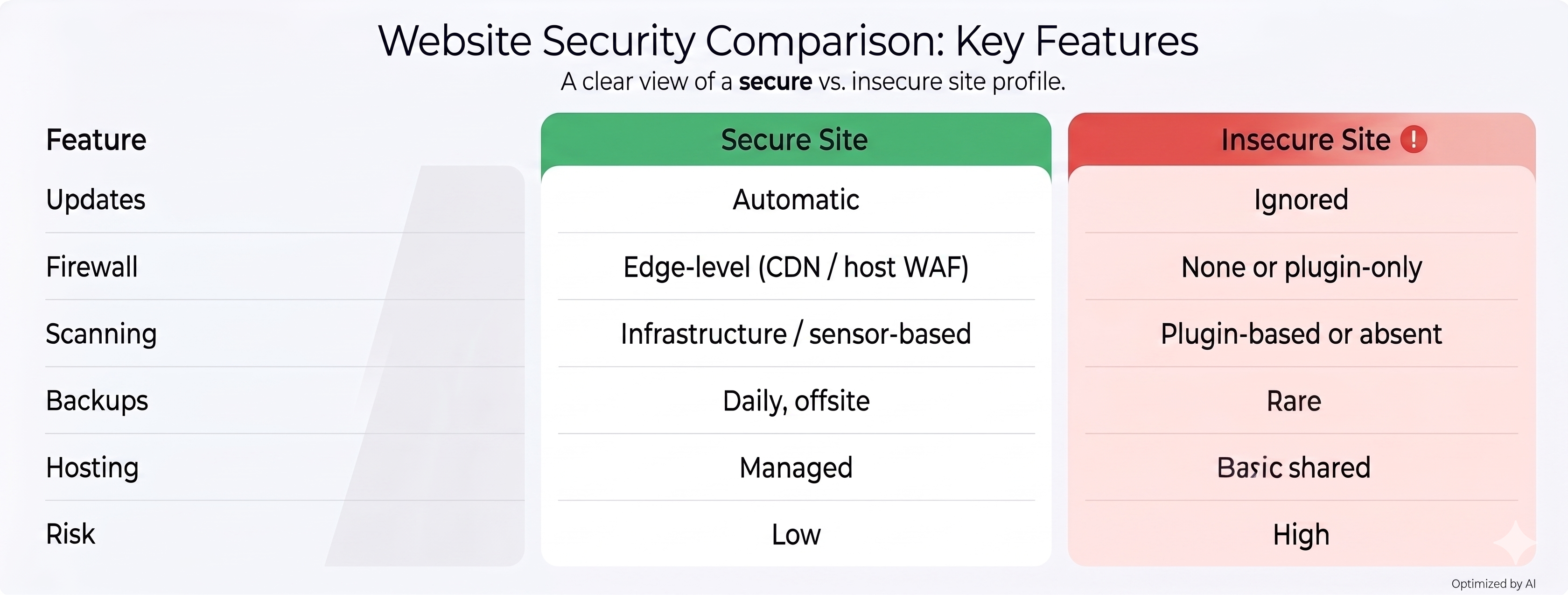
Secure vs Insecure Website
Concluding Thoughts: Security is a Journey
WordPress security is not a one-time setup - it's an ongoing process. A combination of secure hosting, proper configuration, and regular monitoring can prevent most malware attacks.
Using a reliable hosting platform like GoHighLevel WordPress hosting - which handles WAF, DDoS protection, container isolation, and infrastructure-level malware scanning natively - along with these best practices ensures your website stays secure, fast, and reliable.
Secure your Wordpress site with HighLevel WordPress hosting.Learn more about GHL WordPress Hosting →


