
Release Radar blog for the week of November 2nd
November 2nd - November 6th 2026
This week's featured releases:
Field Services: Private beta launch
HighLevel Industries: Private beta launch
Social Planner: YouTube comment management
Welcome back to the Release Radar Blog! After a short break for our Level Up 2026 event and its major announcements, we are back on track with a new batch of features. From the private beta launch of Field Services to managing YouTube comments in Social Planner, here are the top features you need to hear about.
Field Services: Private beta launch
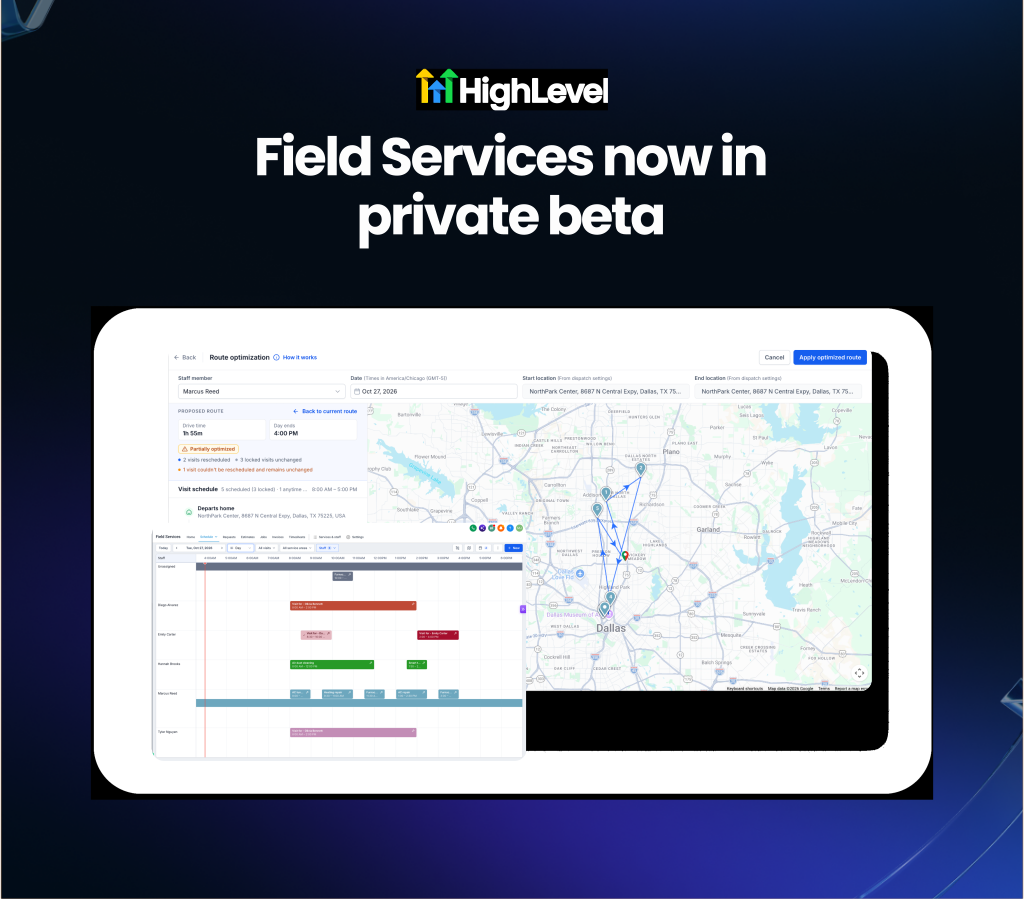
Manage end-to-end operations for location-based businesses with the new Field Services industry feature. Tracking jobs from initial request to final invoice previously required stitching together multiple generic tools. This feature centralizes requests, estimating, smart scheduling, route optimization, invoicing and mobile field execution into a single workflow.
HVAC, plumbing, electrical and landscaping businesses will find this useful for reducing drive time and keeping technicians aligned with dispatch.
Optimize daily schedules and routes: Use Smart Scheduling to suggest appointment times based on staff availability and service areas, then apply route optimization to minimize drive time between visits.
Manage jobs from the field: Equip field crews with a synced mobile app to update visit statuses, complete checklists, log timesheets and process payments on site.
Get started with this feature
1. Submit the beta registration form to request access
2. Look for the Field Services module with a Beta tag in the left navigation
3. Go to Field Services → Services & staff to configure service areas, technicians and catalog offerings
4. Go to Field Services → Settings to set up booking options, notifications and payments
5. Create a Request or Job → click Schedule visit to assign a technician and optimize the route
HighLevel Industries: Private beta launch
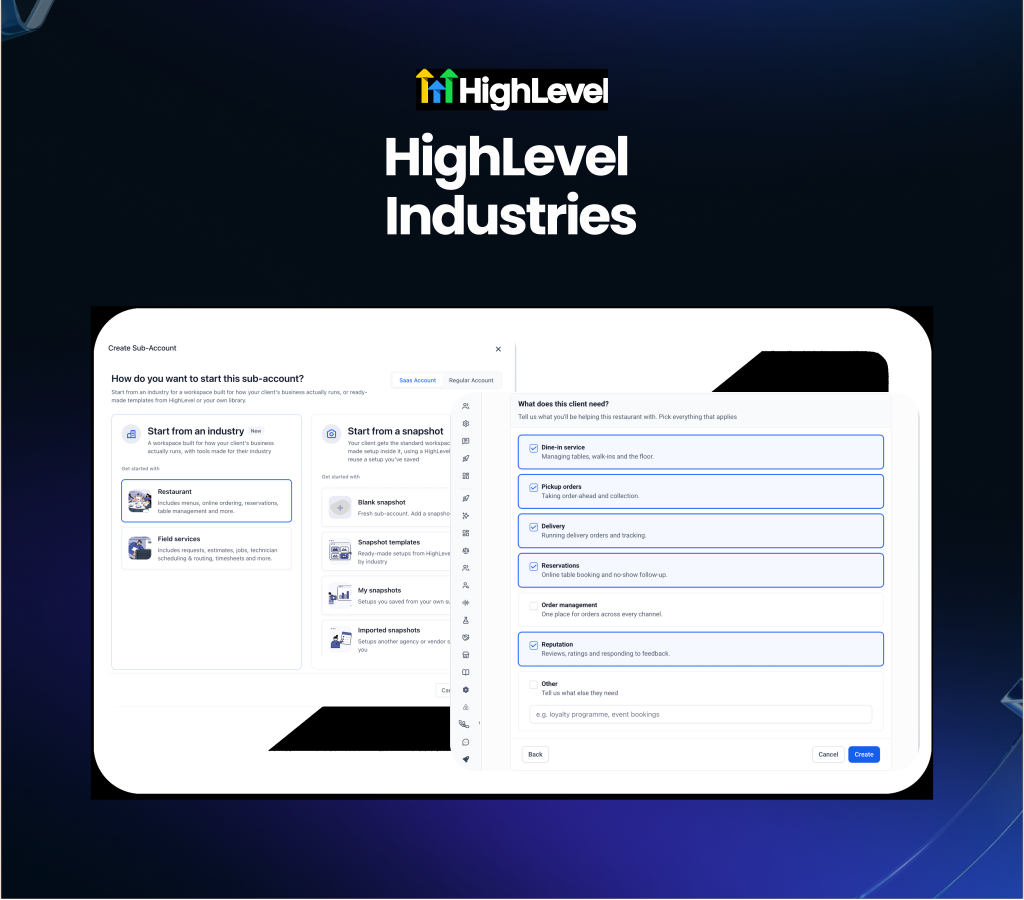
Launch purpose-built sub-accounts tailored to specific business types using HighLevel Industries. Onboarding niche clients previously required deploying generic snapshots and manually piecing together industry-specific tools. Agencies can now select a specialized workspace like Restaurant or Field Services during sub-account creation, instantly generating customized navigation menus and dedicated workflows.
Agencies and SaaS operators will find this useful for onboarding niche clients faster with tailored tools right from the first click.
Streamline client onboarding: Search for a business by name during creation to automatically populate their phone, address and website details.
Get started with this feature
1. Submit the beta registration form to request access
2.Go to Sub-accounts → click Create Sub-Account
3. Select Start from an industry → choose Restaurant or Field services
4. Search for the client's business to auto-fill their details → click Create
5. Alternatively open an existing sub-account → navigate to Features and Limits
6. Locate the Industry setting → choose the appropriate industry → click Set Industry
Social Planner: YouTube comment management
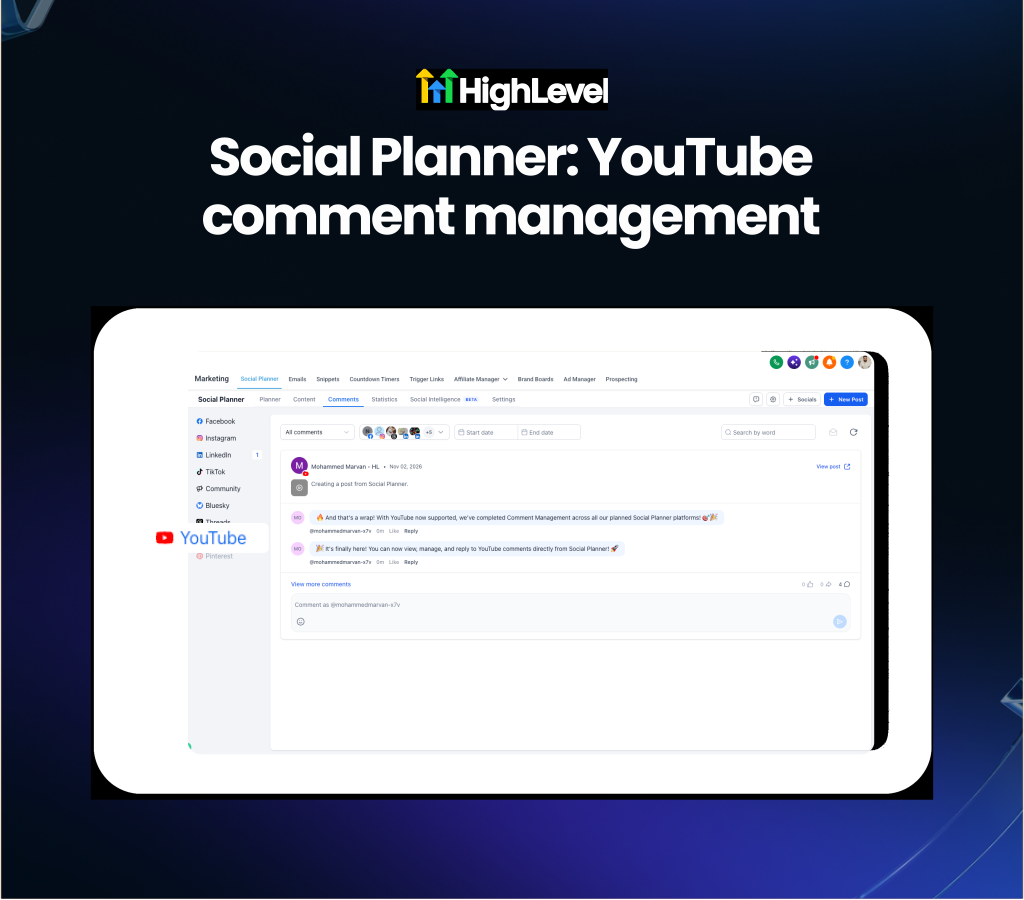
View and reply to YouTube video comments directly within Social Planner. Engaging with YouTube audiences previously required opening YouTube Studio separately. Users can now monitor, manage and reply to comments on YouTube videos published through Social Planner without leaving the platform.
Social media managers and content creators will find this useful for centralizing community engagement across all major social networks in one interface.
Centralize community management: View and reply to comments on your published YouTube videos directly alongside Facebook, Instagram, LinkedIn and TikTok interactions.
Engage with viewers efficiently: Post direct replies or use emojis to interact with your audience without navigating away from your primary dashboard.
Get started with this feature
1. Go to Marketing → Social Planner → Comments
2. Select YouTube from the platform filter
3. Choose your connected YouTube account
4. View incoming comments on published videos
5. Type and submit your reply directly from the Comments page
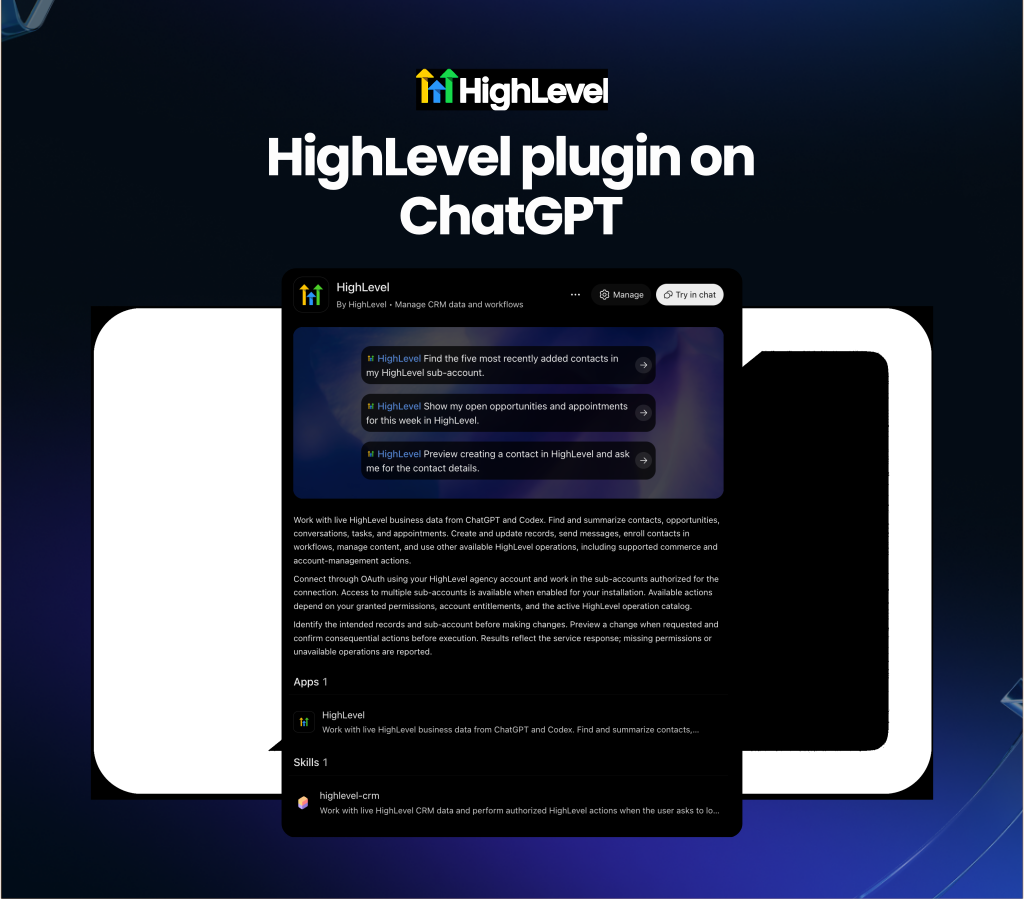
HighLevel MCP Plugin for ChatGPT
Connect your CRM data directly to ChatGPT using the official HighLevel MCP. Triggering workflows and retrieving account data via AI previously required custom API development. The HighLevel plugin is now officially listed in the ChatGPT store, allowing users to authenticate their sub-accounts and grant ChatGPT secure access to over 600 operations across 38 CRM domains.
Execute CRM operations conversationally: Prompt ChatGPT to read data, update records and trigger actions across 38 distinct HighLevel domains.
Control access securely: Authenticate via OAuth and approve specific data scopes to ensure ChatGPT only accesses the exact sub-accounts and permissions you authorize.
Get started with this feature
1. Open ChatGPT → navigate to the plugins store
2. Search for the official HighLevel plugin and install it
3. Complete the OAuth flow to authenticate your user credentials
4. Select your desired CRM sub-accounts and approve the required access scopes
5. Prompt ChatGPT to execute tasks or retrieve data from your CRM
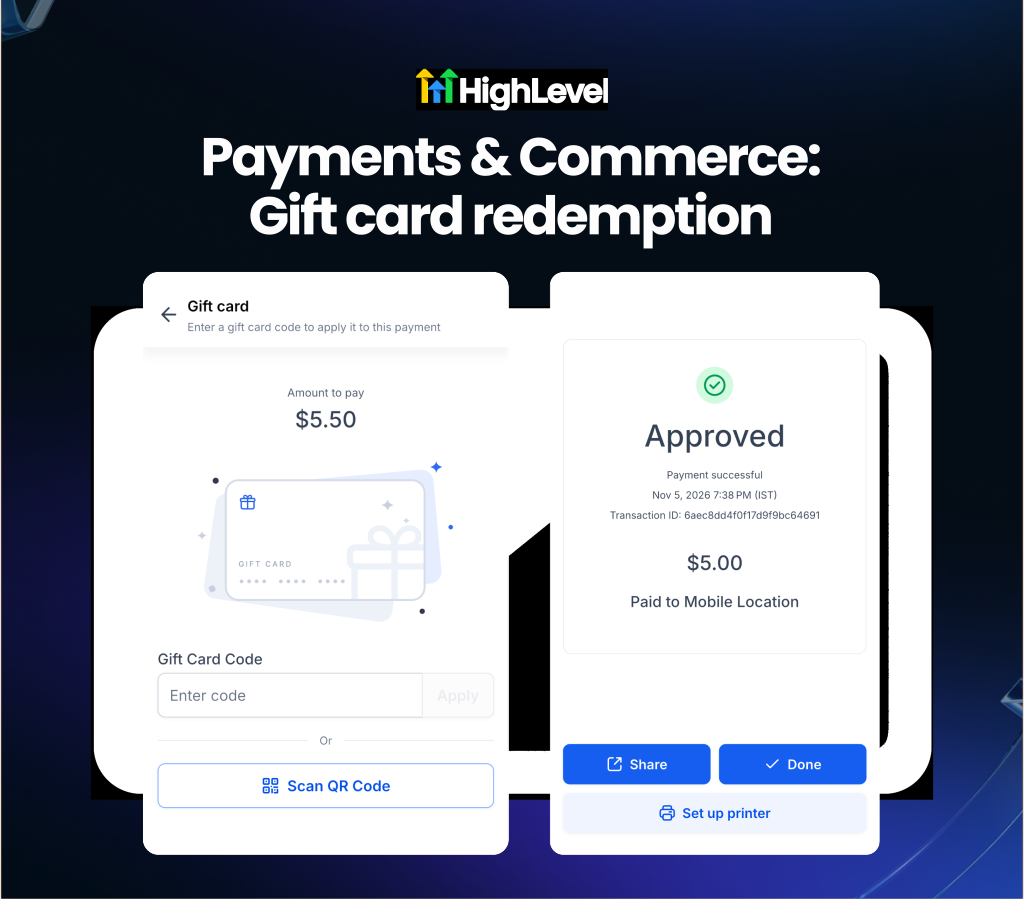
Payments & Commerce: Mobile app gift card redemption
Process gift card payments and partial balances directly from the mobile app. Redeeming customer gift cards previously required accessing the web application, making it difficult for mobile staff to process split payments on the go. Mobile app users can now manually enter gift card codes or scan QR codes to apply balances toward Point of Sale checkouts, invoices and orders.
Retail staff and field service technicians will find this useful for offering flexible payment options and seamlessly splitting remaining balances between cash and credit.
Redeem gift cards on the go: Enter codes manually or use your device camera to scan gift card QR codes directly during the checkout flow.
Process split payments effortlessly: Apply partial gift card balances to a bill and collect the remainder using Tap to Pay, cash or a saved credit card.
Get started with this feature
1. Start a new payment from Point of Sale, an invoice or an order in the mobile app
2. Choose Gift Card as the payment method
3. Enter the code manually or tap Scan QR Code to use your camera
4. Review the available balance and the total amount covered
5. Tap to pay in full or click Continue to collect any remaining balance via another payment method
For a complete overview of this week’s updates 👉🏻Check out the slides here!
Want to help your clients or team master these new tools under your own brand?
Explore our collection of customizable guides and materials in the HighLevel University White Label Resources Course.
Missed the event? Catch up on the biggest reveals from LevelUp 2026!
New to HighLevel? Start a FREE TRIAL today!